---
title: "Send HTML Email Templates in Automations"
description: "Why HTML Templates in Automations Matter Guide"
url: https://help.boxly.ai/en/articles/10182762-send-html-email-templates-in-automations
collection: "Automate repetitive jobs and tasks"
updated: 2026-11-09
language: en
---
# Send HTML Email Templates in Automations
Why HTML Templates in Automations Matter Guide
**Send HTML Email Templates in Automations**
You can now send beautifully designed **HTML email templates** as part of your **Automations**.
This feature is available only for accounts on the **Marketing Suite.**
[Sign up for Boxly Marketing Pro Today](https://promarketingsuite.boxly.ai/)
## Why HTML Templates in Automations Matter
* * *
Adding HTML email templates allows you to deliver branded, styled communication as part of your workflows. This ensures:
- Consistent look and feel across all communications
- Faster setup by reusing saved templates
- Better engagement compared to plain-text messages
## ➕ How to Use HTML Email Templates in Automations
* * *
You can add an HTML email template in just a few steps:
### 1\. Create and Save a Template
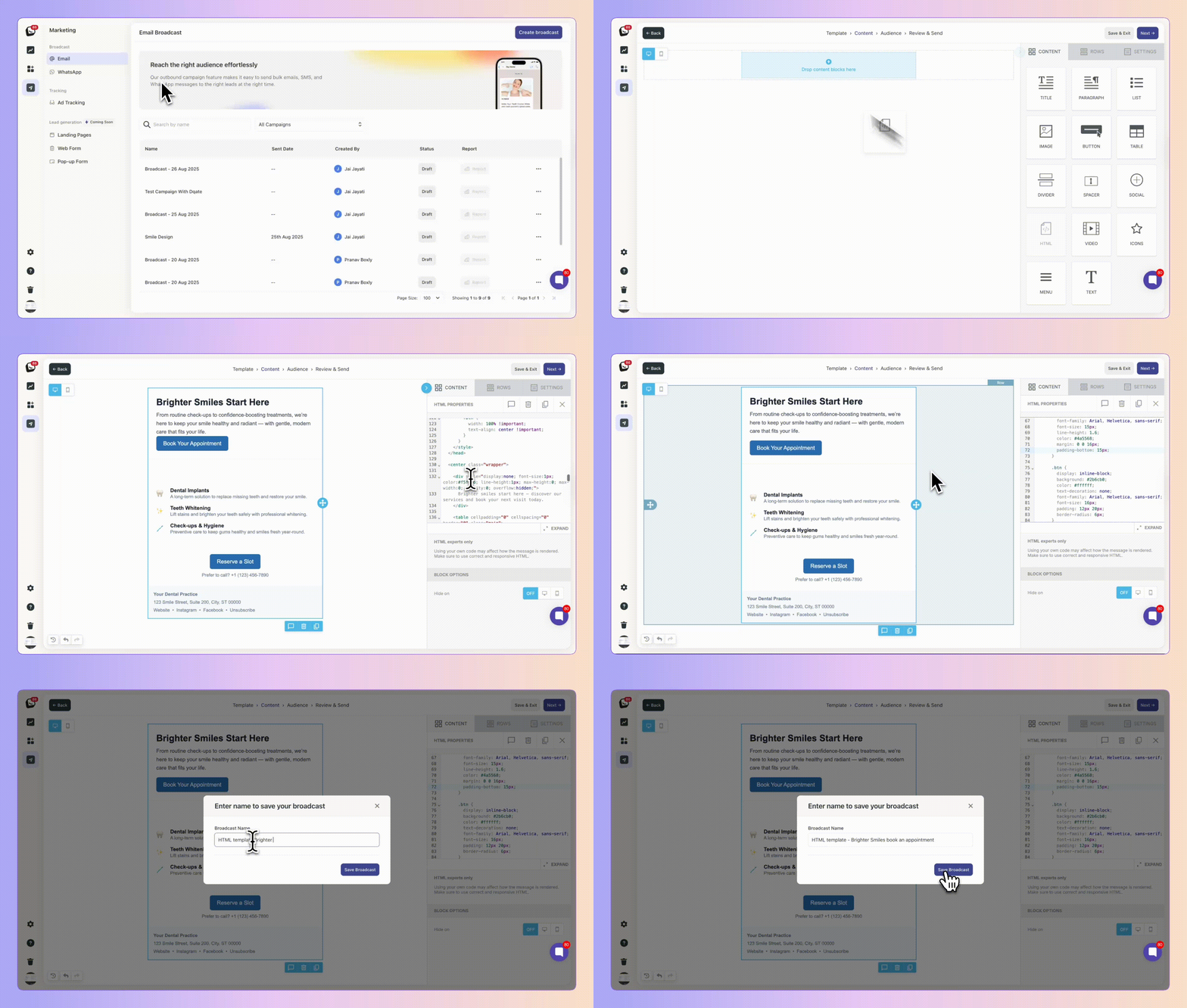
- Go to **Broadcasts** in the Marketing Suite
- Create your HTML email and **save it as a Template**
- Give it any name you like for easy reference
### 2\. Open Automations
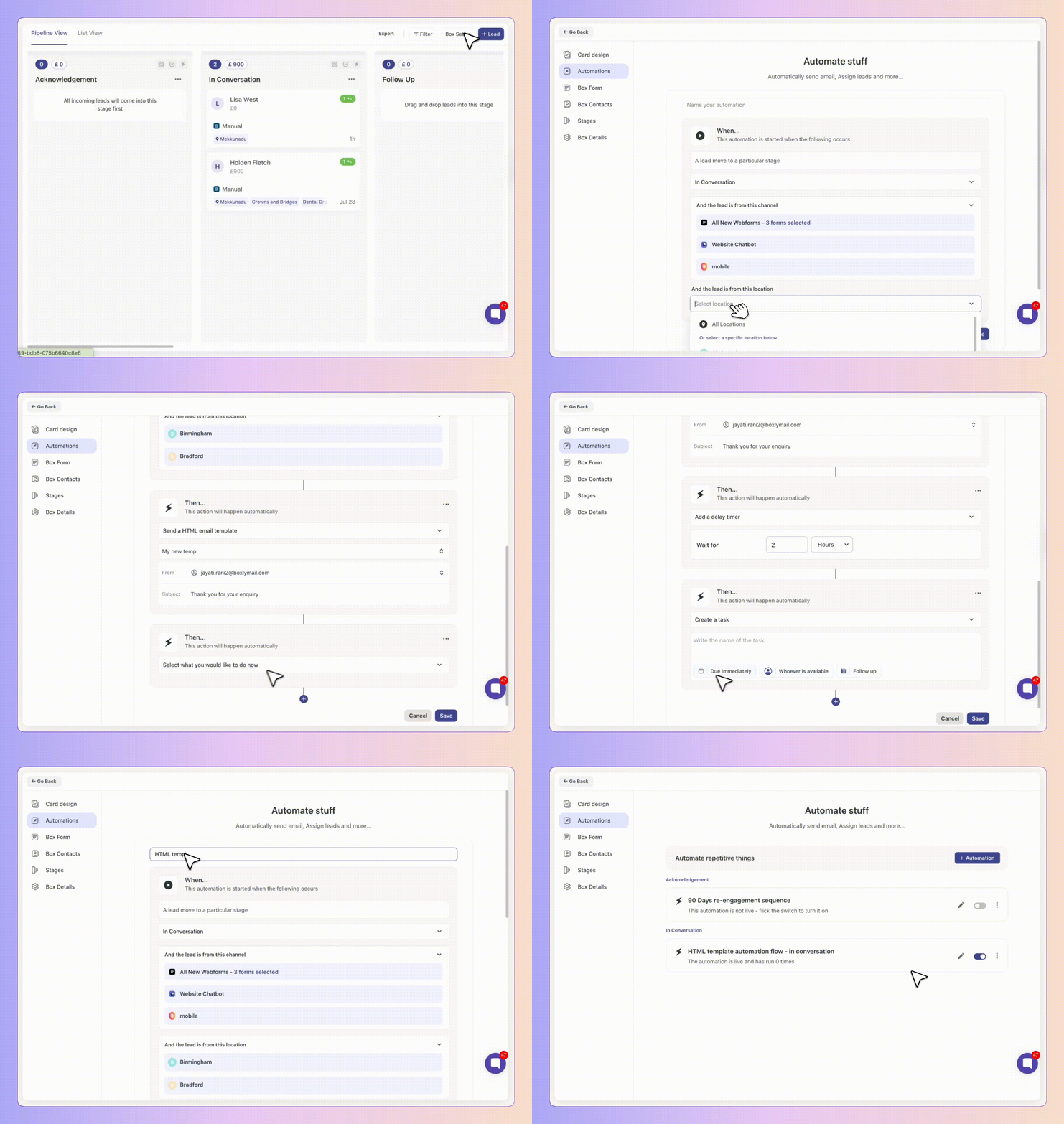
- Go to any **Box → Box Setup → Automations**
- Click the **➕ button** to add a new step (yes, you can also insert it in the middle of an existing flow)
### 3\. Select Send HTML Template
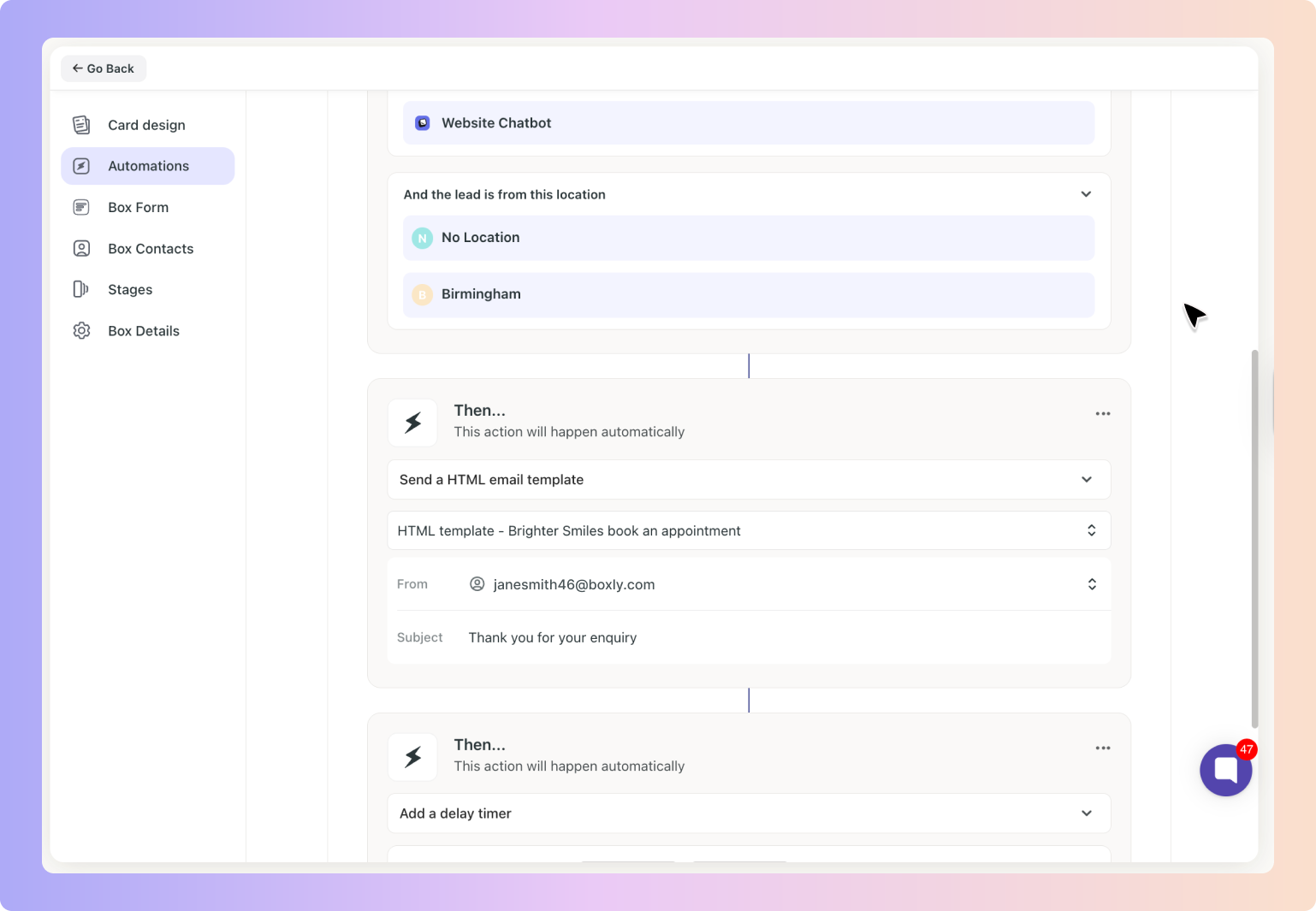
- From the action list, choose **Send HTML Template**
- Use the **Search HTML Template** option to browse templates you’ve saved
## 👀 Previewing and Choosing Templates
* * *
✅ Click the **👁 eye icon** to preview the email content before selecting
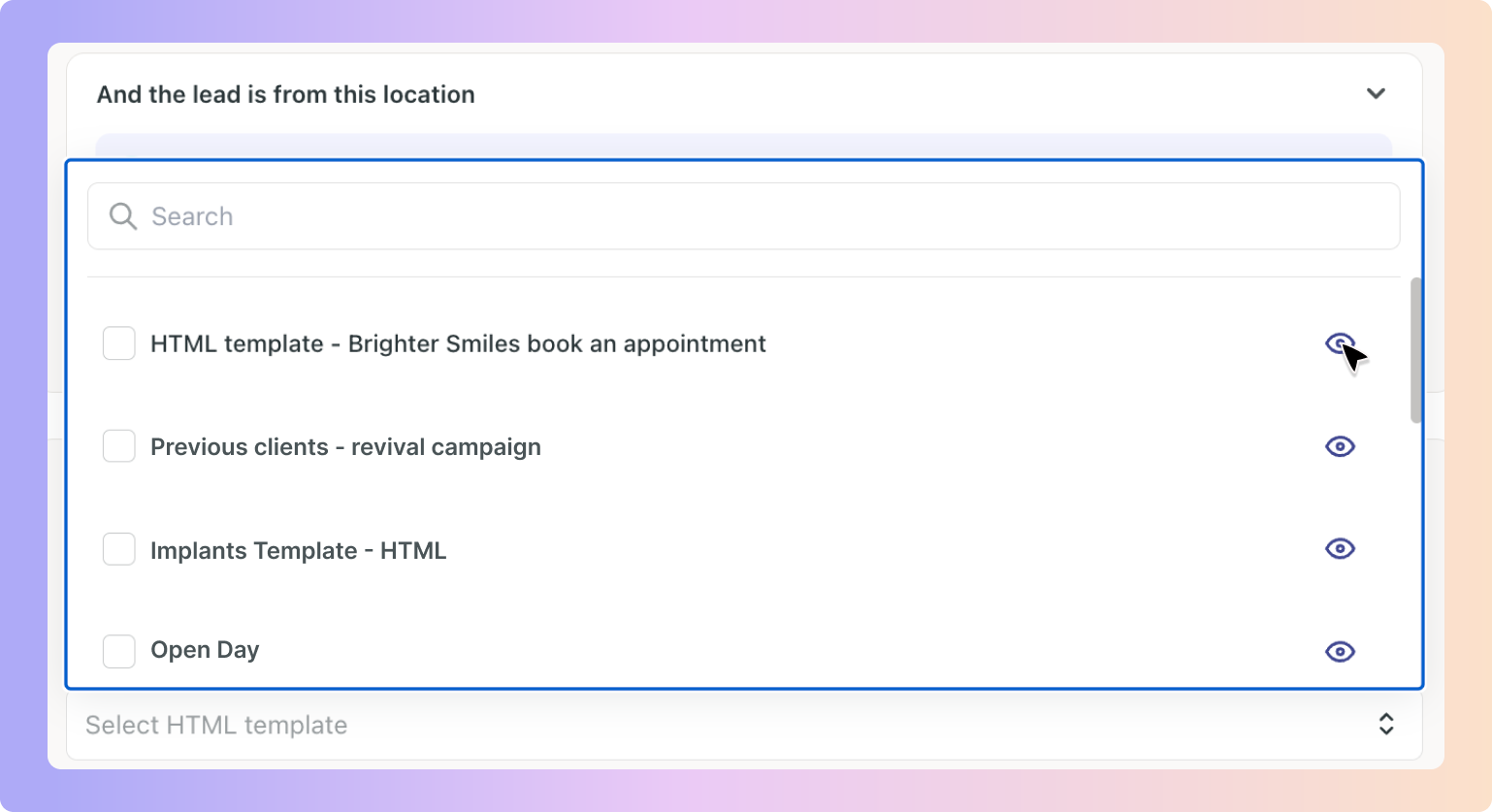
✅ From the same preview screen, you can switch between different templates to compare
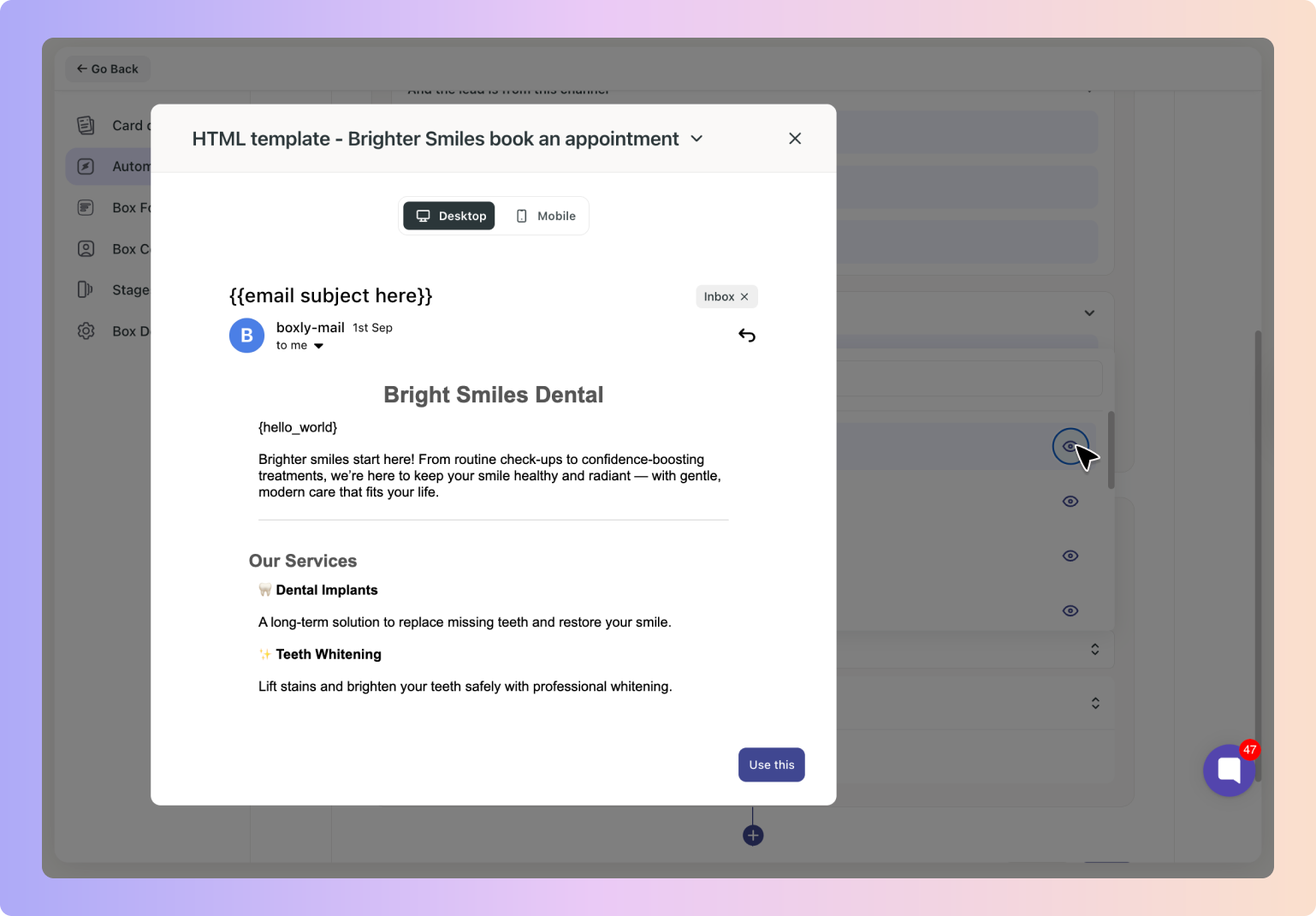
✅ You can also select the different template from the dropdown
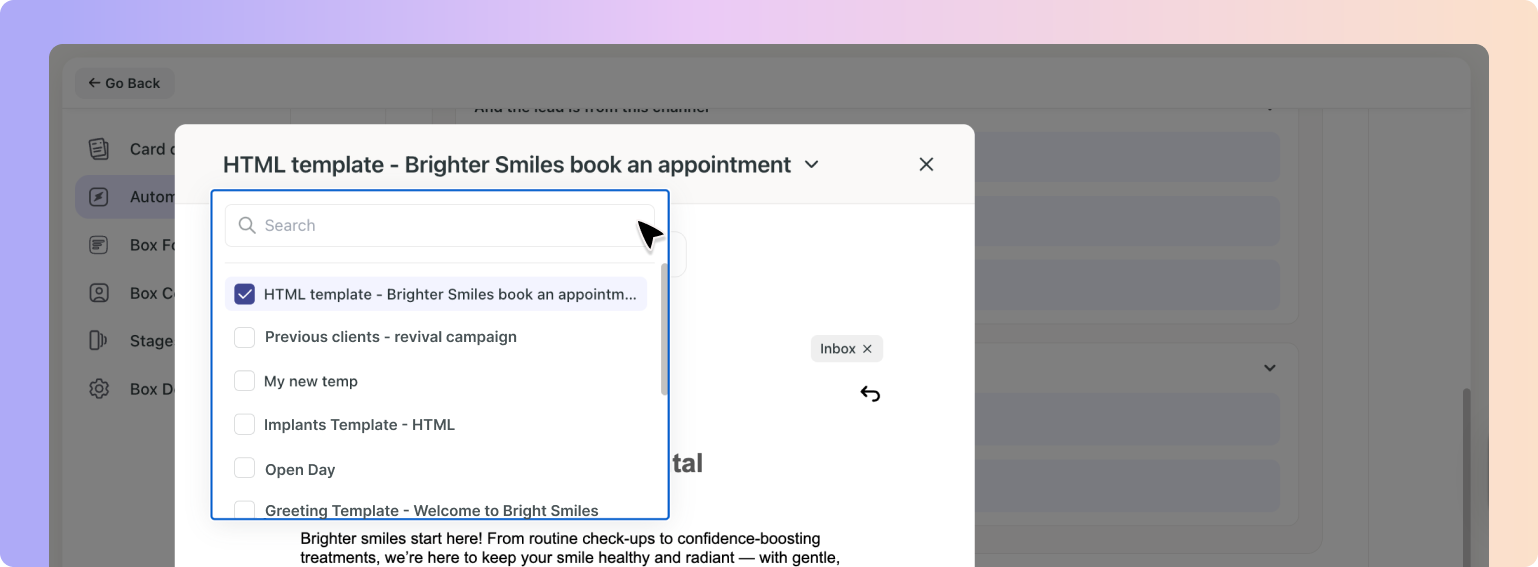
✅ Once you’ve found the right one, click **Use this → Save**
* * *
✅ By combining HTML templates with Automations, you can send polished, on-brand emails exactly when they matter without rebuilding them each time.