This article will walk you through how to connect your Aerona PMS to Boxly so your leads, appointments, and patient details stay perfectly in sync.
✅ Go to → Boxly Channels → select Connect a new channel → select the PMS Integrations tab
✅ Select “Aerona” and click “Connect”.
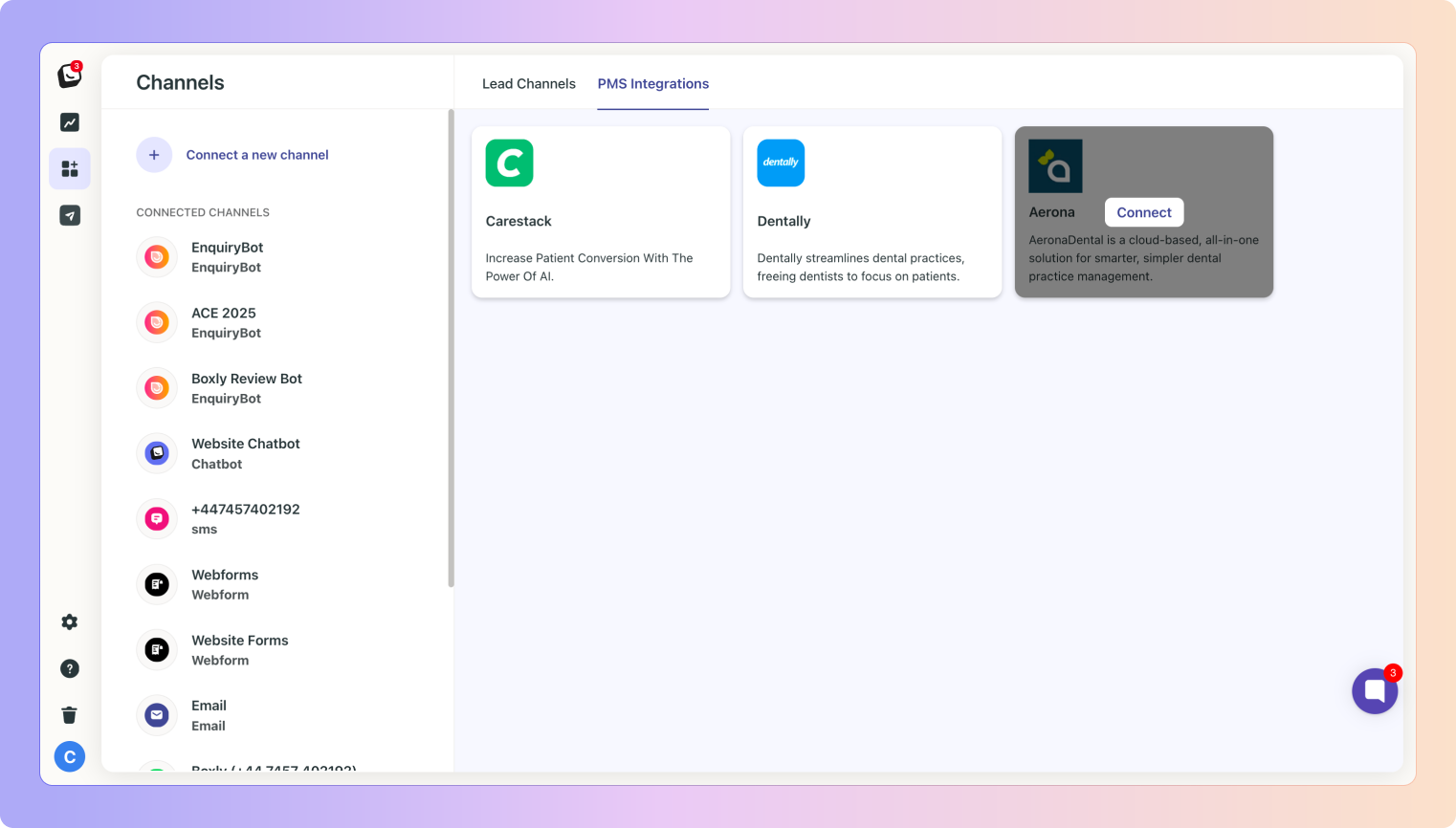
✅ Enter in your Aerona details:
Login to your Aerona account using username, password, and practice pin. Please make sure you are using the highest-level admin account.
Username: Enter your Aerona username
Password: Enter your Aerona password
Practice pin: Enter your Aerona practice pin
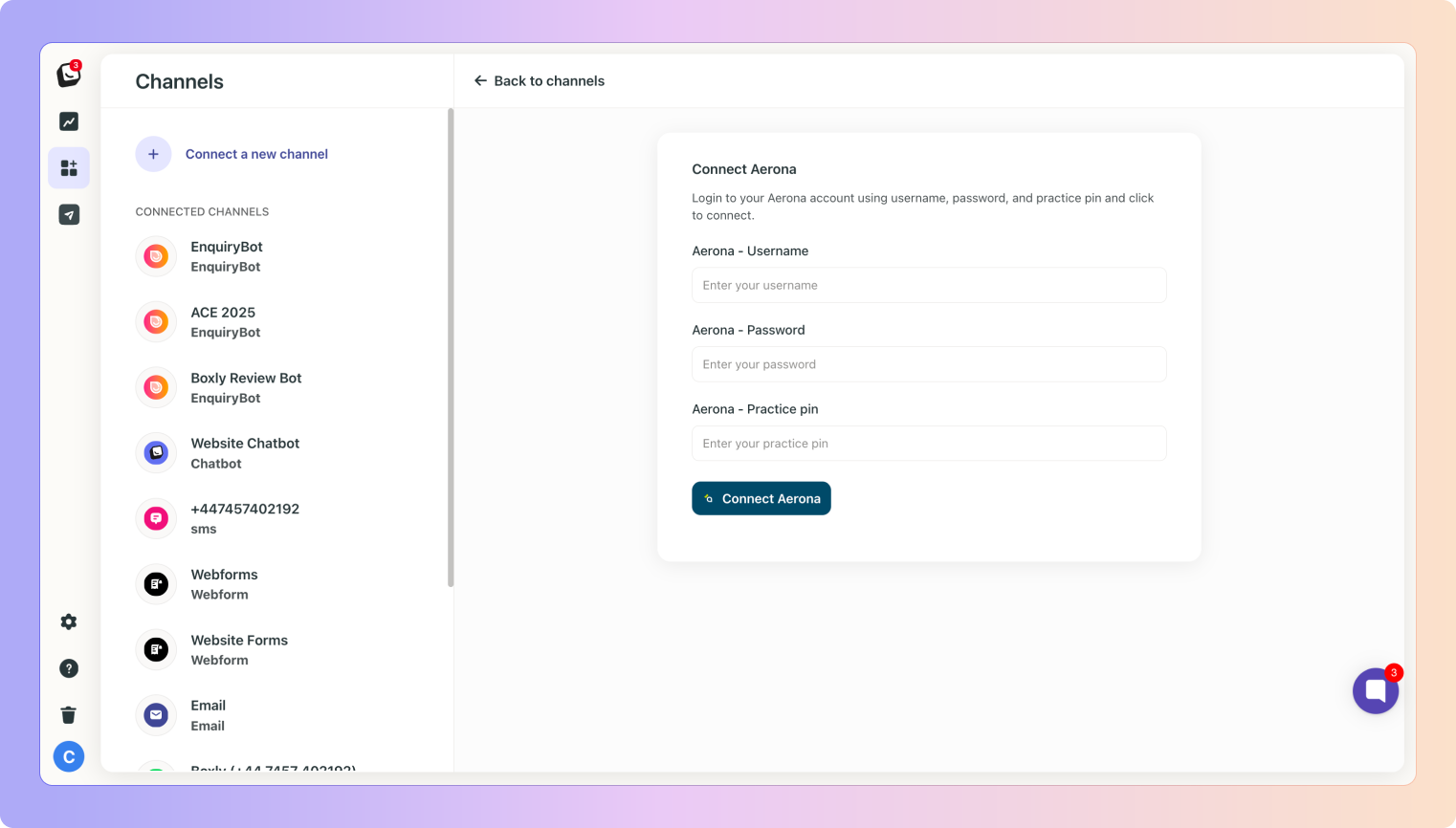
✅ Once you’ve entered in your details, click to “Connect Aerona”.
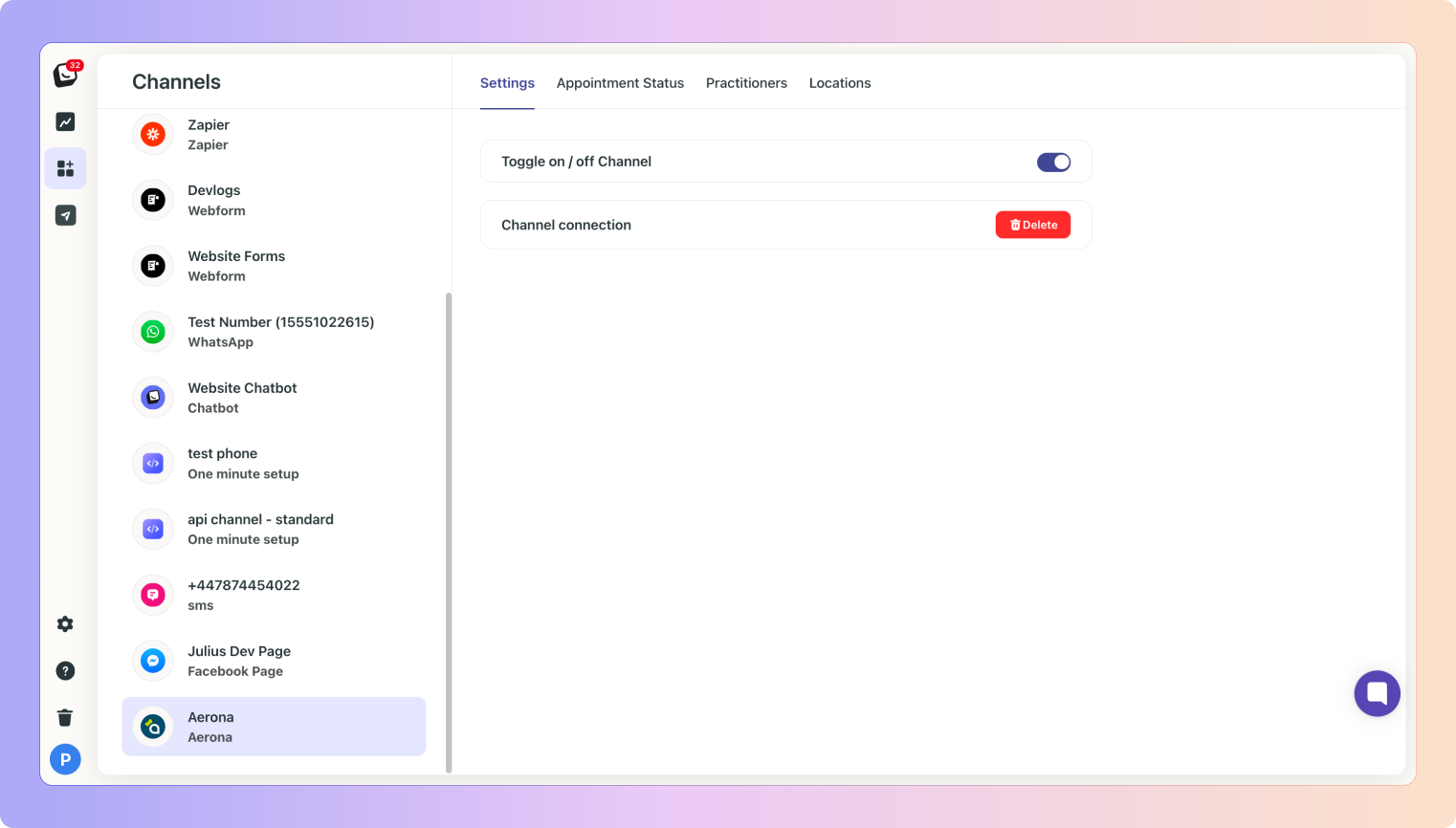
✅ After connecting, you’ll see an active channel view for Aerona, including:
A toggle to turn the connection on or off - This helps you manage the integration easily without disconnecting fully.
✅ Boxly pulls in all appointment statuses from Aerona; such as:
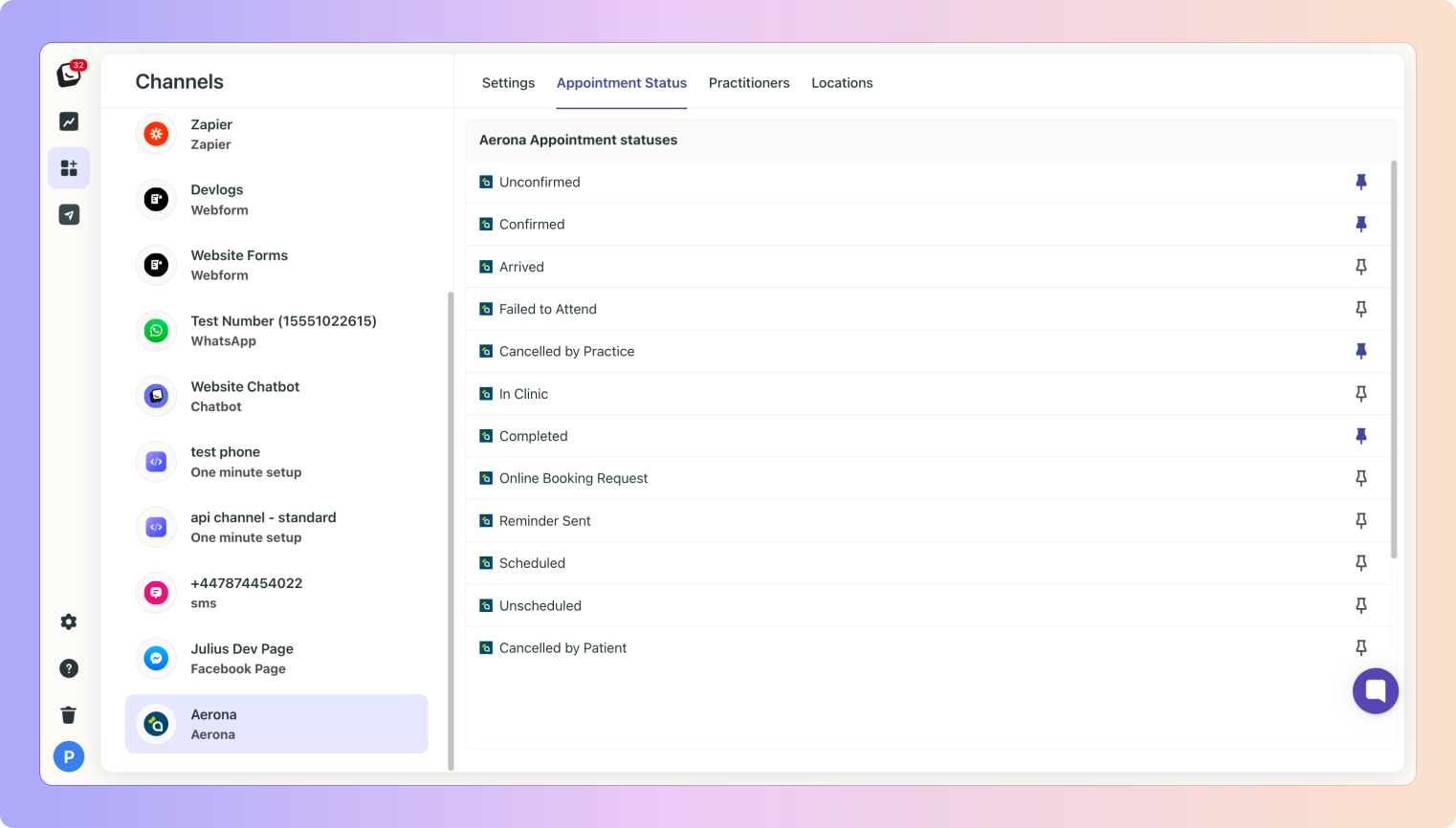
✅ These statuses let’s you know when any lead status changes; based on which stage each status is linked too; the lead will automatically move.
This means the moment Aerona updates an appointment, Boxly knows, and can automatically send messages, update workflows, or notify your team.
✅ Boxly imports your practitioner list from Aerona.
In the Practitioner tab you’ll see the list of imported Practitioners Aerona has listed, Boxly list will appear in the drop-down on the right, you can now link/map the correct Boxly Practitioners to Aerona Practitioners.
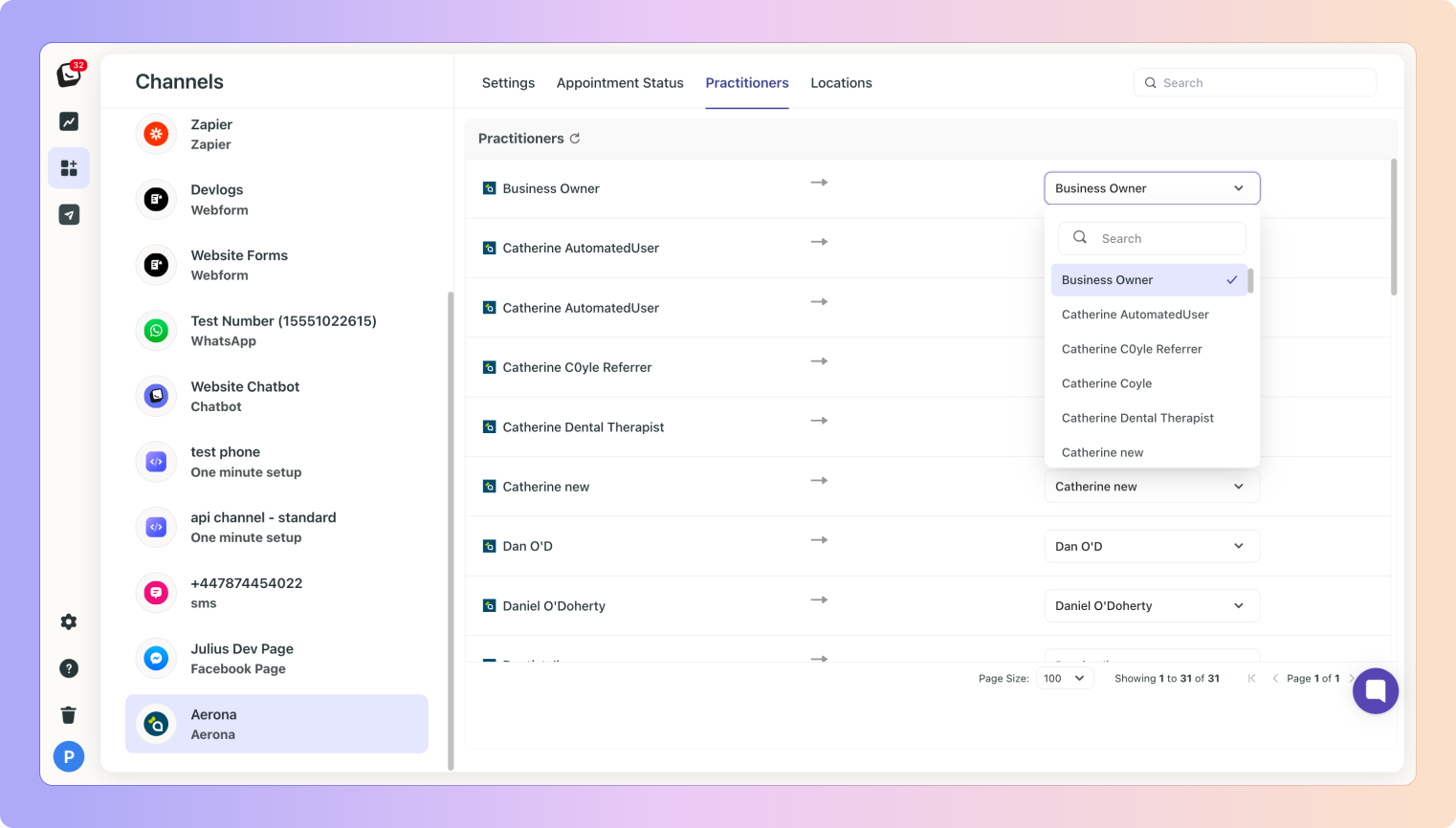
You can:
View all practitioners
Map Practitioners in Boxly to Aerona Practitioners
Search for Practitioners
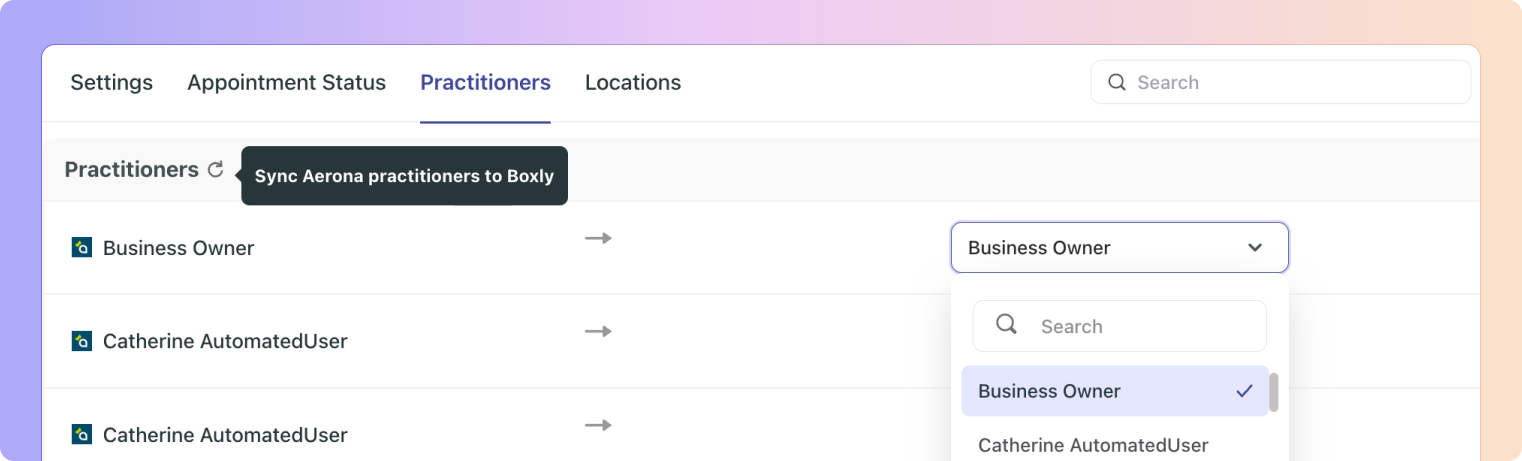
Sync Practitioners to keep update to date!
✅ Click the Sync button to Sync changes in Aerona to Boxly.
Once synced, Boxly can associate conversations, appointments, or automations with the correct practitioner; giving your team context instantly.
✅ If your practice has multiple sites, Aerona pushes those locations into Boxly.
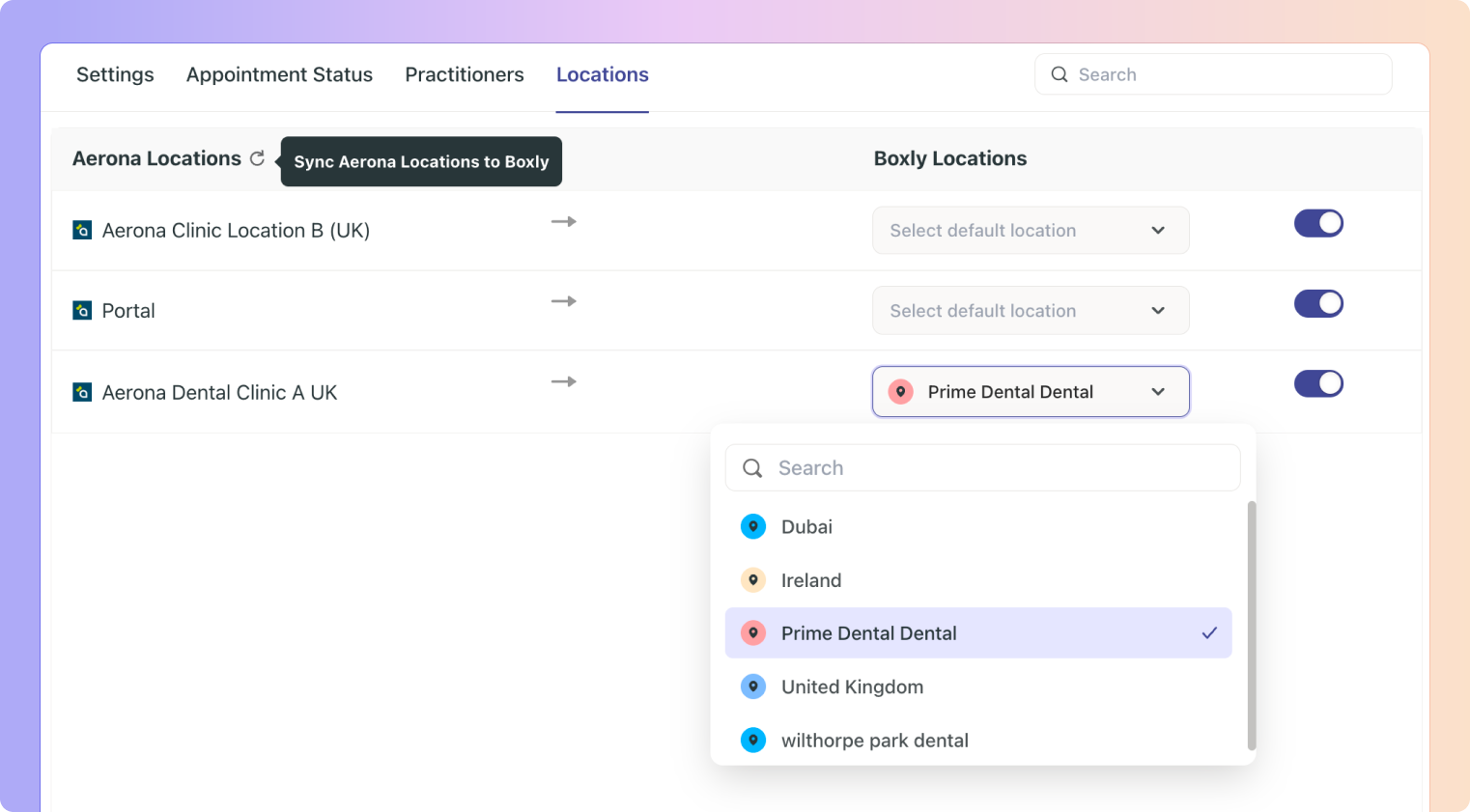
✅ In the Location tab you’ll see the list of imported Locations Aerona has listed on the left, Boxly’s location list will appear in the drop-down menu on the right, you can link/map the correct Boxly Locations to Aerona Locations.
Inside Boxly you can:
View all Aerona locations
Assign each Aerona location to a Boxly location
Enable or disable locations for syncing
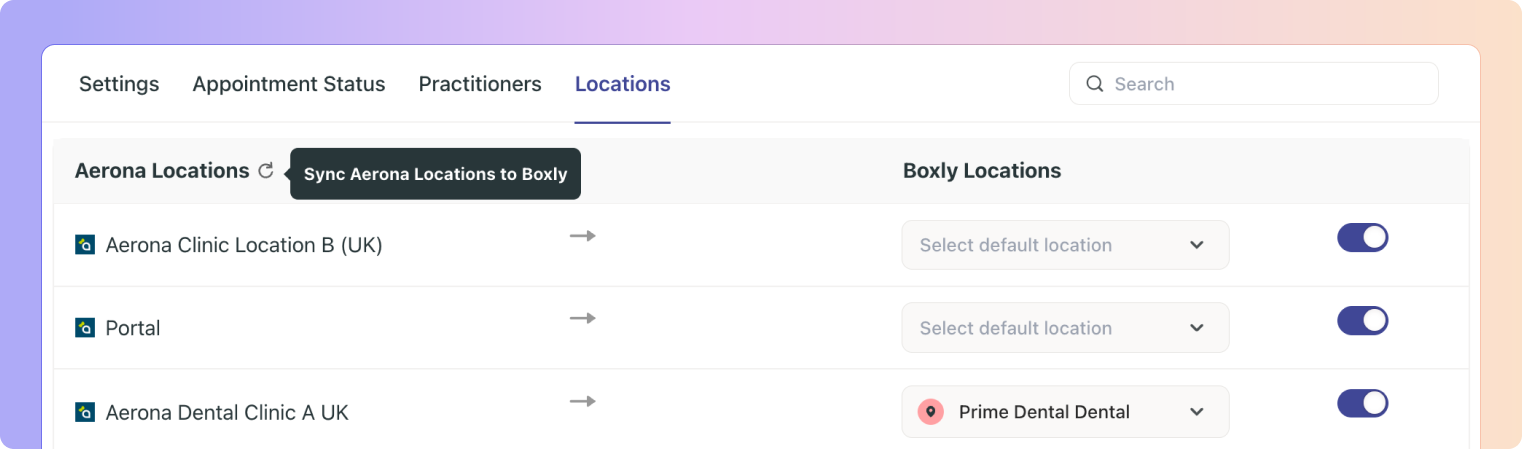
Sync all Aerona locations
This ensures messages, leads, and appointments are always attached to the correct branch, especially helpful for multi-site practices.
✅ Click the Sync button to Sync changes in Aerona to Boxly.
Once synced, any changes made in Aerona to locations and likewise Boxly will sync.

Boxly is here to help you work smarter, not harder, let’s keep streamlining your lead management together!
Contact us at [email protected] if you need any assistance!