Connect your SFD (Software for Dentists) account with Boxly to create patients and appointments directly from Boxly.
This integration helps keep your workflow simple by allowing Boxly to send patient and appointment information to SFD, with controlled syncing back into Boxly.
Once connected, Boxly allows you to:
Connect your SFD account with Boxly
Create patients in SFD directly from Boxly
Create appointments in SFD from Boxly
Map locations and practitioners between Boxly and SFD
Avoid duplicate patients and appointments
Manually sync appointments created or updated in SFD back to Boxly
🔸 Please note:
✅ This integration is primarily a one-way sync from Boxly → SFD
✅ Patients created directly in SFD will not appear automatically in Boxly
✅ Appointments created or updated in SFD can be synced back to Boxly only by clicking the Sync button
✅ Log in to Boxly
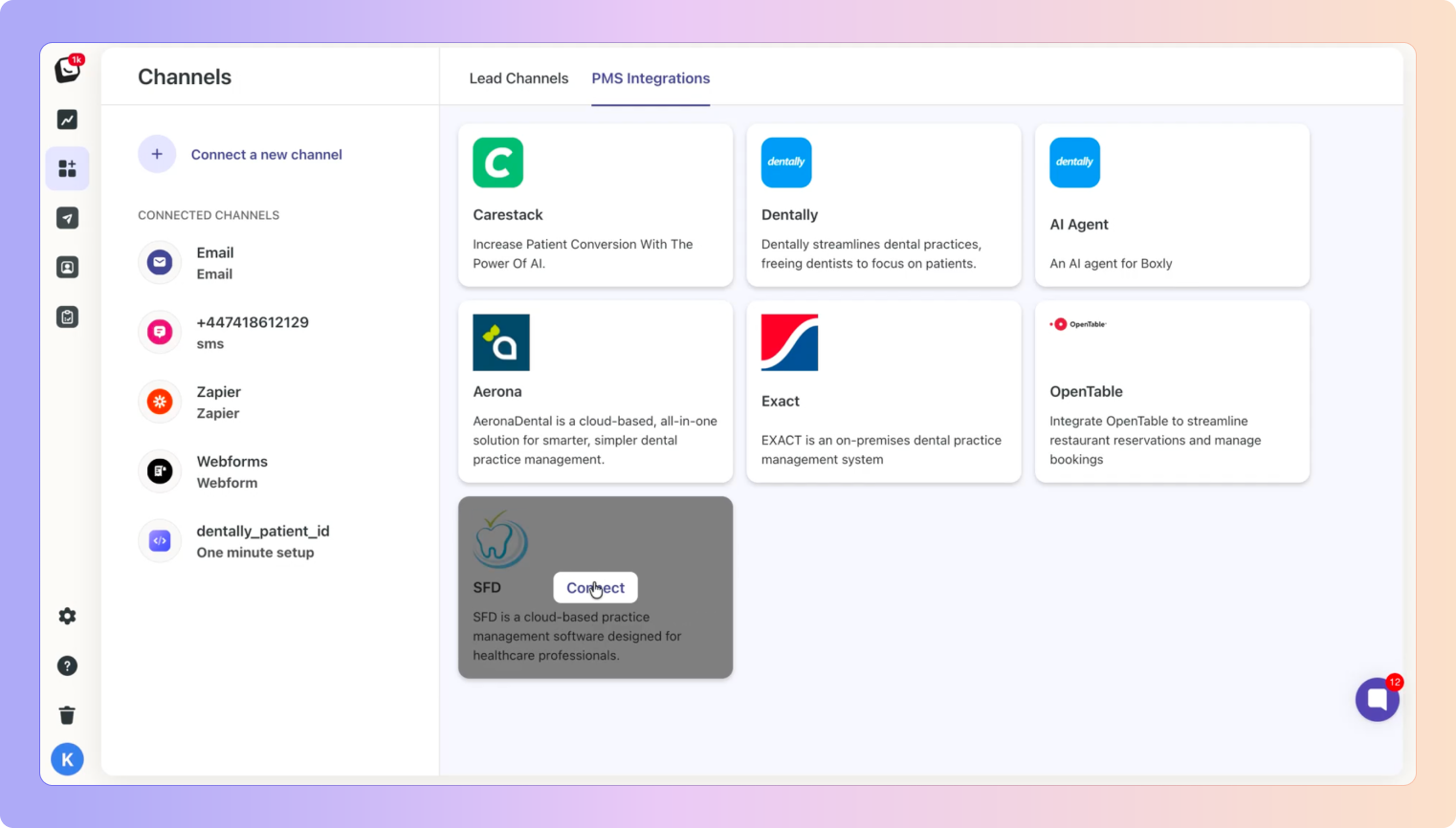
✅ Go to Channels → PMS Integration → SFD
✅ Click Connect SFD
✅ Log in using your SFD credentials
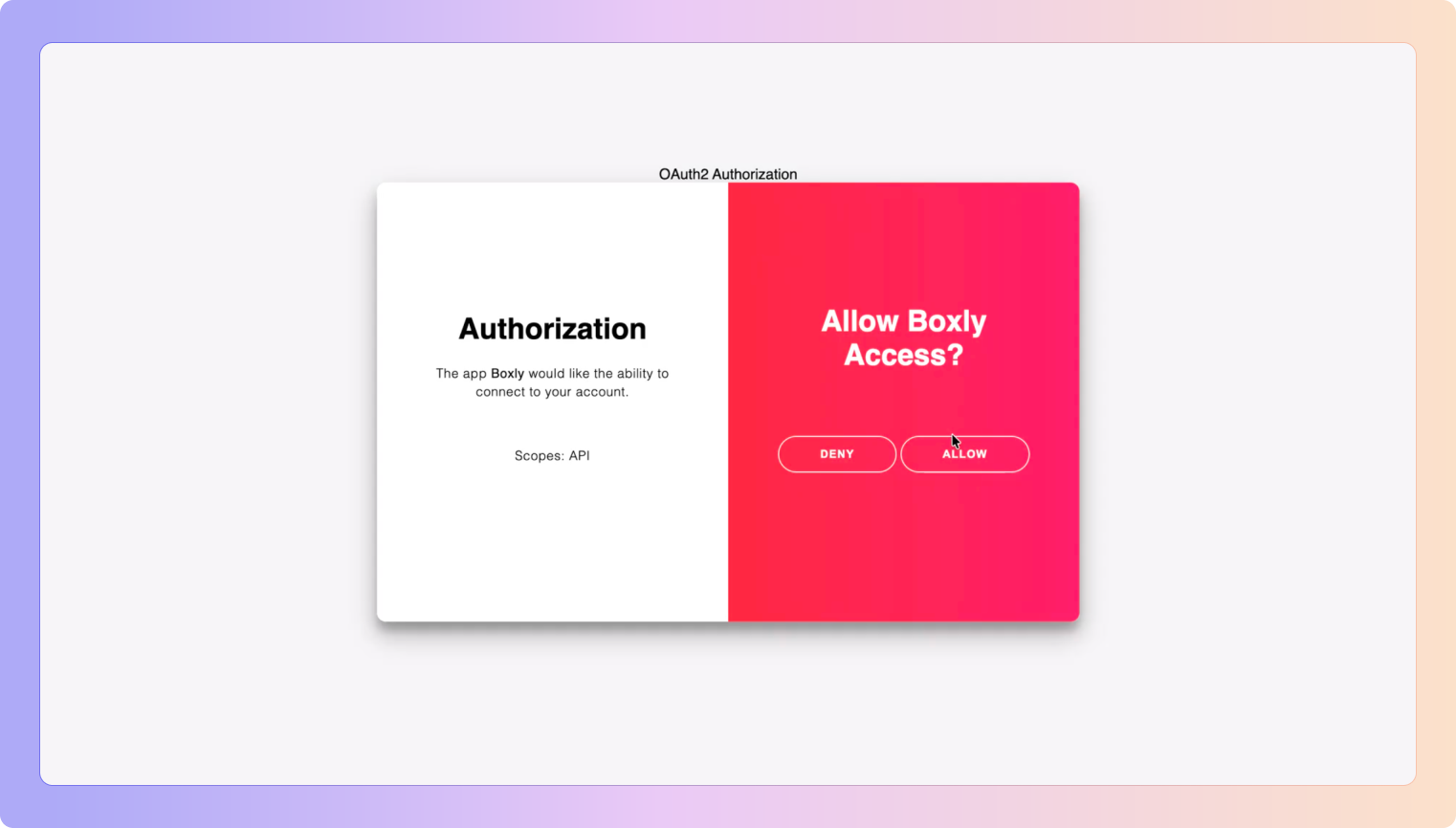
Click “Allow”
Enter in your login details
✅ You’ll be redirected back to Boxly once the connection is complete
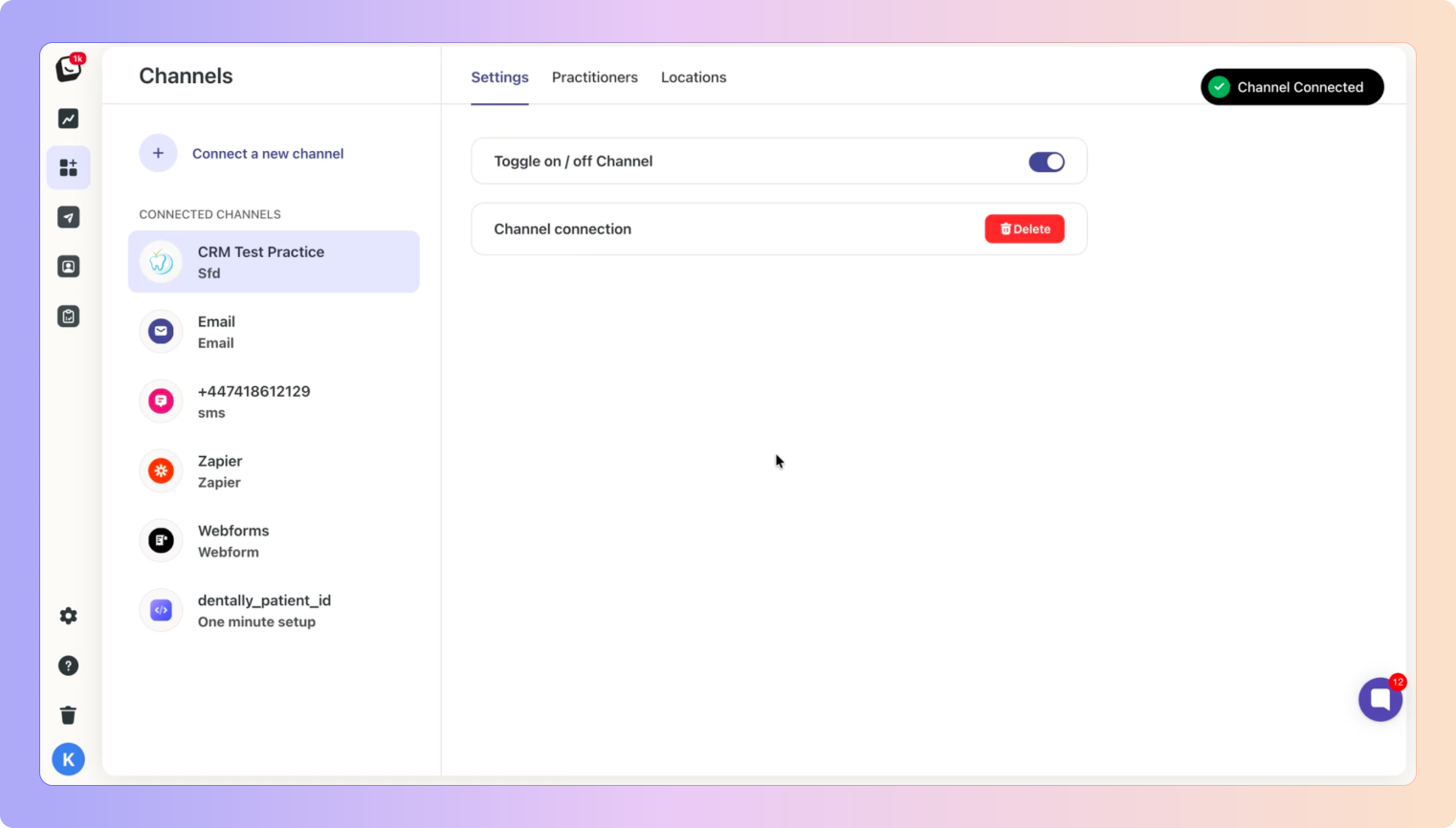


Go to Settings in Boxly
Add all required locations and practitioners in settings
Go back to the SFD channel settings
Map each Boxly location with the corresponding SFD location

Map each Boxly practitioner with the corresponding SFD practitioner
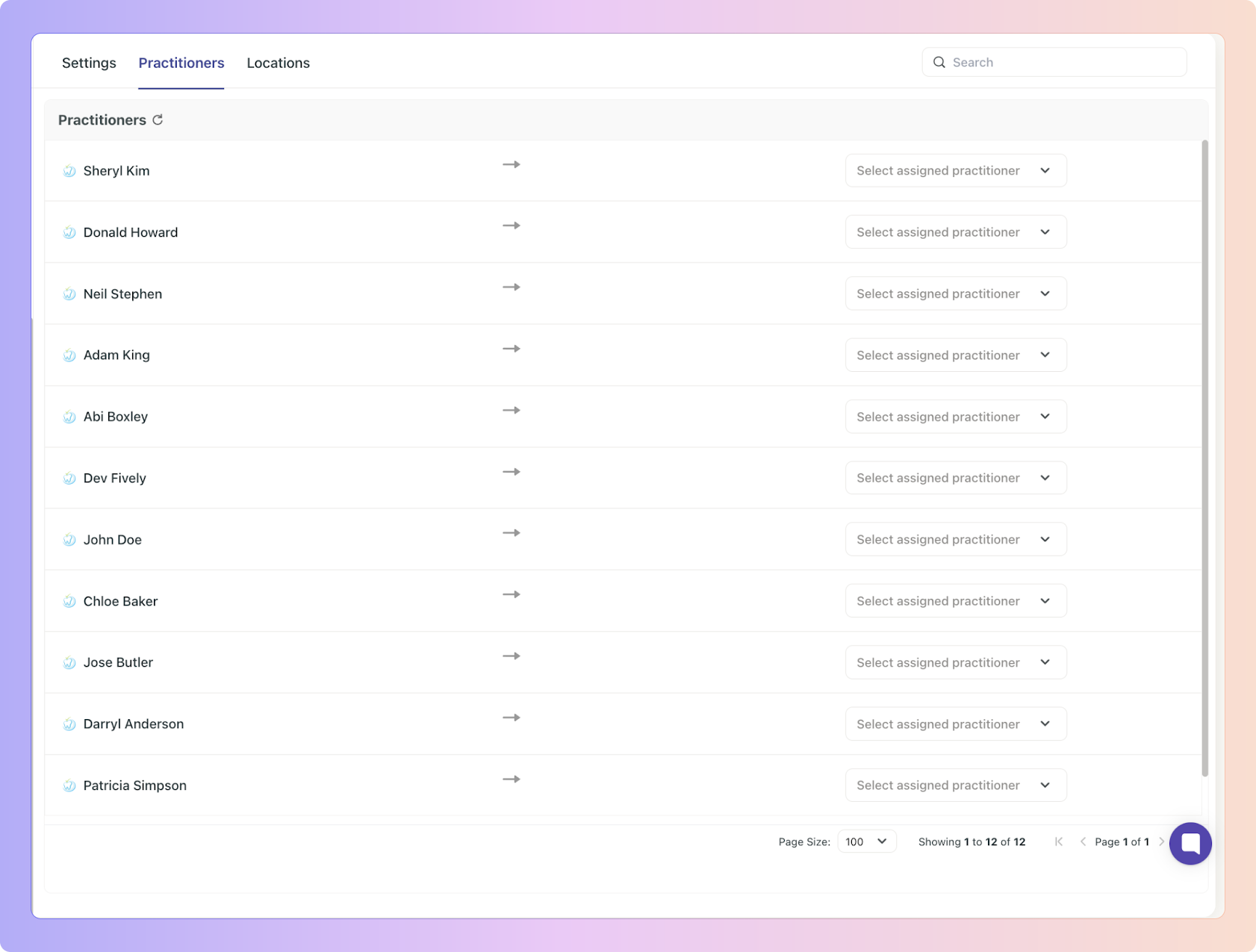
Use Sync anytime to pull newly added locations or practitioners from SFD

Create patients in SFD directly from Boxly leads.
When a lead is opened in Boxly:
Boxly checks whether a mapped location is selected
If mappings are complete, the Create Patient button is shown

Open a lead in Boxly
Select a mapped location
Click “Create Patient”
Enter the required details:
First name
Last name
Practitioner
Date of birth
Confirm patient creation
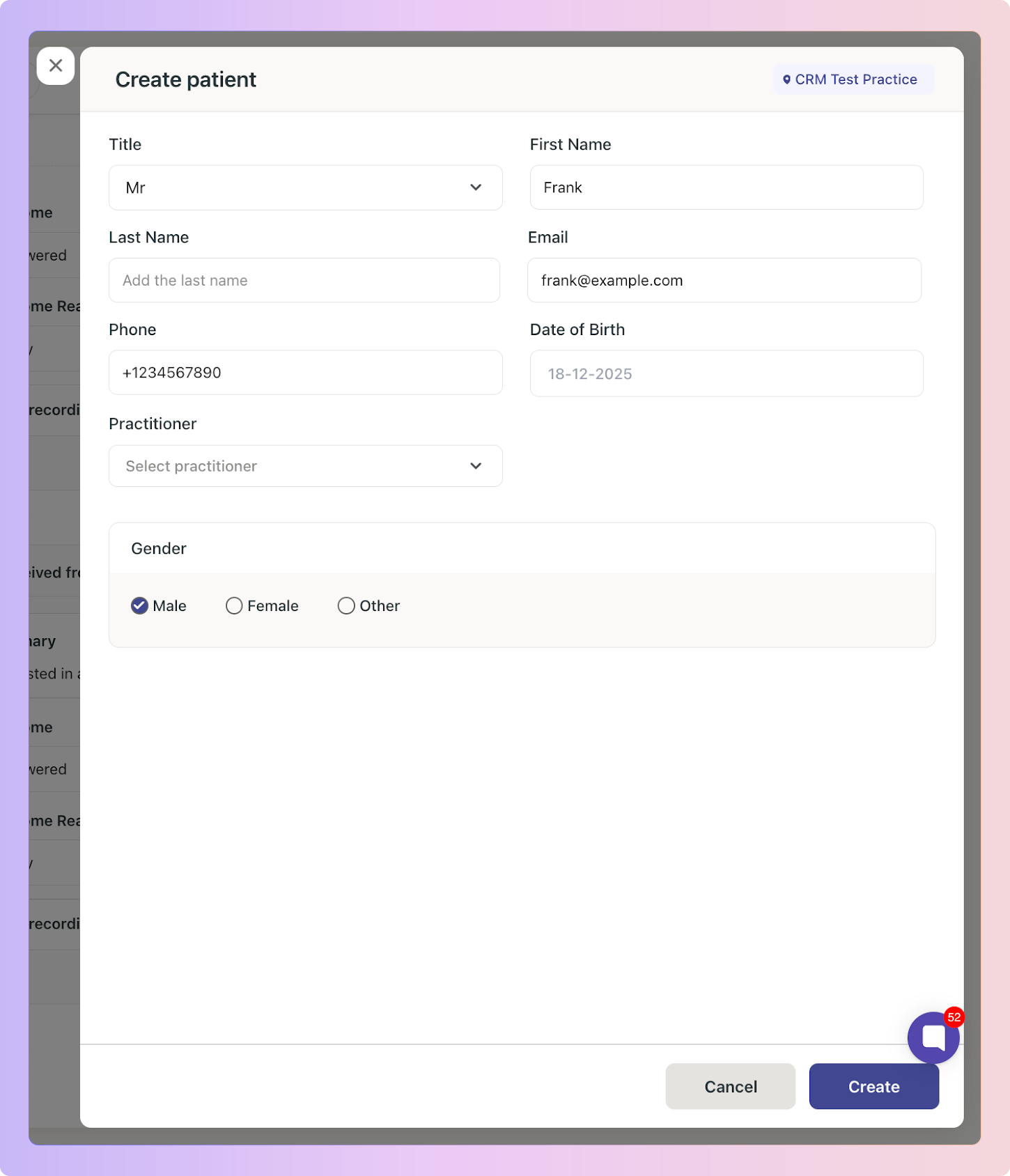
The patient is created instantly in SFD
The lead is linked to the SFD patient
The button updates to Copy Patient ID

You can copy the Patient ID and manually search for the patient in SFD using this ID
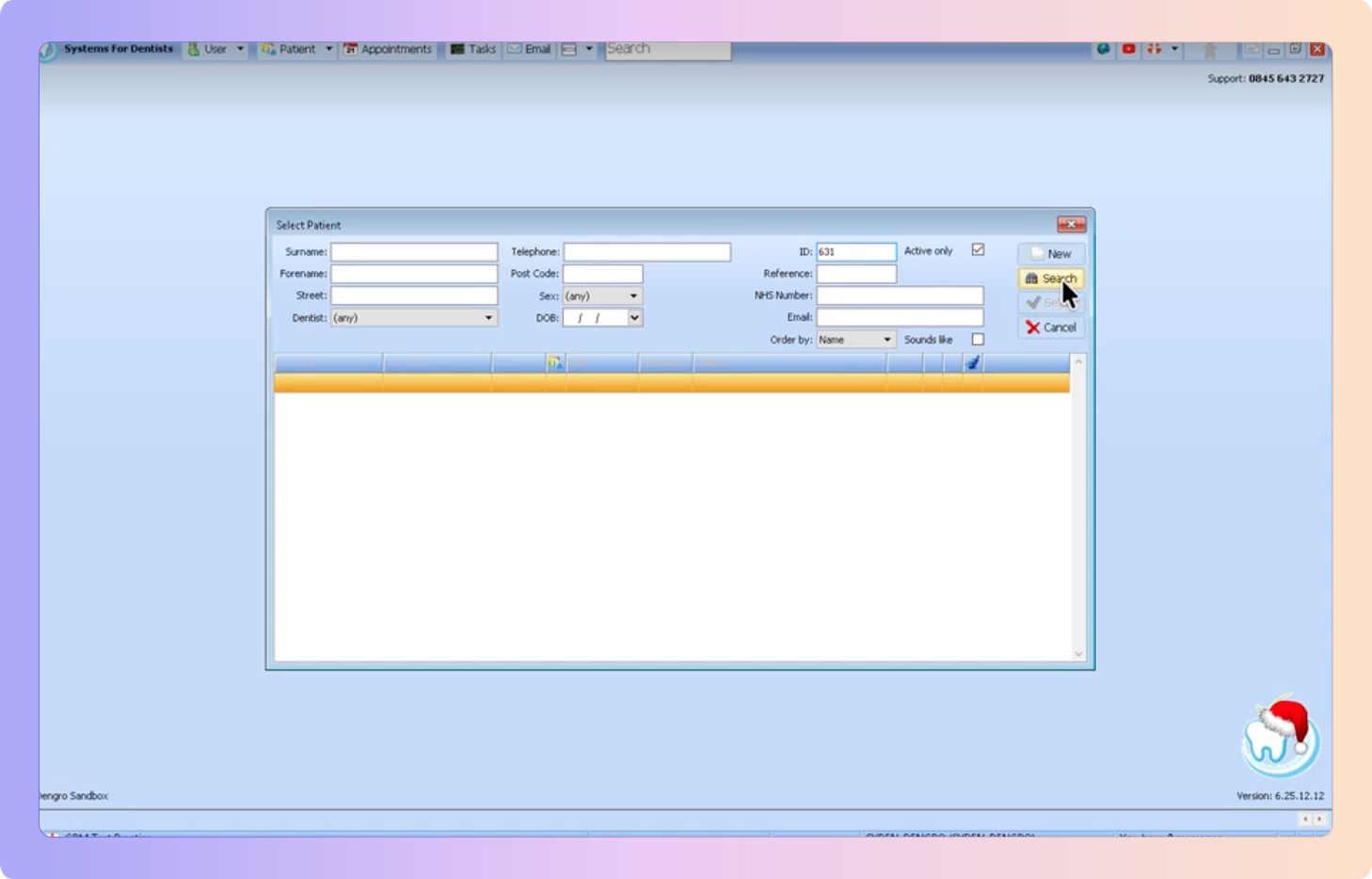
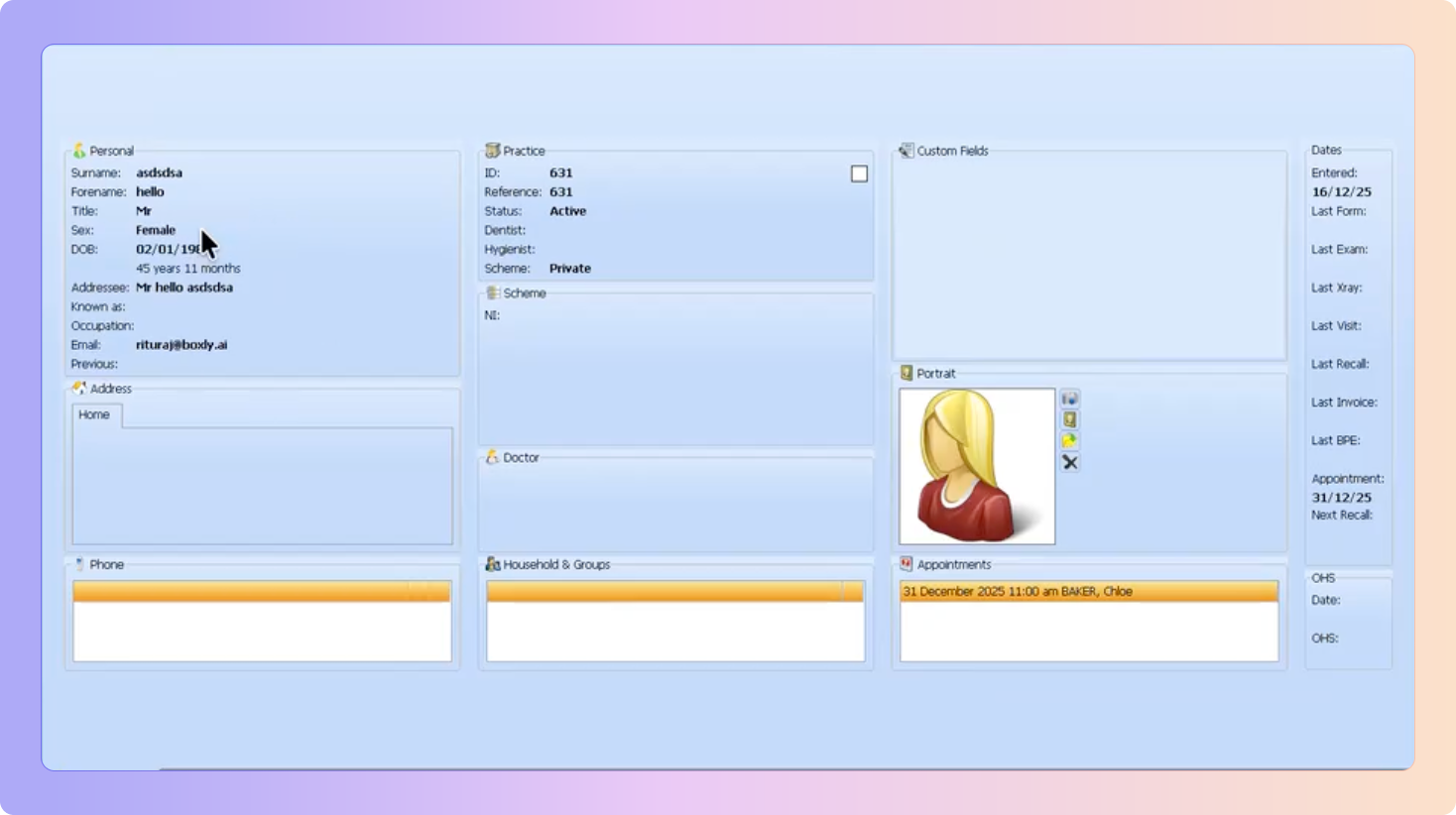
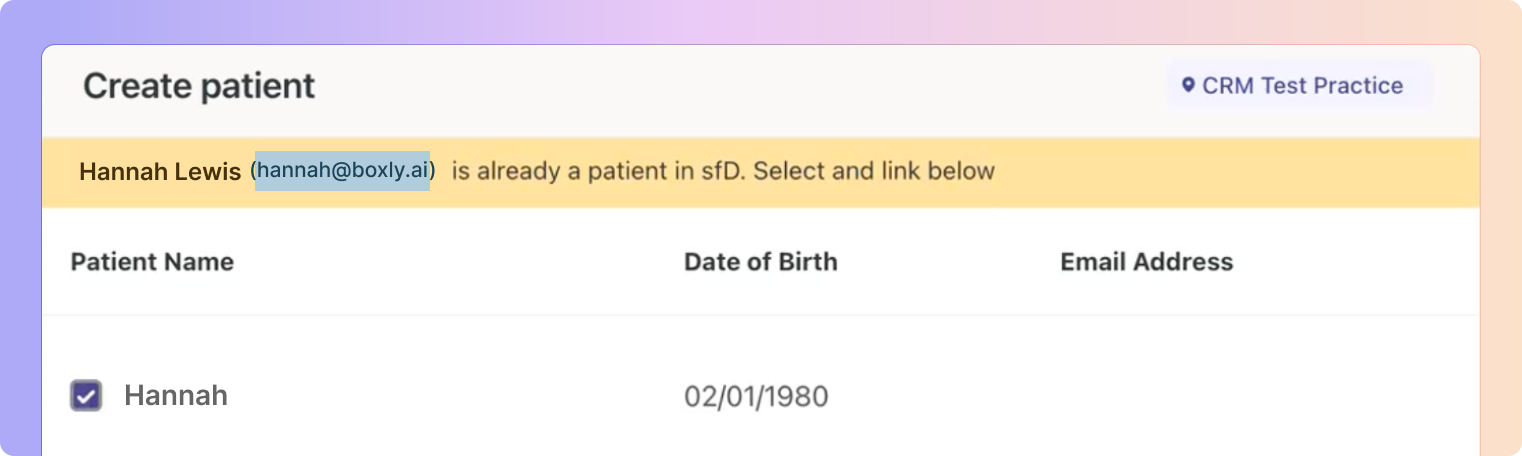
If multiple leads in Boxly contain the same patient details:
Boxly detects that a patient with these details already exists in SFD
When creating an appointment, Boxly shows that the patient already exists
The appointment is created for the existing patient
No duplicate patient or appointment is created
This helps keep data clean across both Boxly and SFD.
Create appointments in SFD without leaving Boxly.
Before creating an appointment:
Boxly checks that the patient is already linked with SFD
Boxly checks that locations and practitioners are mapped
Open a linked lead or patient in Boxly
Click “Create Appointment”
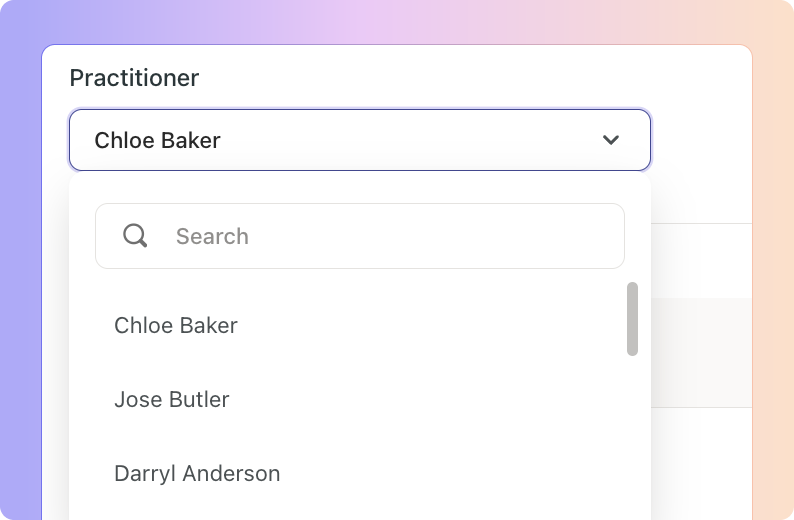
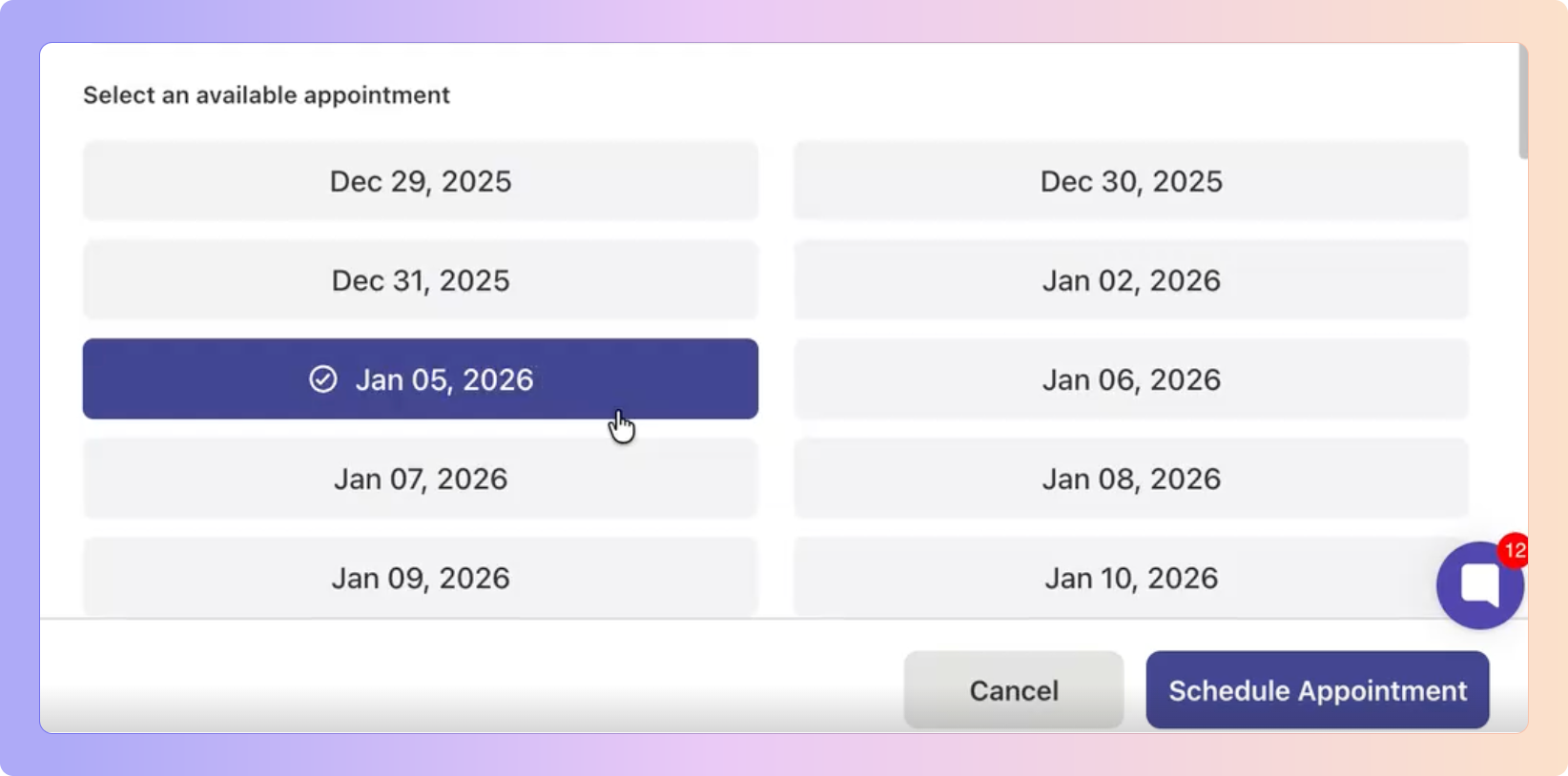
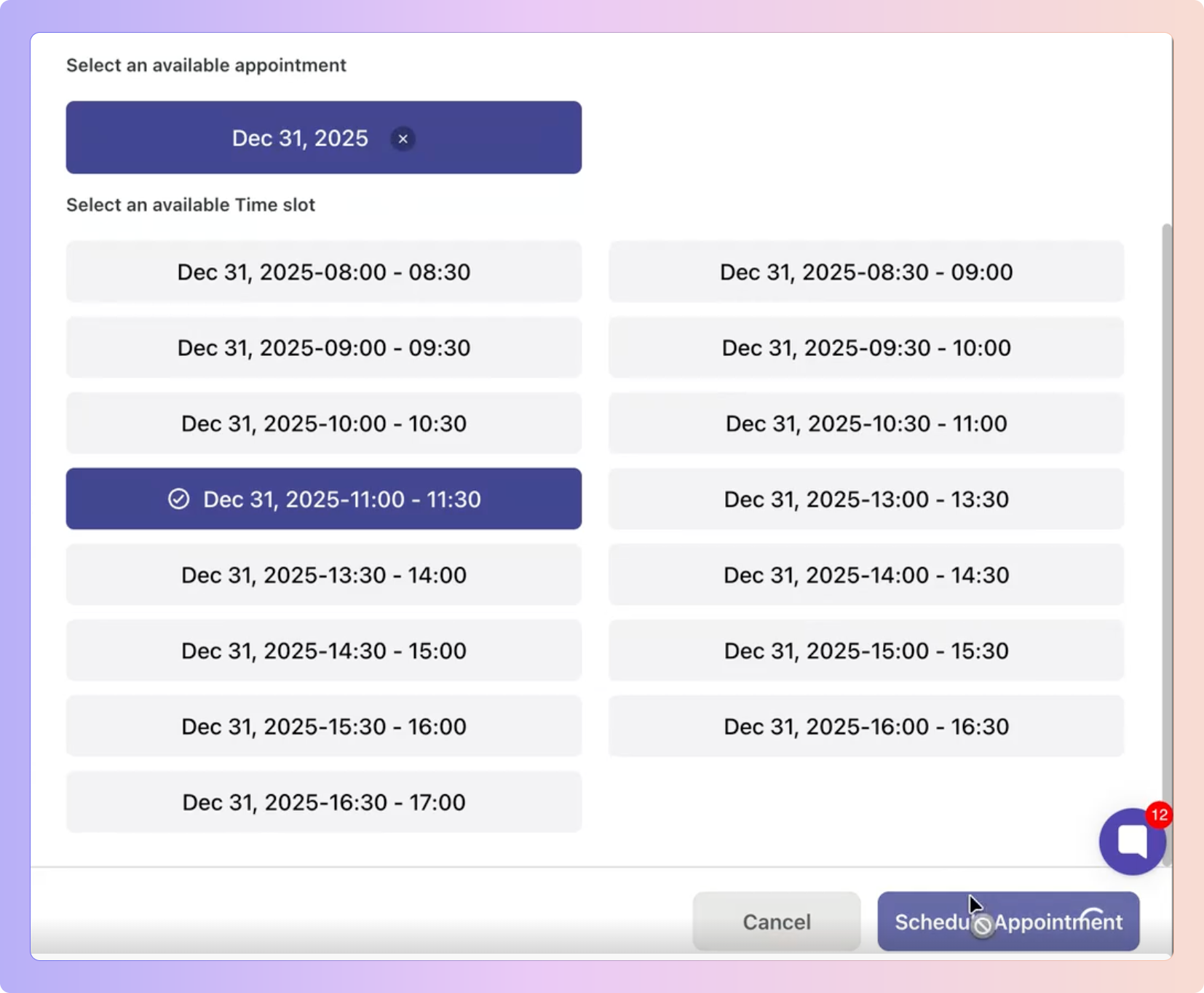
Enter appointment details:
Location
Practitioner
Date
Time
Appointment reason/type (as supported by SFD)
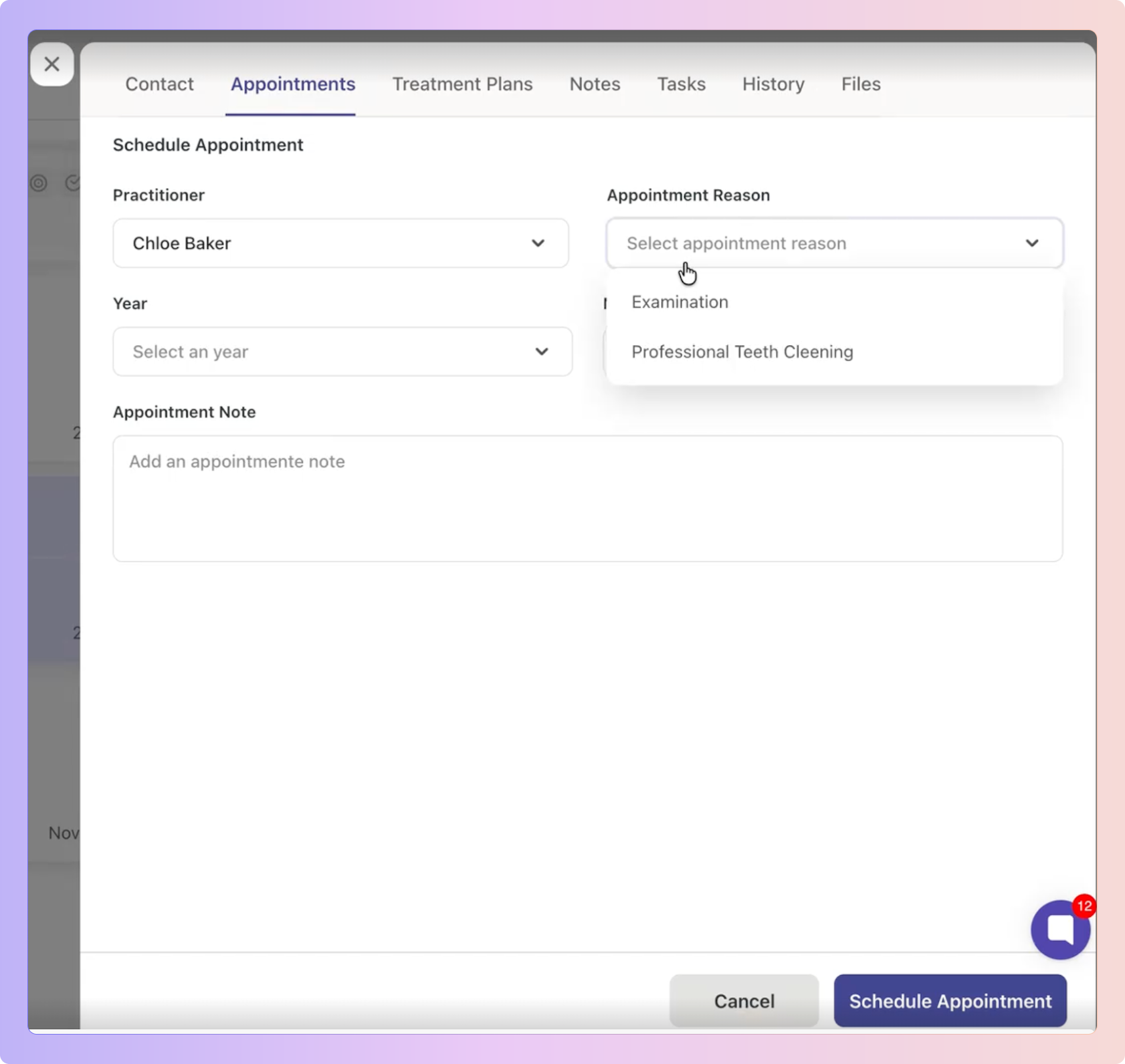
Confirm appointment creation
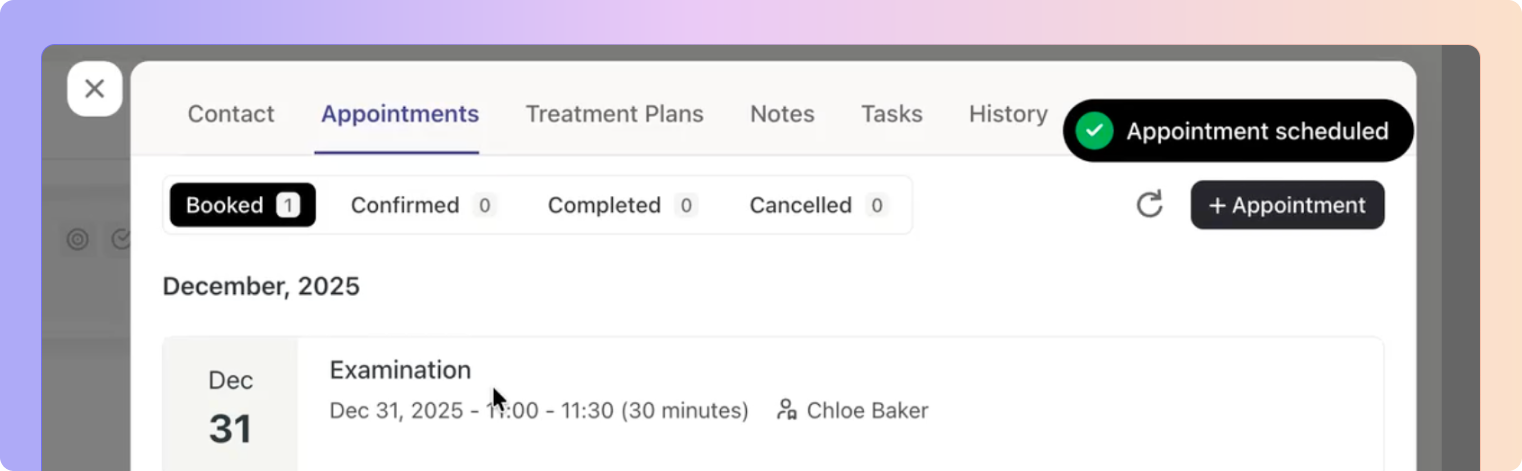
The appointment is created instantly in SFD
No duplicate appointment is created
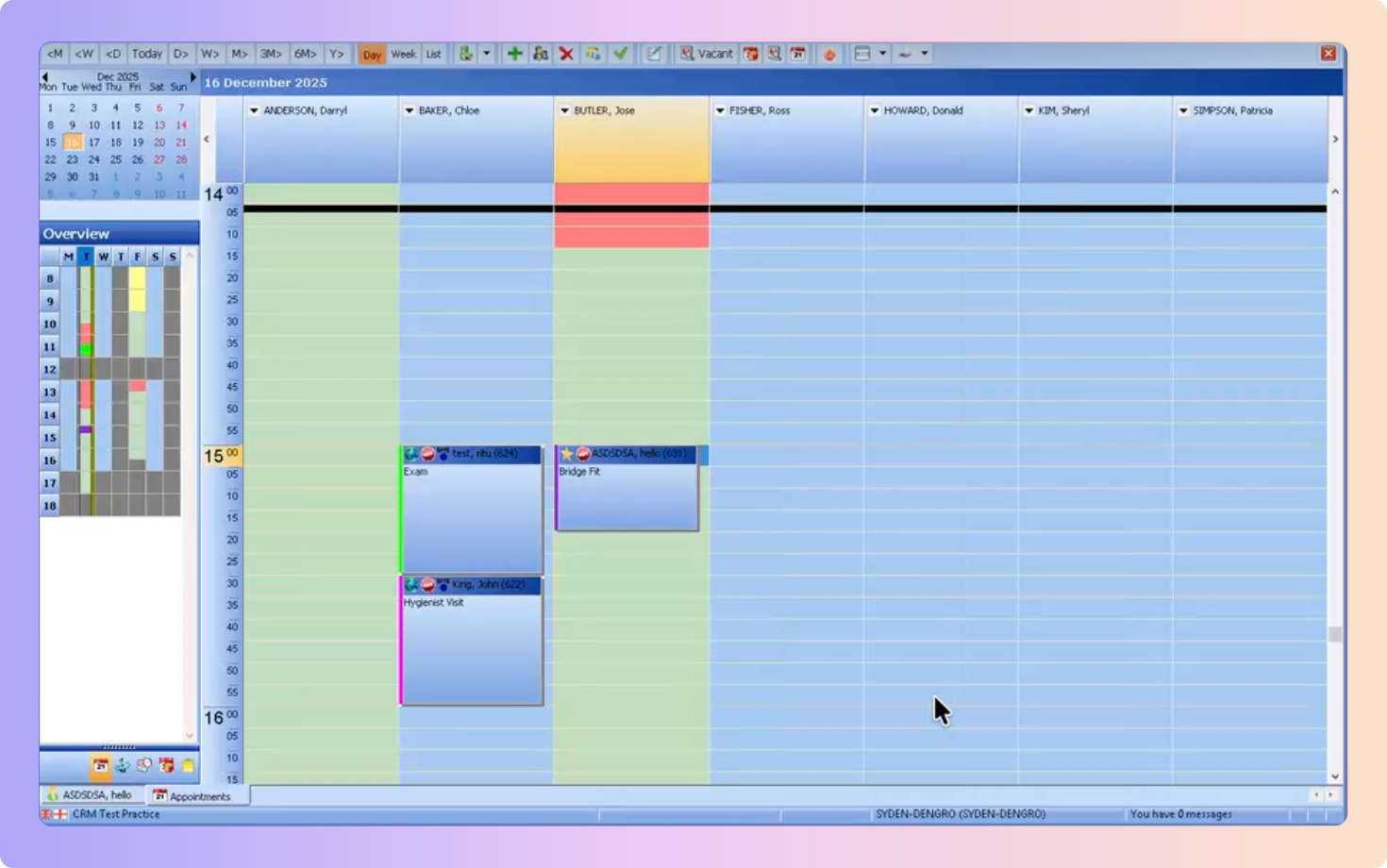
Appointments created directly in SFD do not sync automatically.
Sync appointments from SFD to Boxly
Appointments created directly in SFD do not sync automatically.
Boxly allows syncing appointments only from SFD back to Boxly
This does not apply to patient creation
To sync appointments:
Click the Sync button in the SFD integration

Appointments created or updated in SFD will then appear in Boxly
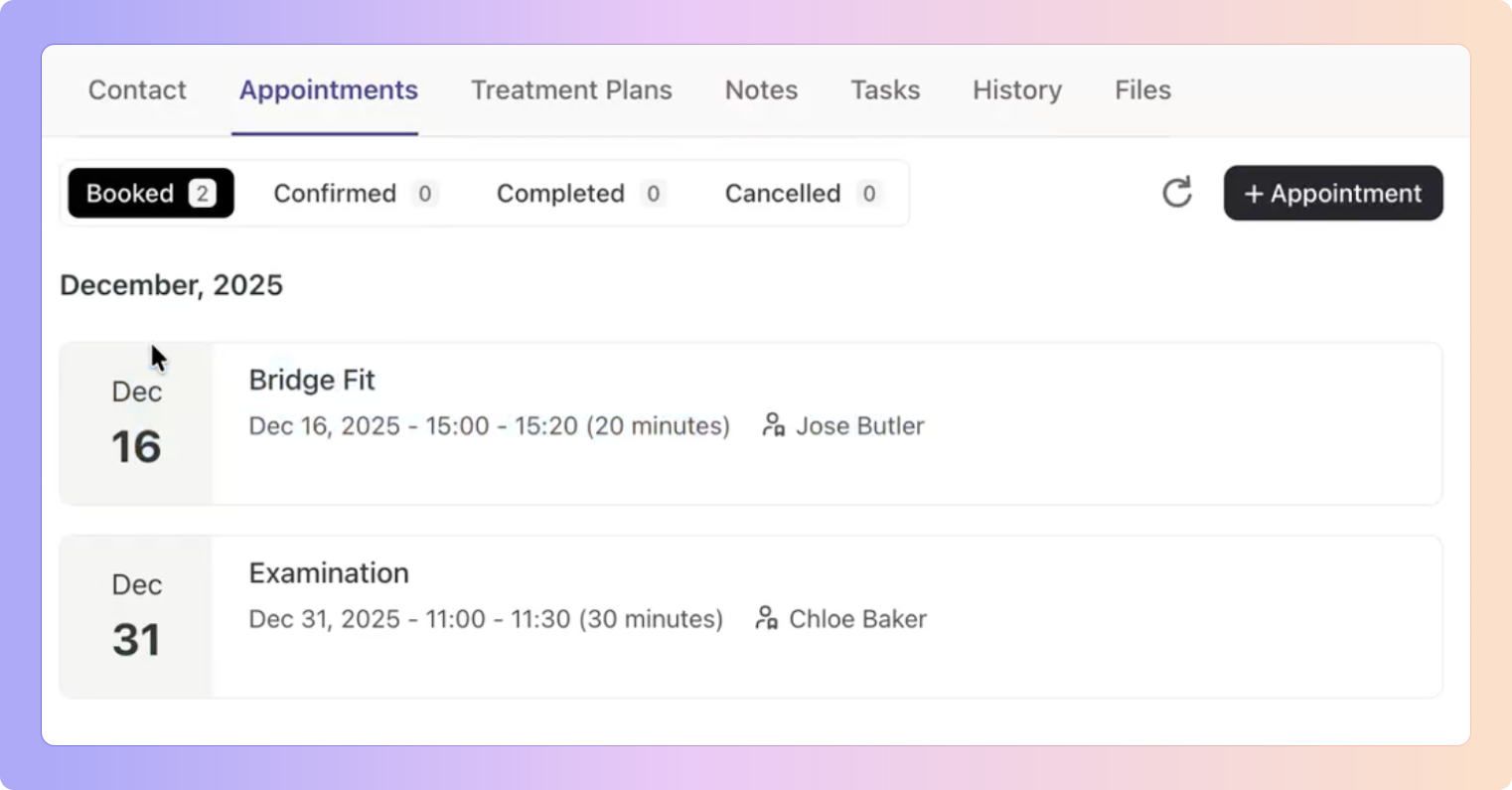
When an appointment is cancelled in SFD, Boxly can reflect this change through a manual sync.
Cancelled appointments are not deleted from Boxly
The appointment remains visible in Boxly
After clicking the Sync button, the appointment status in Boxly is updated to Cancelled
Appointment cancellations are not synced automatically
Users must click Sync to update the cancelled status
Only the appointment status changes
No new appointment is created
No duplicate appointment is created
This ensures appointment information remains accurate and consistent between SFD and Boxly.
Boxly provides visibility into appointments linked with SFD:
View how many appointments are linked and created
Ensure appointments are associated with the correct patient
Prevent duplicate appointments
This helps teams track and manage appointment activity more effectively.
Patient sync is one-way only (Boxly → SFD)
Appointment sync from SFD → Boxly is manual via the Sync button
Patients created in SFD do not appear automatically in Boxly
Appointment updates or cancellations made in SFD sync only after manual action
Boxly is here to help you work smarter, not harder - let’s keep streamlining your lead management together!
Contact us at [email protected] if you need any assistance!