Boxly’s SOE(Exact) PMS integration allows you to connect your Exact account with Boxly so you can manage patients and appointments more efficiently from one place.
This article covers:
How the SOE(Exact) PMS integration works
What you can and cannot do with Exact in Boxly
How appointment syncing works
How cancellations are handled
Important limitations to be aware of
Once connected, Boxly can work with appointment data from Exact PMS to help you stay on top of patient activity.
With this integration, you can:
Manually sync appointments created in Exact into Boxly
View appointment details inside Boxly
Keep appointment cancellation statuses up to date
Avoid creating duplicate patient records

To get started, you’ll need to connect your Exact account to Boxly.
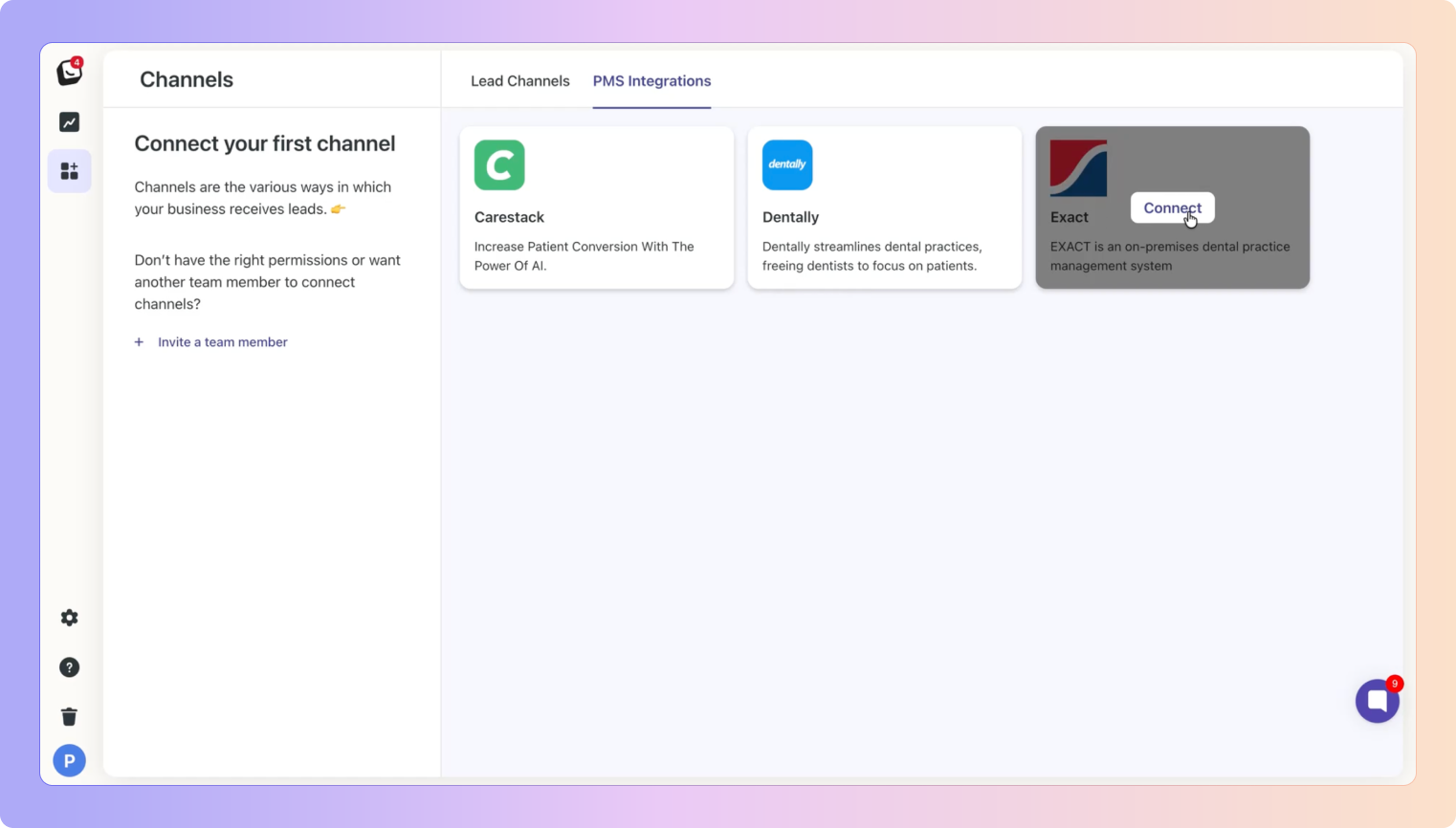
✅ Go to Boxly → Channels → PMS Integration
✅ Select Exact
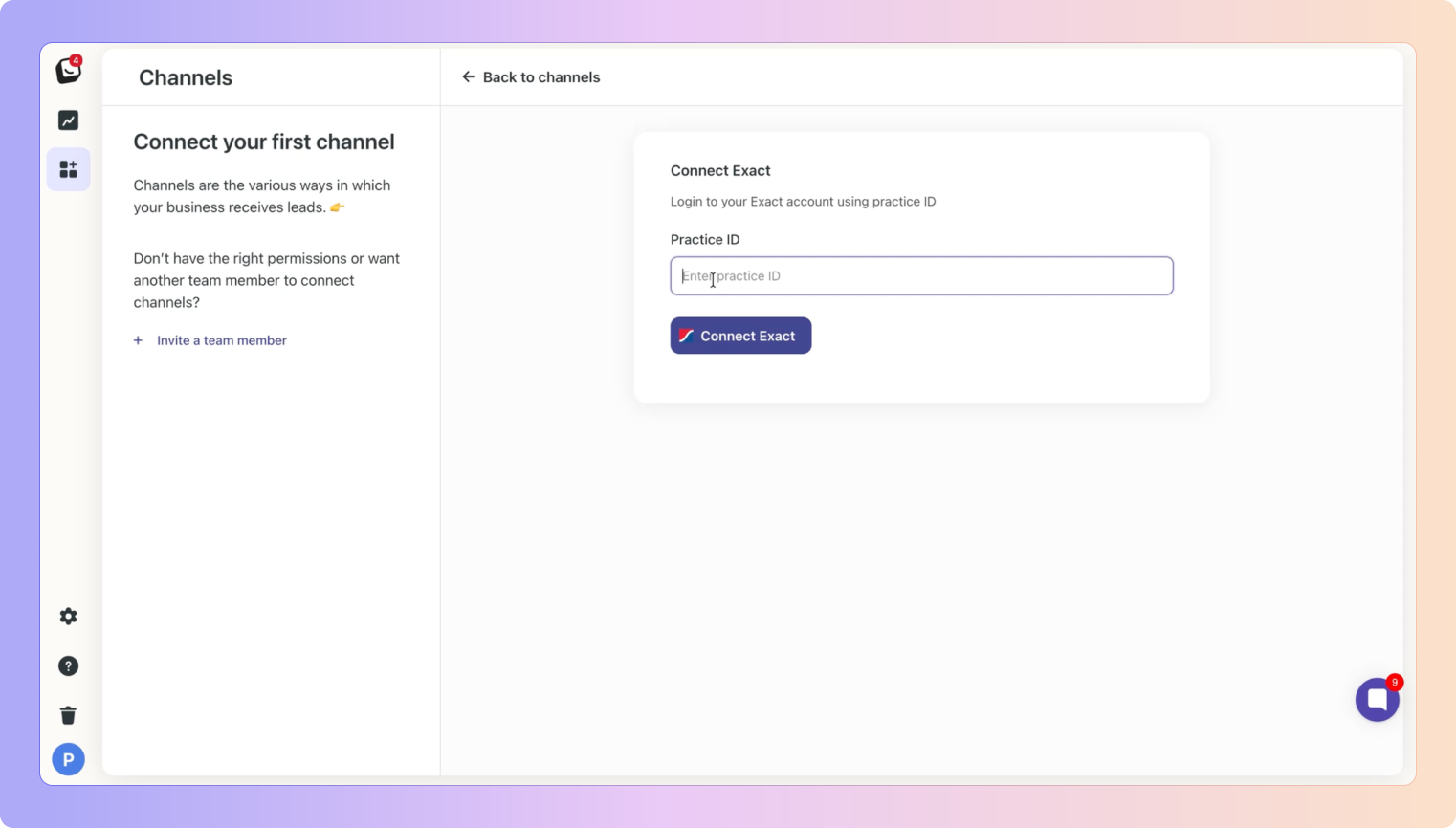
✅ Click Connect Exact
✅ Log in using your SOE(Exact) PMS credentials
✅ You’ll be redirected back to Boxly once the connection is successful
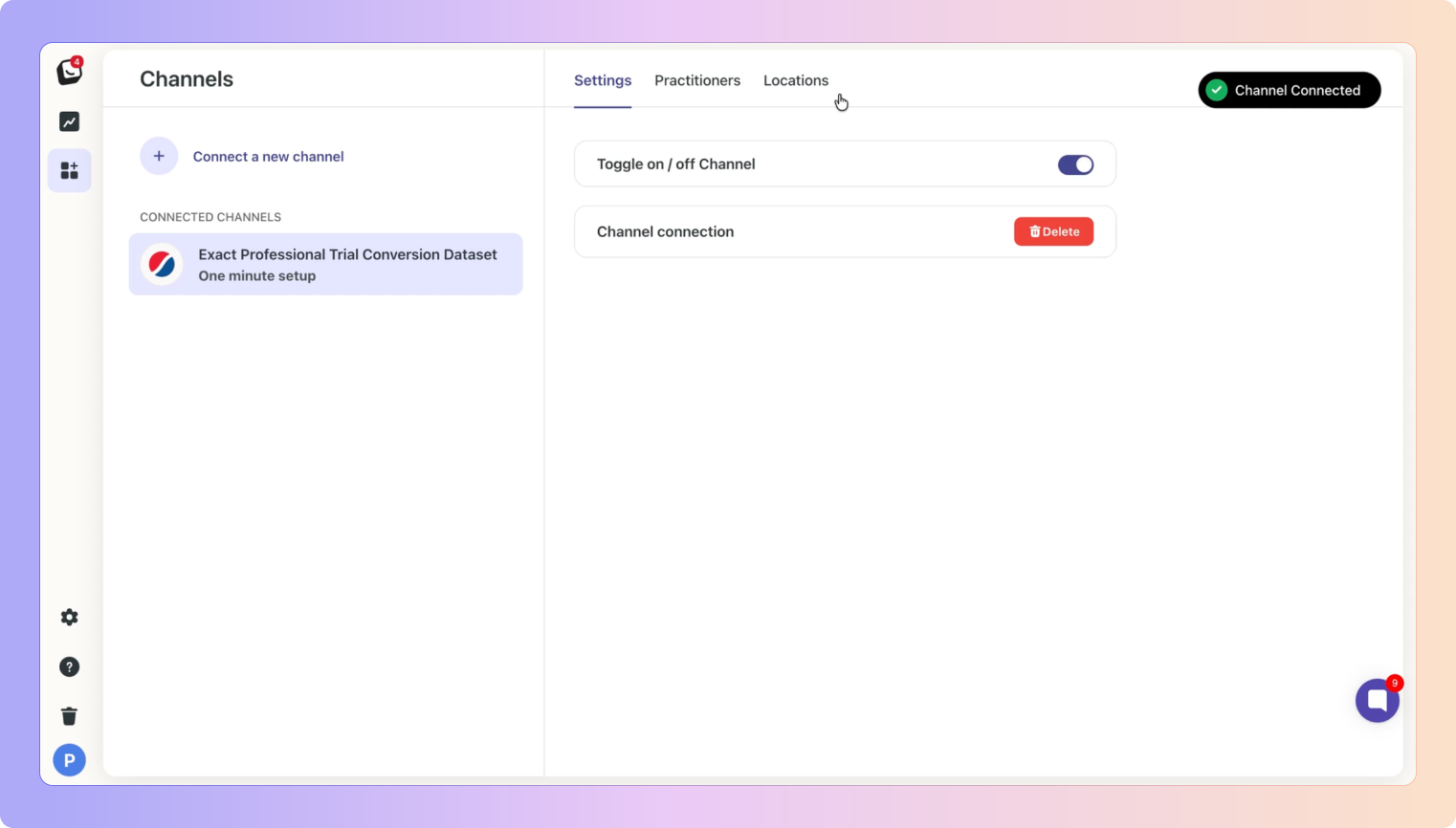
Once connected, your SOE(Exact) channel will show as active in Boxly.
Appointments created in SOE(Exact) PMS can be manually synced into Boxly.
Boxly pulls appointment data from SOE(Exact) when you trigger a sync
Synced appointments appear against the relevant patient in Boxly
Appointment details and status reflect what exists in SOE(Exact)

Before creating patients or appointments, locations and practitioners must be mapped.
Go to Settings in Boxly
Add all required locations and practitioners
Go to Channels → CONNECTED CHANNELS → Exact
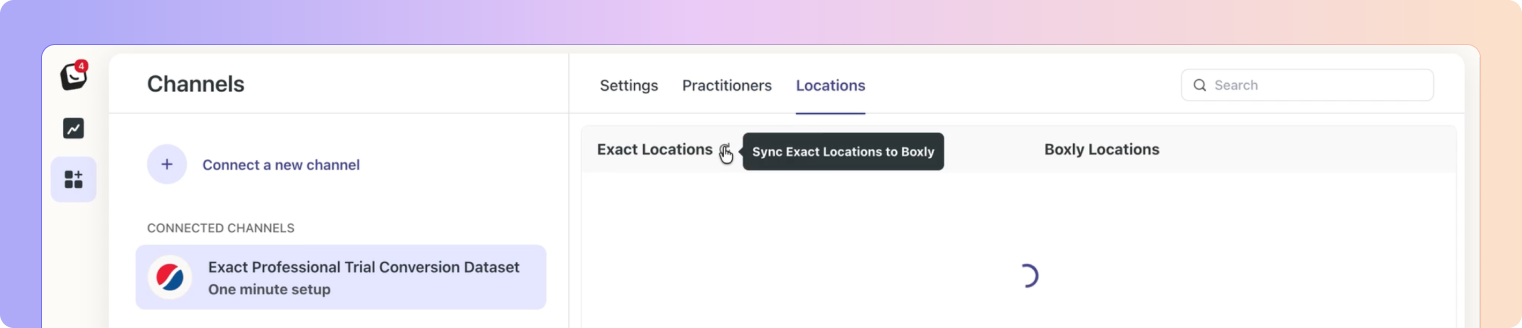
Go to Practitioner tab → Click the Sync button to bring in all practitioners, then map each Boxly practitioner with the corresponding SOE(Exact) practitioner
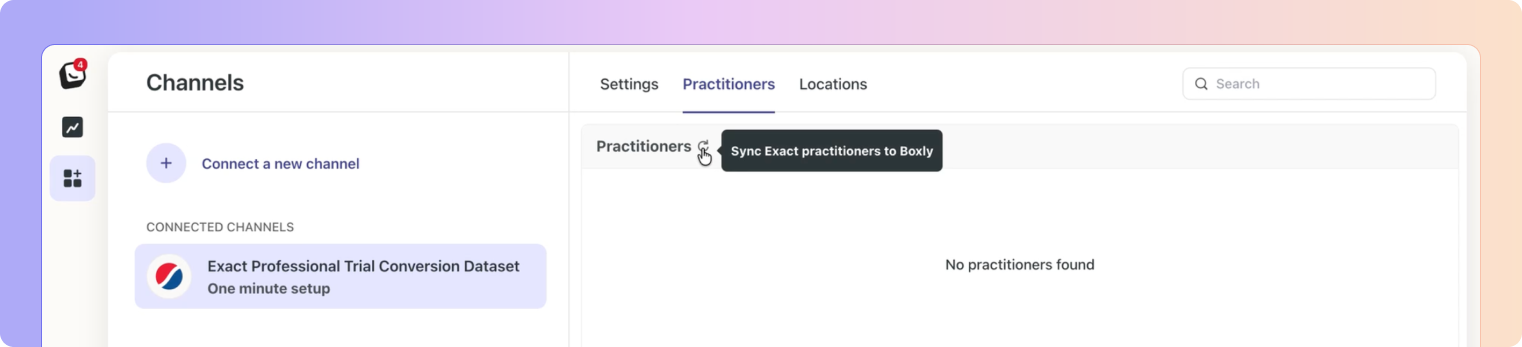
Go to Locations tab → Click the Sync button to bring in all locations, then map each Boxly location with the corresponding SOE(Exact) location
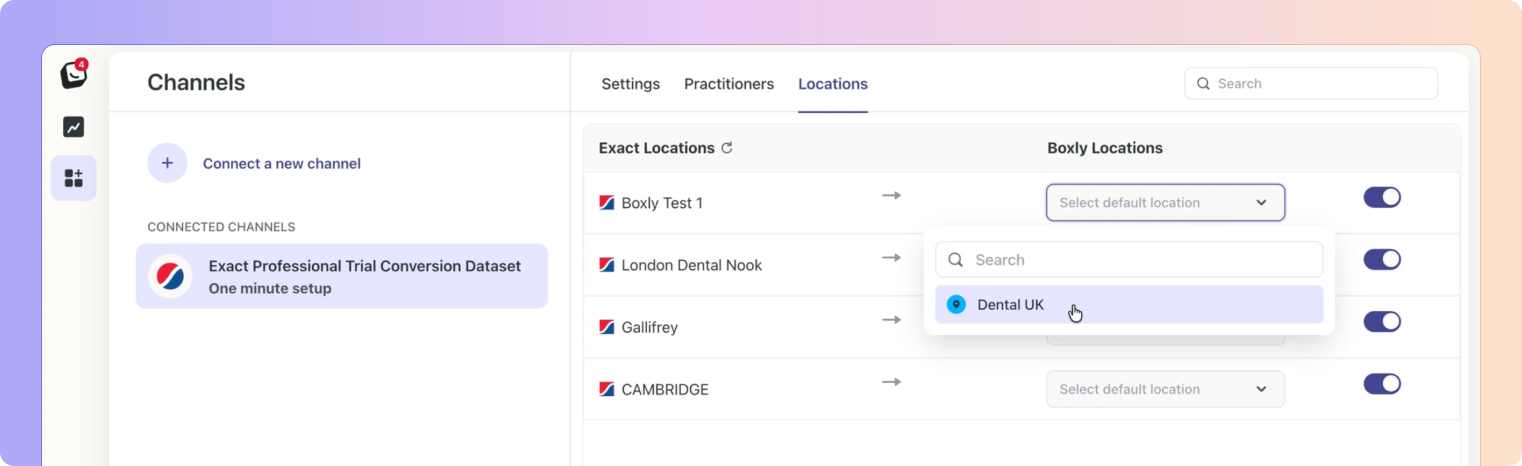
Use Sync anytime to pull newly added locations or practitioners from SOE(Exact)
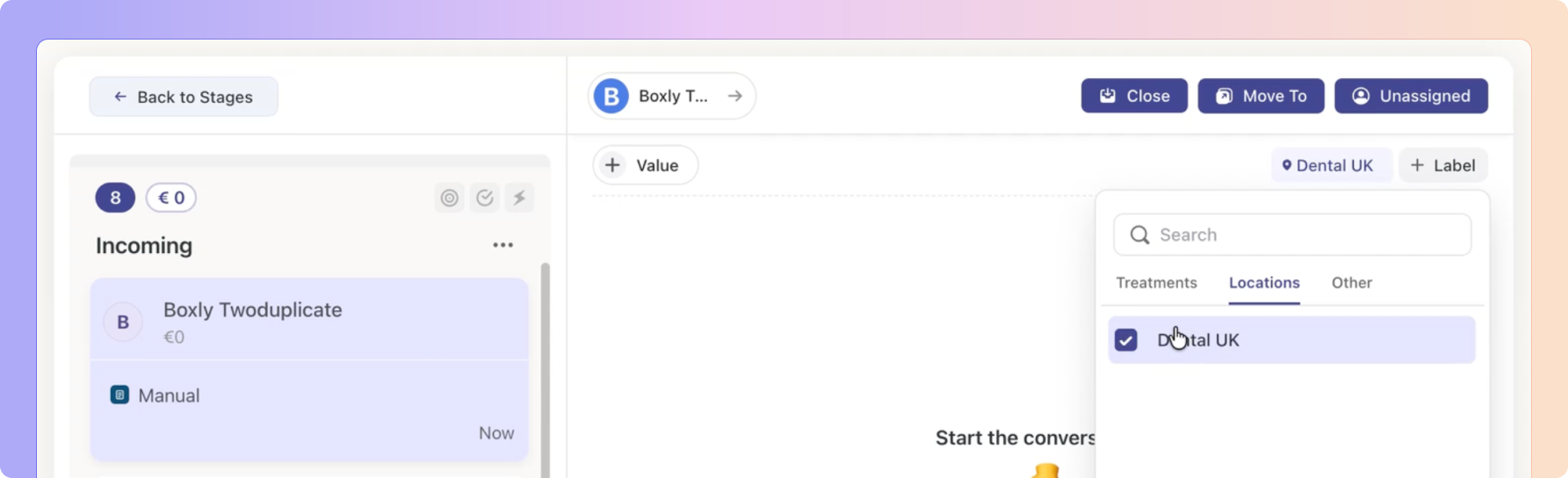
Click on a lead you want to connect your SOE(Exact) PMS too → Add your location label (which is mapped to SOE(Exact)’s corresponding location tag)

Click “Create Patient” once the button appears in the top bar.

Add in the patient details and click “Create”

Once a patient has been created, you’ll have access to the “Appointments” tab
Enter in all relevant details and click “Schedule Appointment”
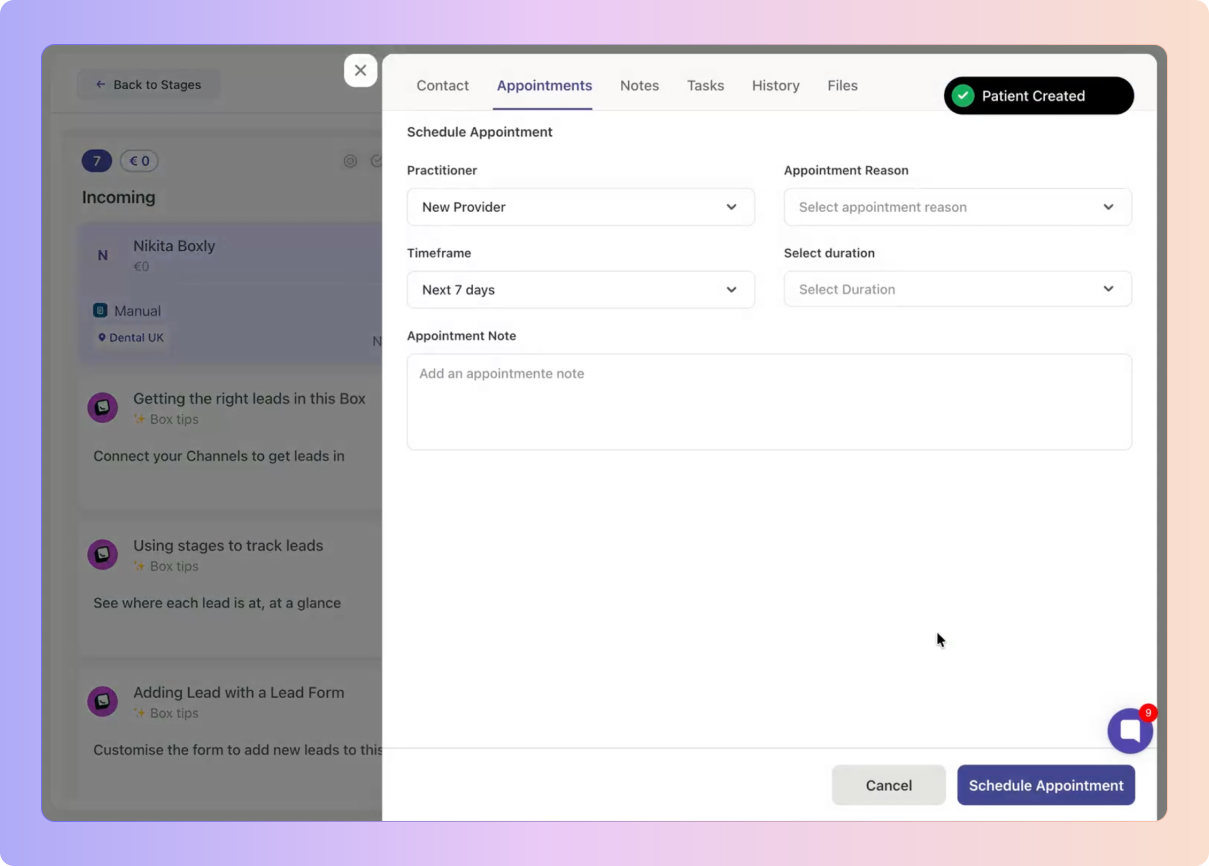
Appointments added in Boxly will appear here.
Click Sync Appointments to add appointments created in SOE(Exact).
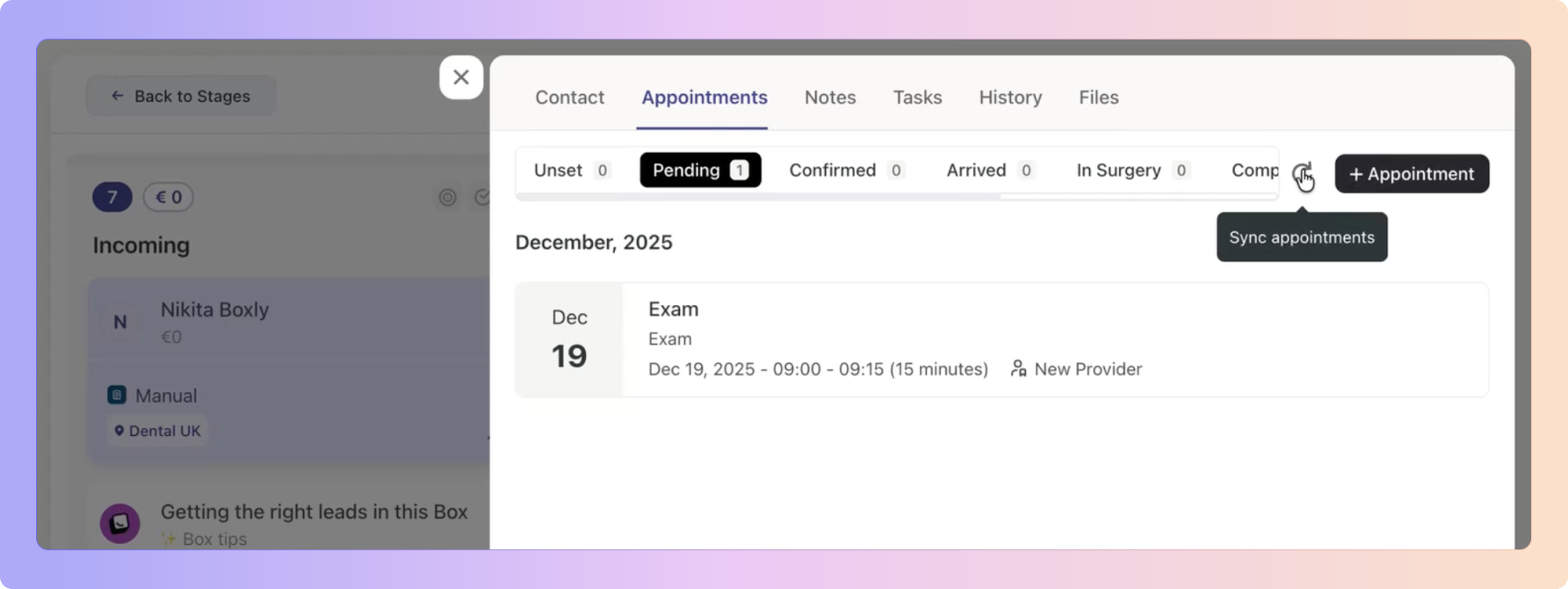
Boxly fetches the latest appointments and update from SOE(Exact)
The appointments appear in Boxly against the relevant patient in the updated appointment status.
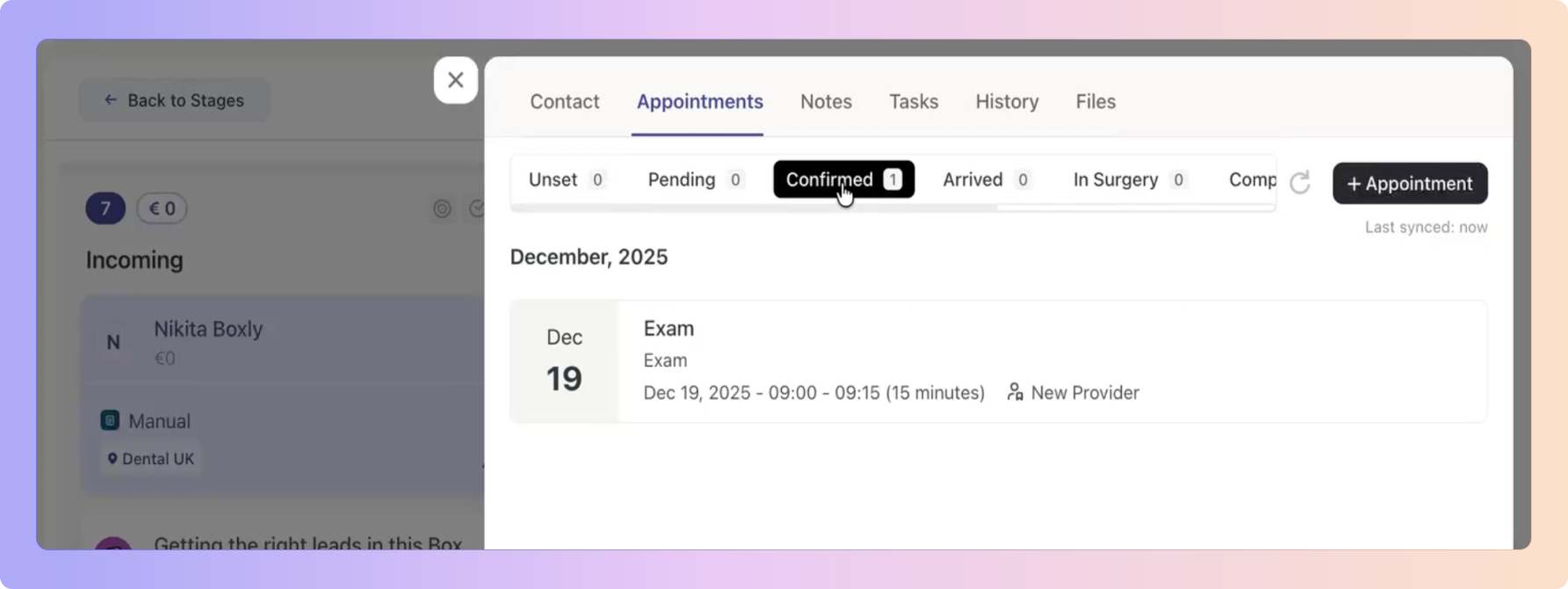
When syncing appointments, Boxly checks whether the patient already exists.
If one or more leads with matching patient details are found:
Boxly shows a message indicating the patient already exists
No new patient is created
The appointment is still synced successfully
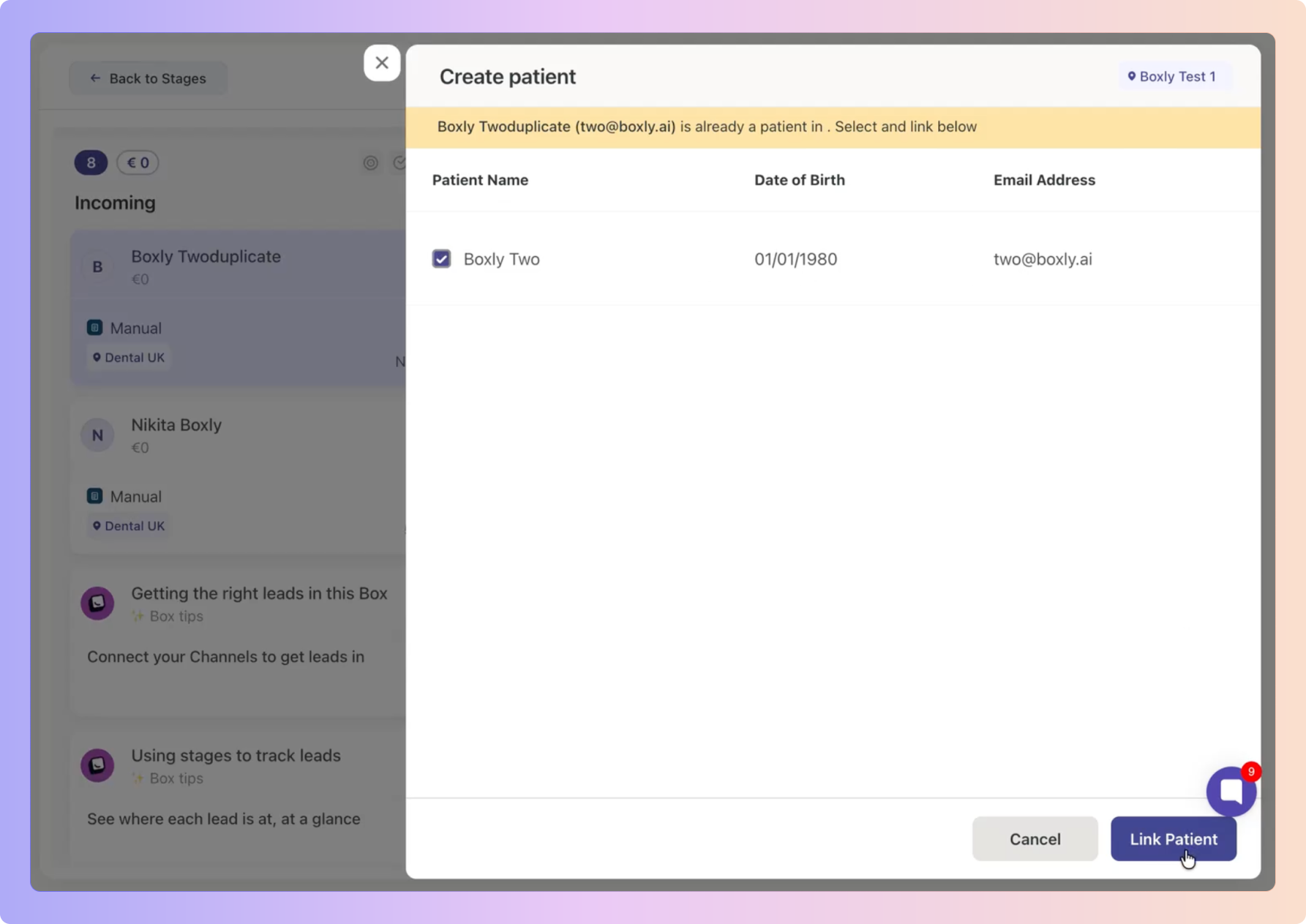
This helps keep your data clean while ensuring appointments are not missed.
If an appointment is cancelled in SOE(Exact) PMS, this update can also be synced into Boxly.
Updates the appointment status to Cancelled
Reflects the cancellation correctly inside Boxly
Keeps appointment information consistent across both systems
Patients created in SOE(Exact) are not created in Boxly
Patient details are not updated or merged
Appointment sync does not run automatically
Historical data is only pulled when a manual sync is triggered
✨ Only appointments created in SOE(Exact) PMS can be synced into Boxly
✨ Appointment sync is manual and must be triggered by the user
✨ Syncing appointments does not change existing patient records in Boxly
✨ Duplicate detection is based on patient details already present in Boxly
✔ Connect your SOE(Exact) PMS account to Boxly
✔ Manually sync appointments from SOE(Exact) into Boxly
✔ Keep cancelled appointment statuses accurate
✔ Prevent duplicate patient creation
✔ Maintain clean and reliable appointment data
Boxly is here to help you work smarter, not harder - let’s keep streamlining your lead management together!
Contact us at [email protected] if you need any assistance!