Email Reporting helps you understand what happens after you send emails from Boxly.
Instead of guessing whether emails were delivered, opened, or clicked, the Email Report gives you a clear view of email activity in one place. It’s designed to help you quickly understand engagement and make better follow-up decisions.

The Email Report includes all emails sent from Boxly, so you don’t need to check multiple areas.
This includes:
Emails sent through automations
Emails sent through broadcasts
Manual emails sent directly from conversations
All of this email activity is combined into a single report for easier tracking and review.
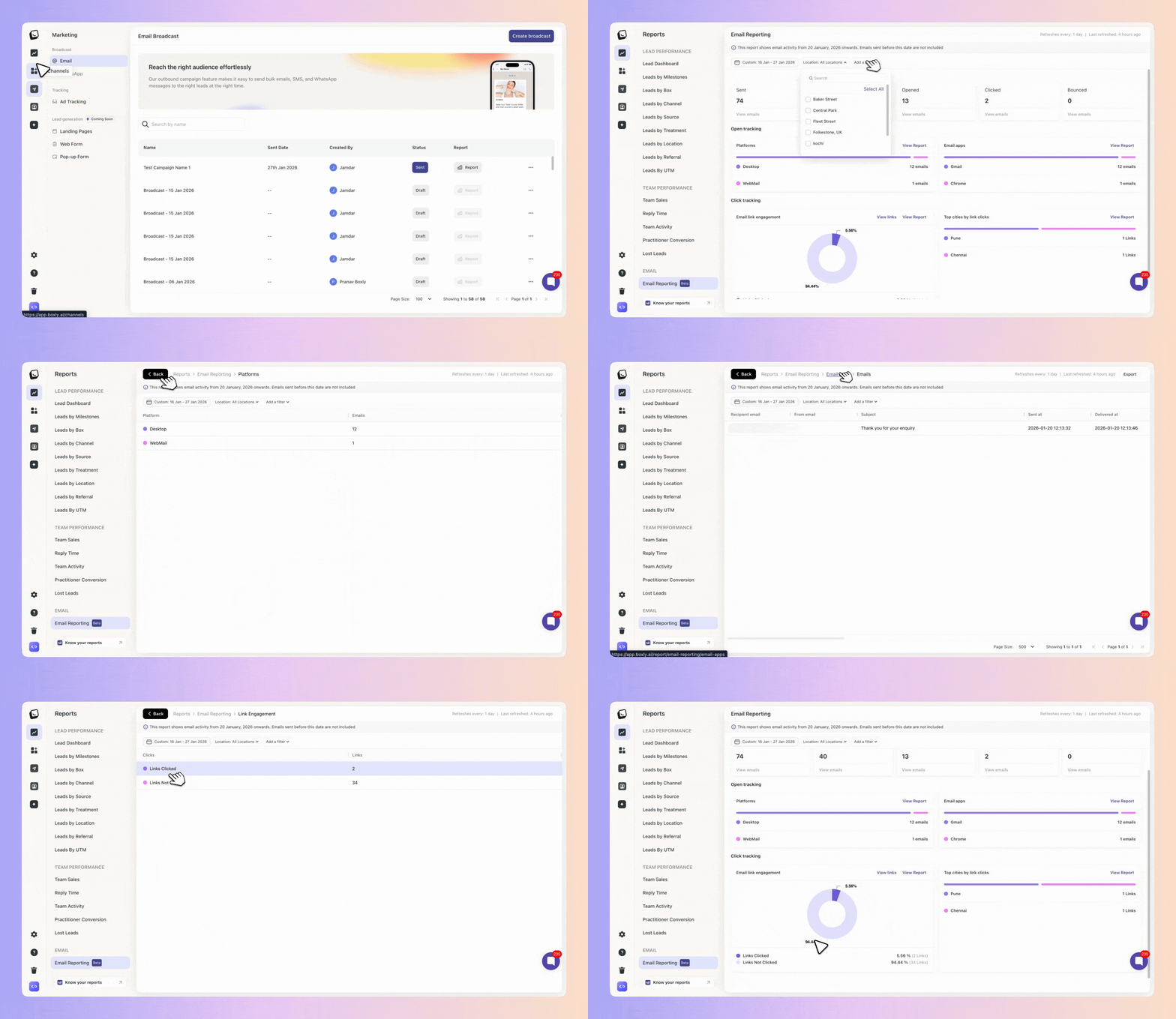
To access the Email Report:
✅ Click Reports in the left-hand menu
✅ Select Email Reporting from the list
You’ll be taken to the Email Reporting dashboard, where you can explore activity for the selected date range.
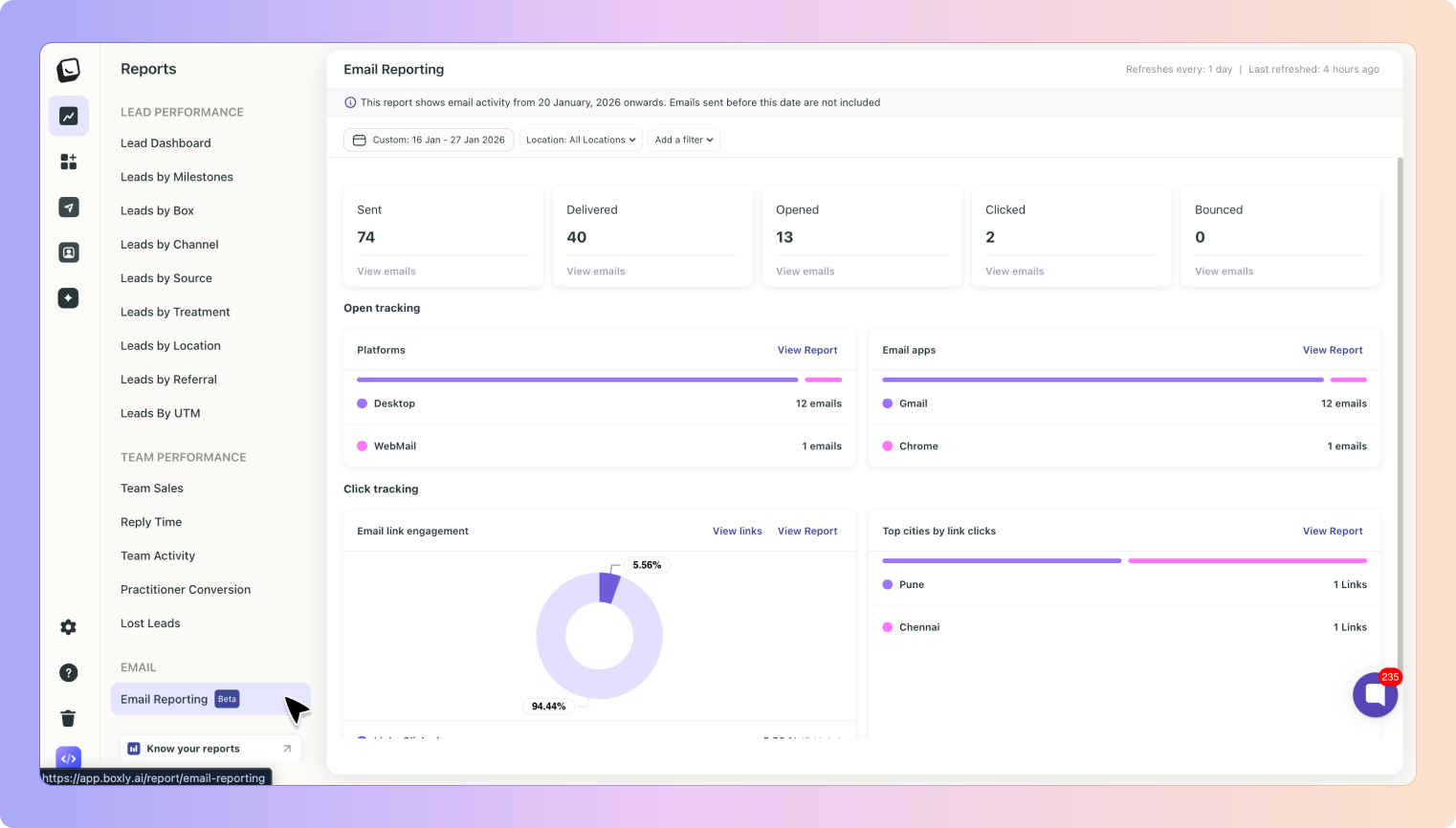
At the top of the report, you’ll see a summary of email performance.
This gives you a quick snapshot of how your emails are doing.
Here’s what each metric means:
Sent - The total number of emails sent from Boxly.
Delivered - Emails that were successfully delivered to the recipient’s email server.
Opened - Emails that were opened at least once by the recipient.
Clicked - Emails where the recipient clicked at least one link inside the email.
Bounced- Emails that could not be delivered, usually due to an invalid email address.
These numbers automatically update when you apply filters.
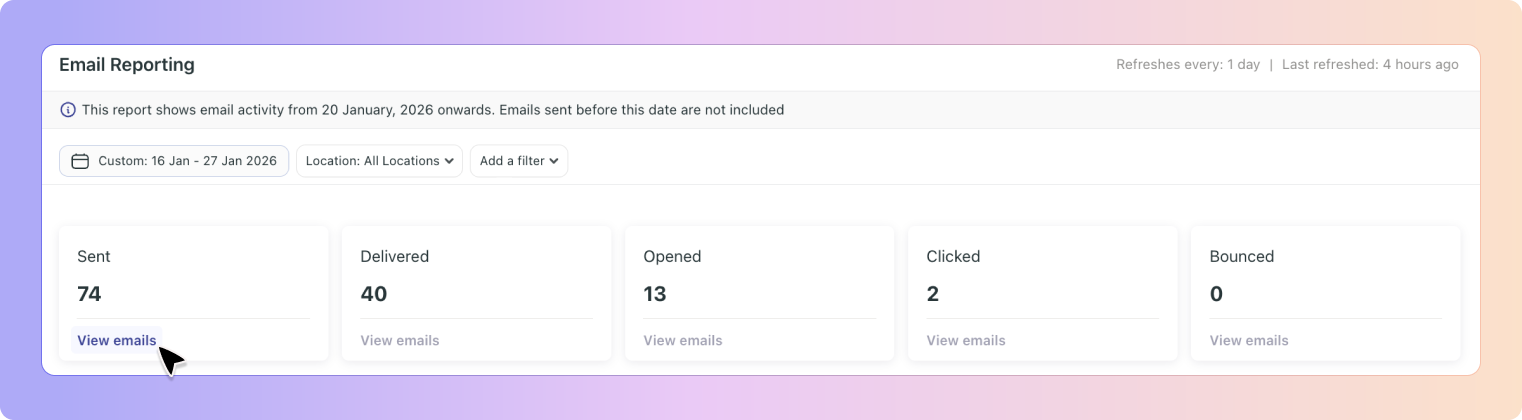
The Email Report refreshes once every day at midnight.
This means:
Emails sent today will appear in the report after the next refresh
All emails sent up to the end of yesterday are fully included
You don’t need to refresh or update anything manually

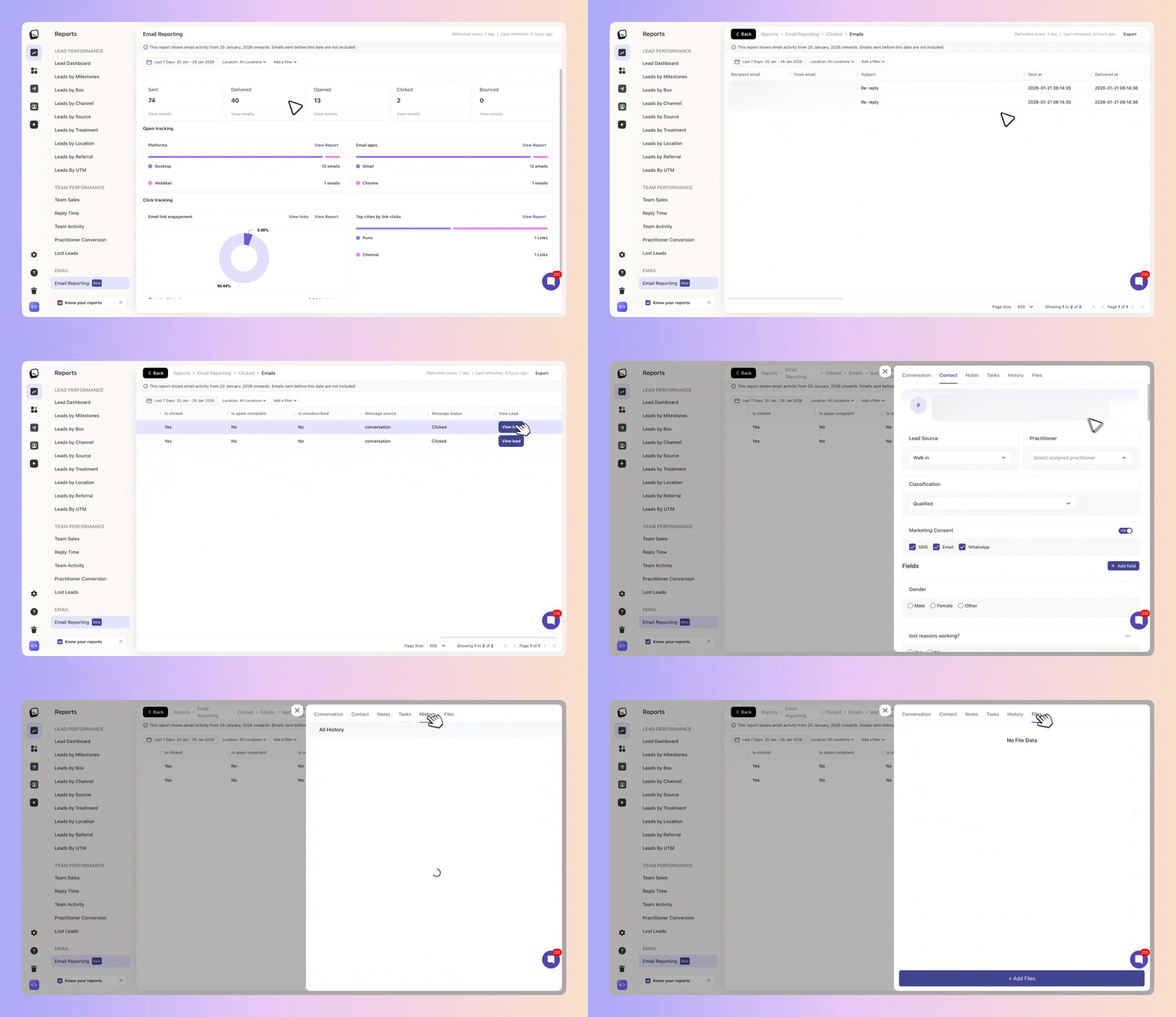
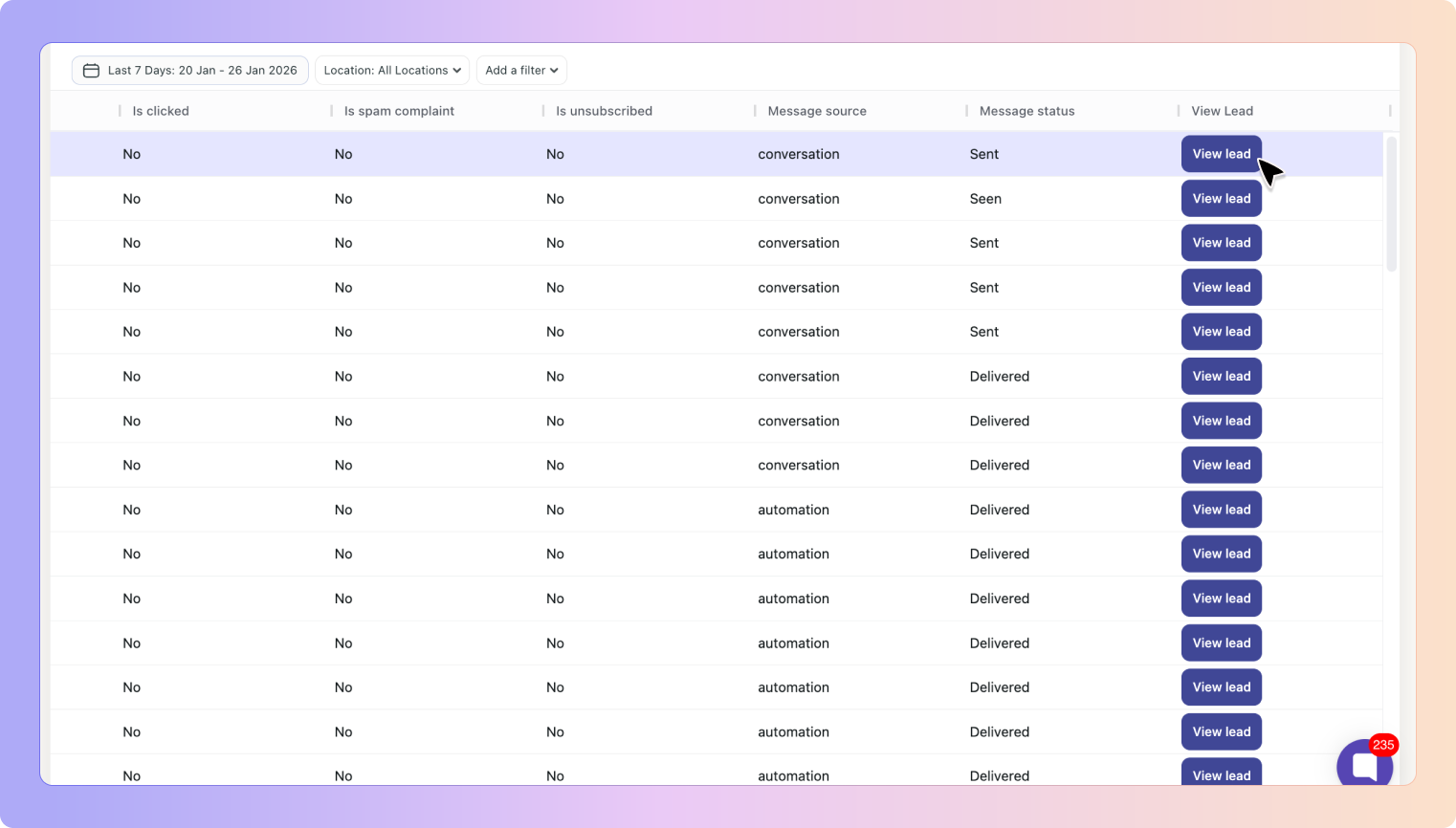
Every summary metric in the Email Report is clickable.
✅ When you click on Sent, Delivered, Opened, Clicked, or Bounced:
A list of individual emails opens
Each row shows:
The email subject
The message status
How the email was sent (automation, broadcast, or conversation)
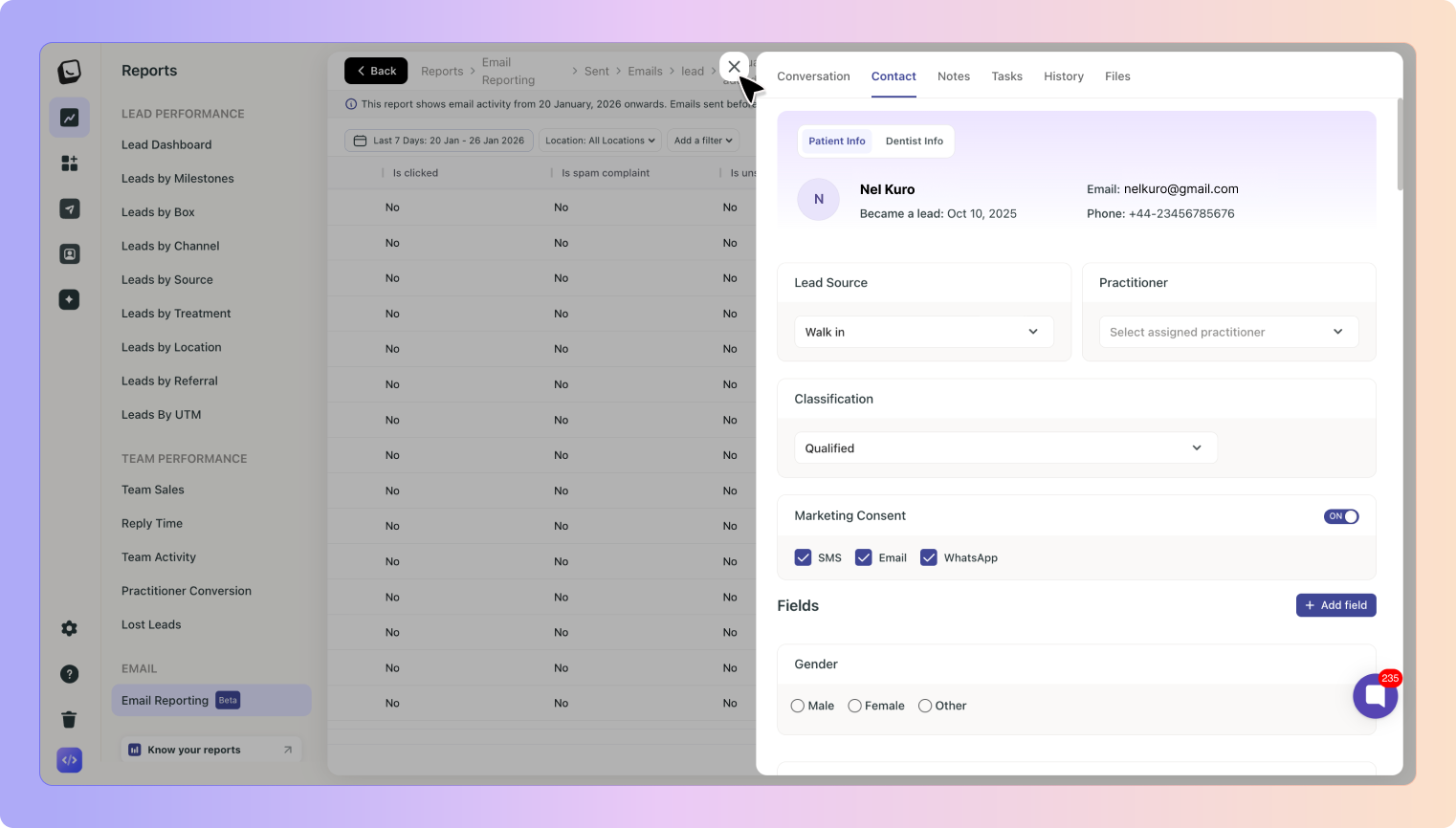
You can click View lead to open the related lead profile
✅ From the lead profile, you can:
Review the full conversation history
View notes and uploaded files
Understand the context of the email
✅ This makes it easy to move from high-level reporting to individual lead details.
Filters help you focus on the emails that matter most.
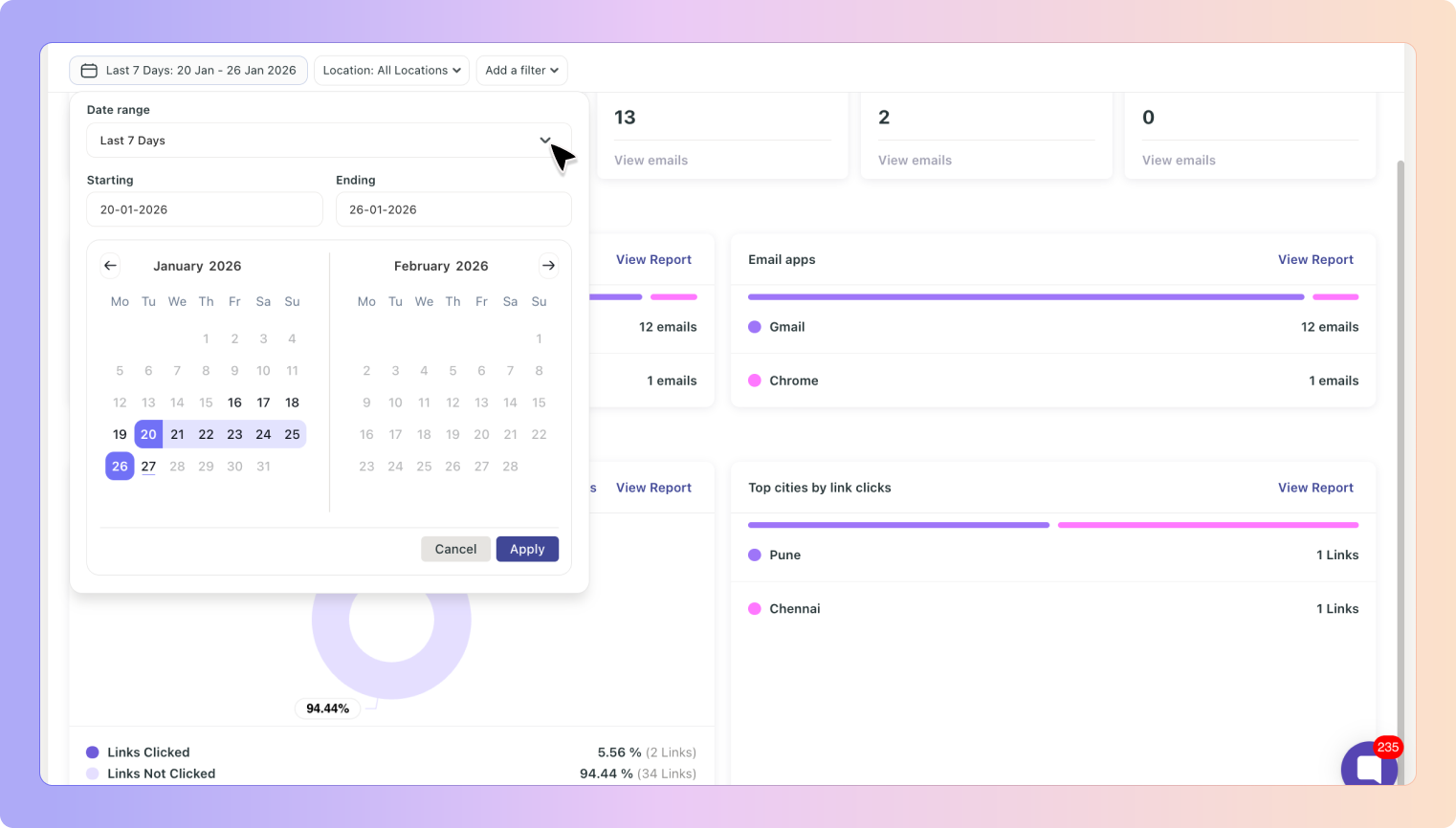
The date filter controls all data shown in the report.
You can use it to view:
Today
Yesterday
Last 7 days
Month to date
A custom date range
Once selected, all metrics and lists update automatically.
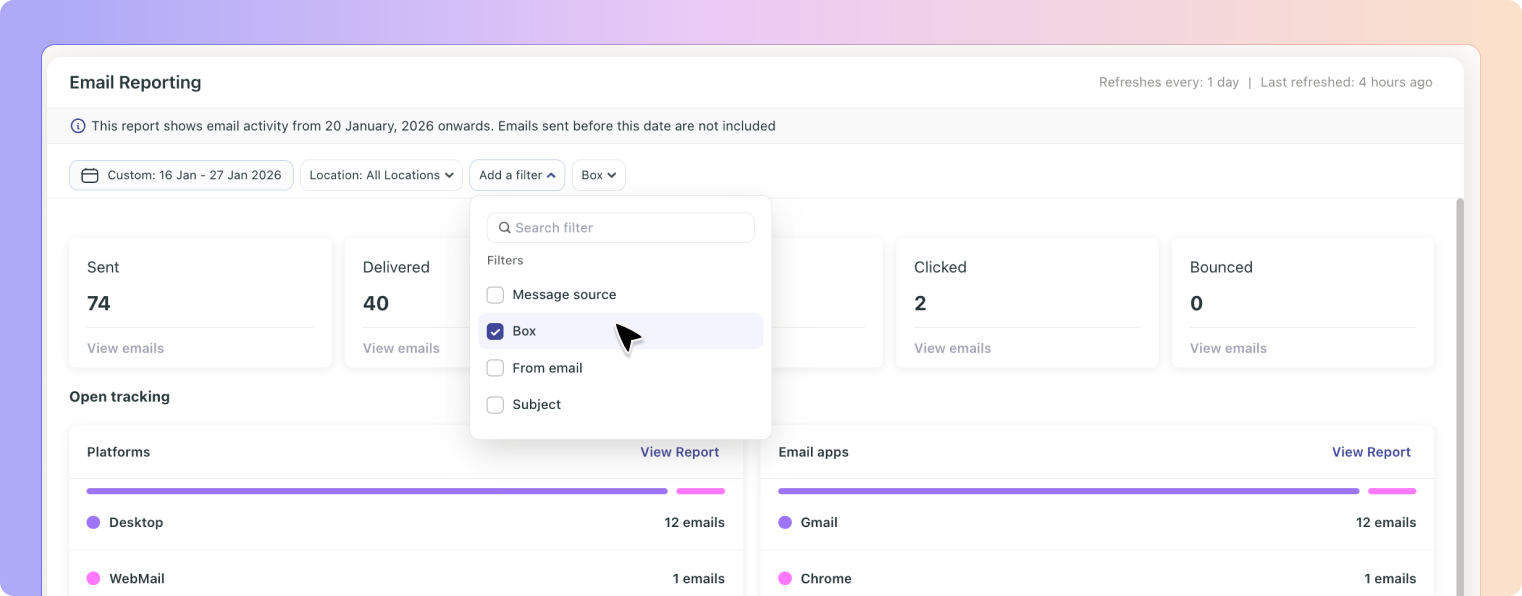
You can further refine your Email Report using these filters:
Location – useful if your account has multiple locations
Message source – Automation, Broadcast, or Conversation
Box – to focus on emails sent from a specific Box
From email – filter by sender email address
Subject – search for emails by subject line
When filters are applied, you can clear them at any time to return to the full report view.
The Open Tracking section shows how recipients are opening your emails.
✅ Emails are grouped by the type of device or platform used, such as:
Desktop email apps
Mobile email apps
Webmail (for example, Gmail or Outlook in a browser)
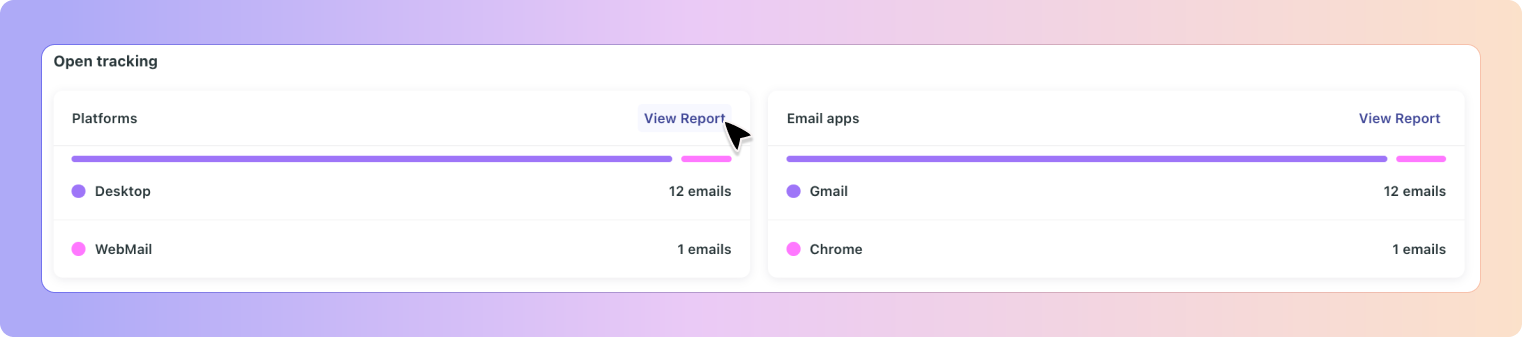
✅ From this section, you can:
Click View Report for a detailed breakdown
Drill down into individual emails
Open the related lead directly
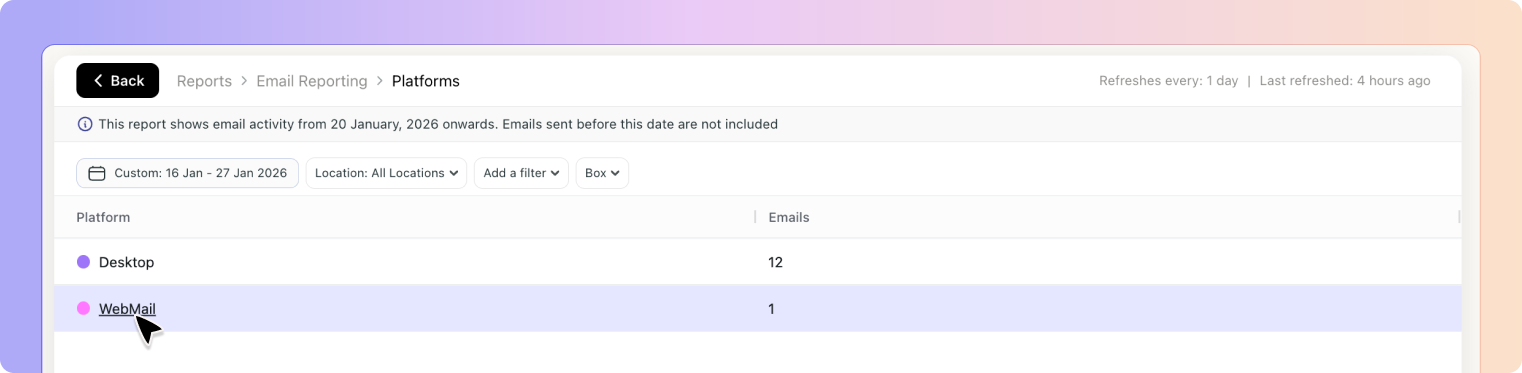
✅ This helps you understand how your audience is reading your emails.
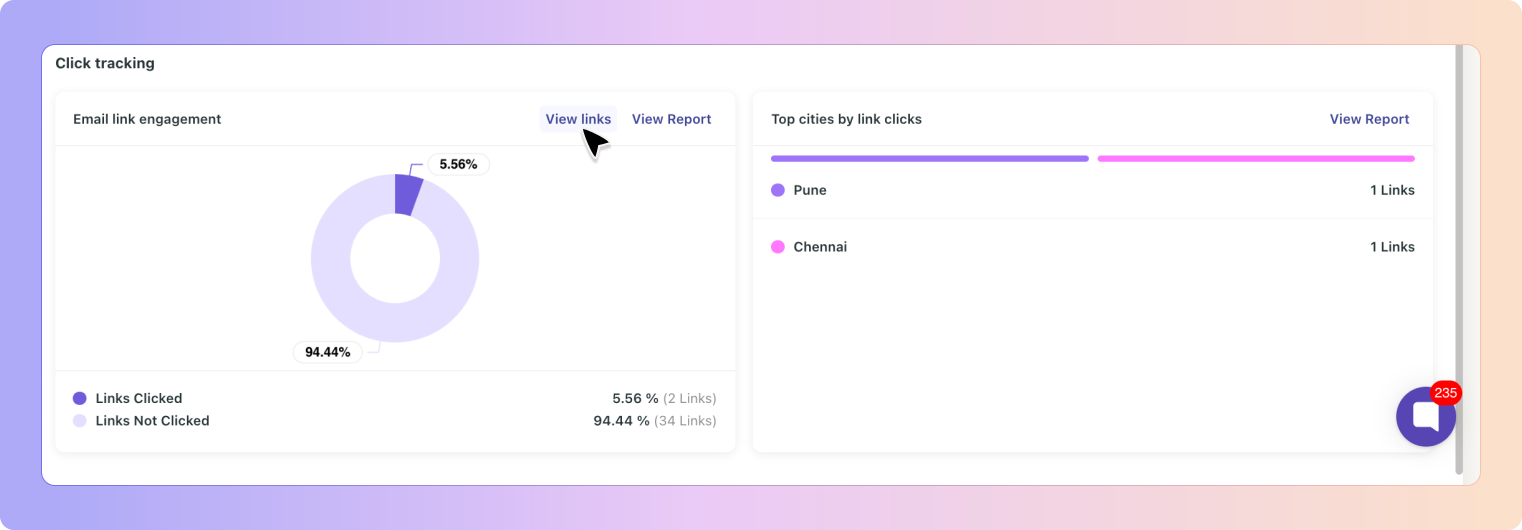
The Click Tracking section shows how recipients interact with links inside your emails.
✅ Here, you can:
See all links included in emails during the selected period
View how many times each link was clicked
Understand which links are generating the most engagement
✅ You can also:
Click on a specific link to see related emails
Open lead-level details directly from the list
When an email is marked as Clicked, it means:
✅ The email contained at least one link
✅ At least one of those links was clicked by the recipient
It does not mean:
Every link in the email was clicked
The recipient clicked multiple links or clicked more than once
In simple terms:
Clicked tells you if an email had any link interaction
Click Tracking shows you which links were clicked and how often
This keeps the overview simple while still giving you detailed engagement insights when you need them.
Email Reporting helps you:
✅ Confirm that emails are being delivered successfully
✅ See which messages are being opened
✅ Identify which links drive engagement
✅ Spot leads who may be ready for follow-up
✅ Improve future emails using real performance data