UTM Reporting helps you understand where your leads are coming from, which campaigns are working, and how those leads are converting.
It uses UTM parameters that are added to links outside Boxly (for example, in Google Ads, Meta Ads, emails, or website links) and reports on the values recorded on each lead.
UTM Reporting shows you how leads are tagged based on the UTM parameters they arrive with.
These parameters are added to links before a lead reaches Boxly. When a lead is created, Boxly records the UTM values exactly as they are received and uses them for reporting and conversion tracking.
Using this report, you can:
See which platforms and campaigns are driving leads
Compare lead volume across campaigns and channels
View conversions associated with each UTM value
Drill down from summary data into individual leads
To open the UTM Report:
✅ Click Reporting from the left sidebar
✅ Select Leads by UTM from the reports list
The report will load using the default date range and filters, which you can adjust at any time.
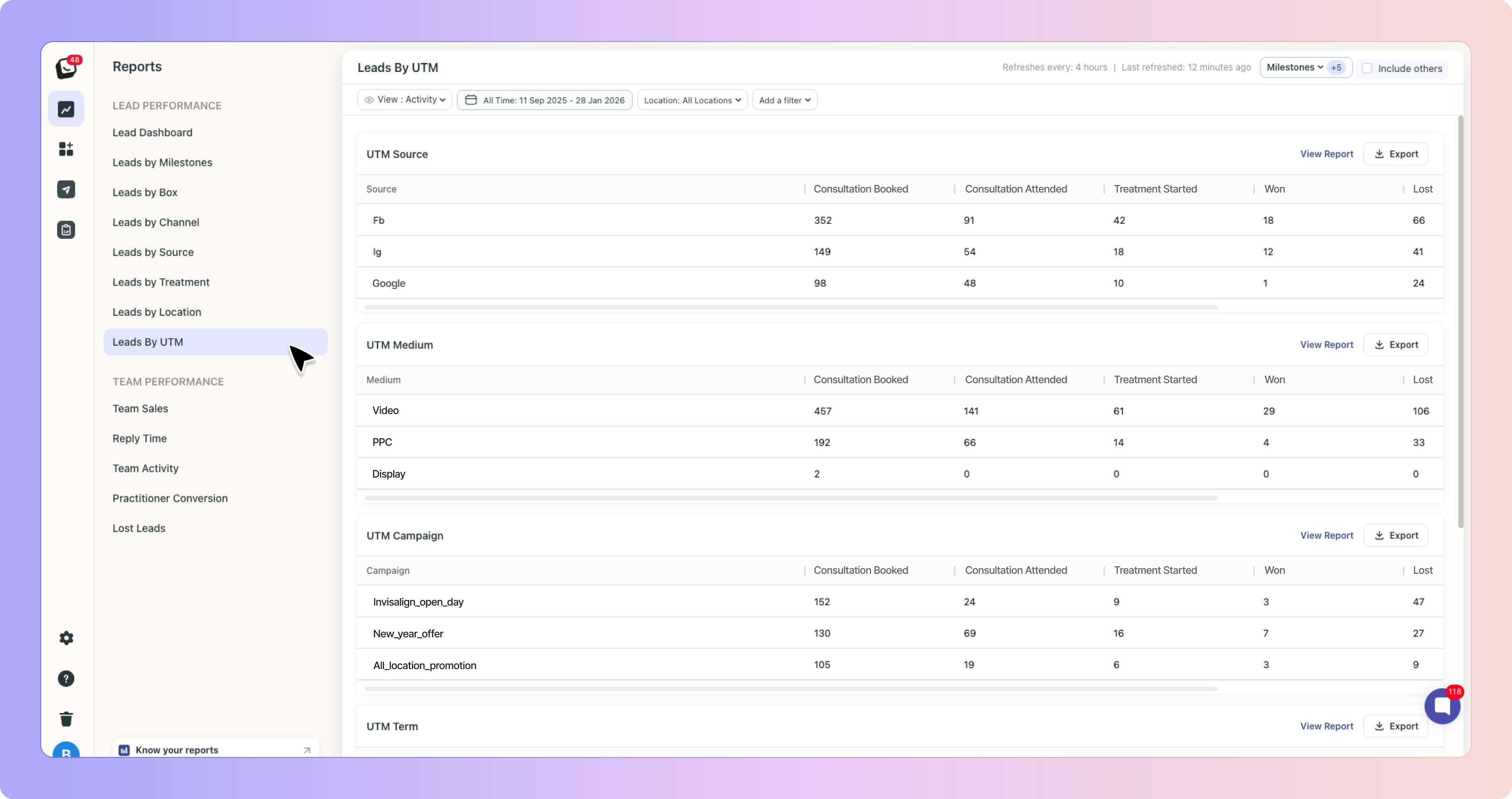
The UTM Report is broken down into multiple sections. Each section shows the top UTM values for the selected time period.
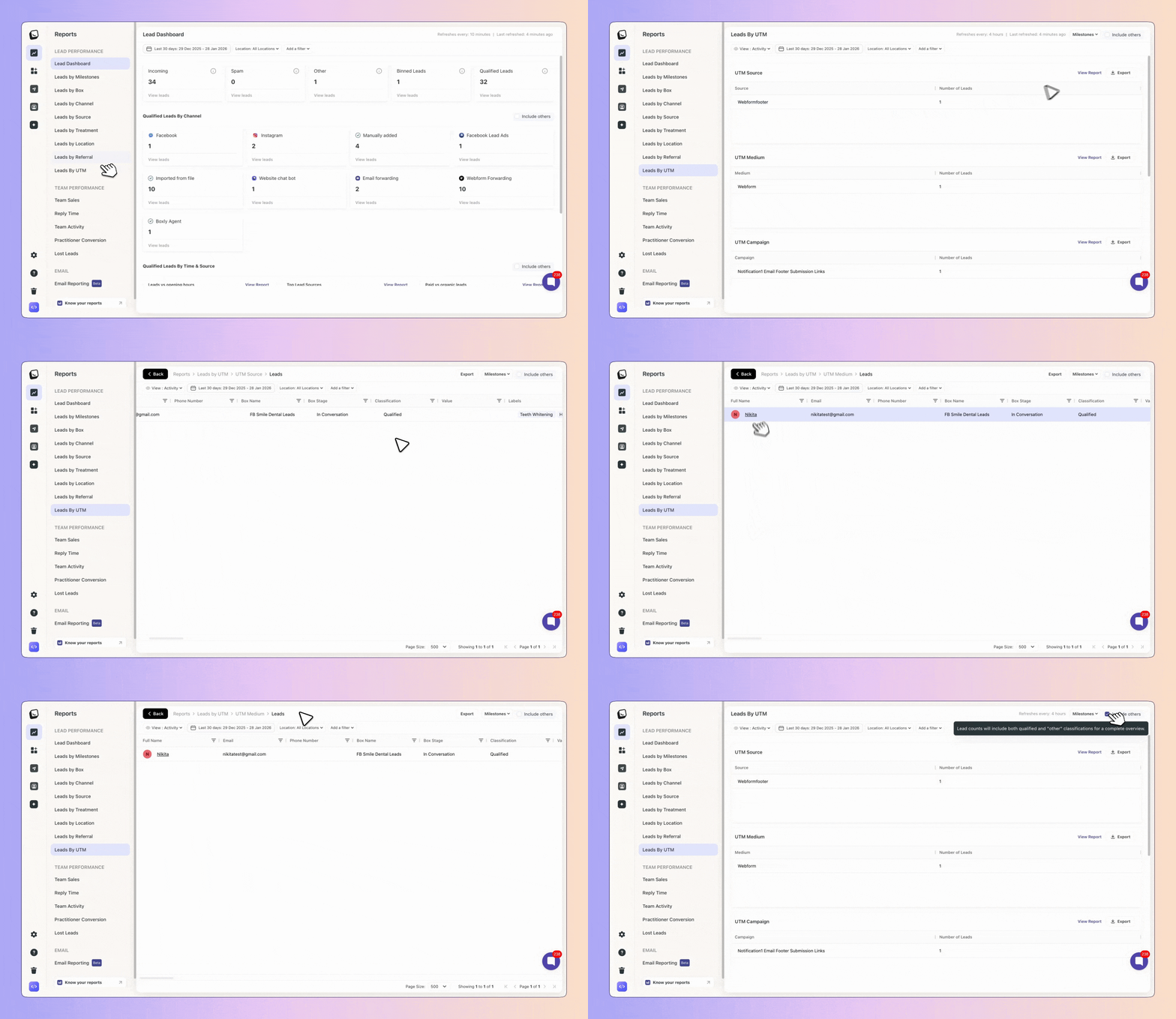
By default:
The dashboard view shows the top 3 values for each UTM field
Clicking View Report shows the full list
Clicking any individual value opens the related leads
The report includes the following sections:
UTM Source
UTM Medium
UTM Campaign
UTM Term
UTM Content
Each section shows:
The UTM value
The number of leads associated with that value
Conversion and milestone data (where available)
All UTM values in the report are clickable.
When you click on a UTM value:
Boxly opens a list view of leads associated with that value
You can review each lead individually
You can open the lead profile to see conversations, notes, files, and activity

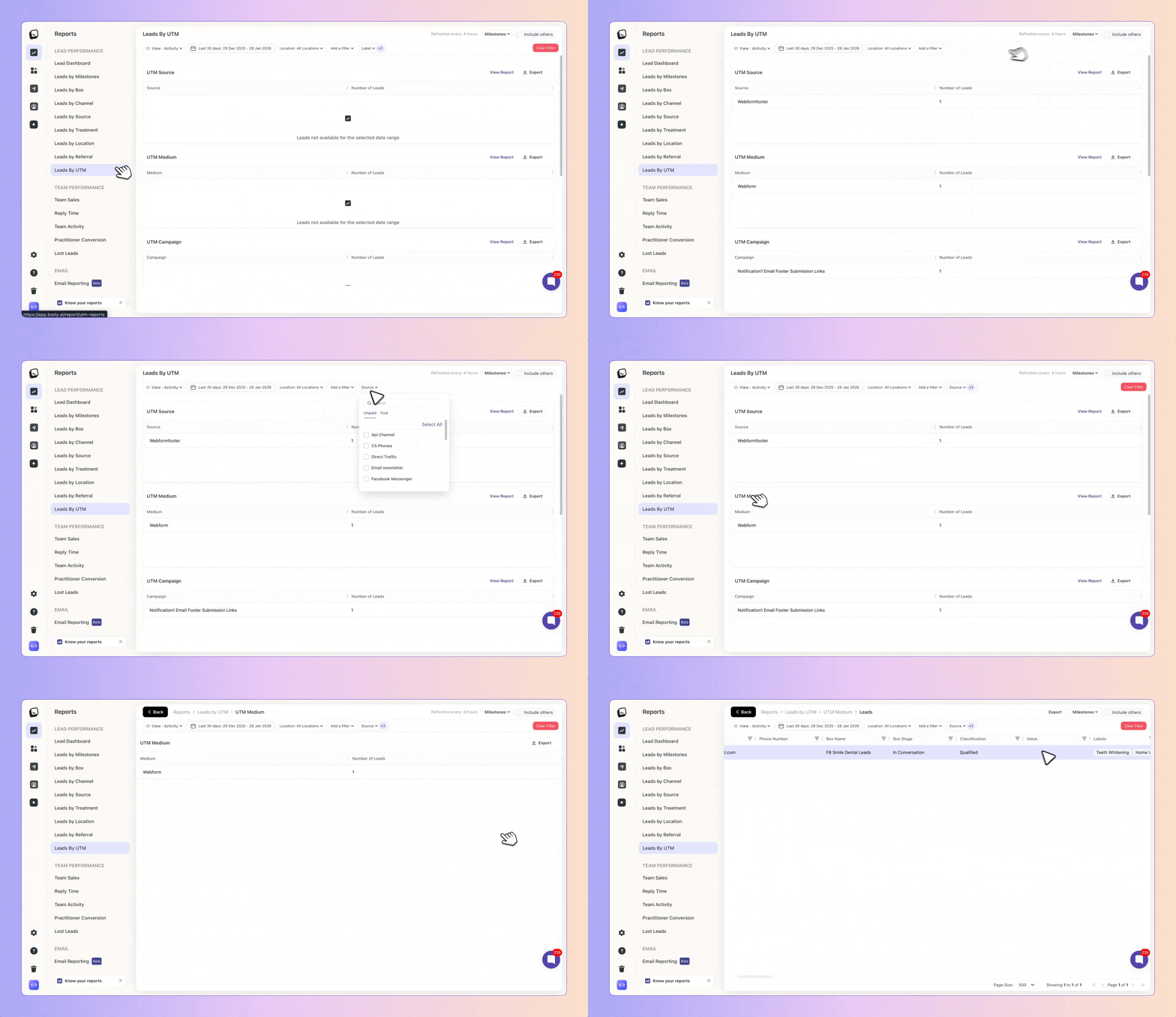
✅ UTM Reporting supports the same filters used across other Boxly reports.
You can filter by:
Date range
Location (if you have multiple locations)
Channel
Label
Source
Practitioner
Box
You can also switch between:
Activity view
Conversion or milestone views (if enabled)
Here’s what each UTM field represents and how it’s used in Boxly.
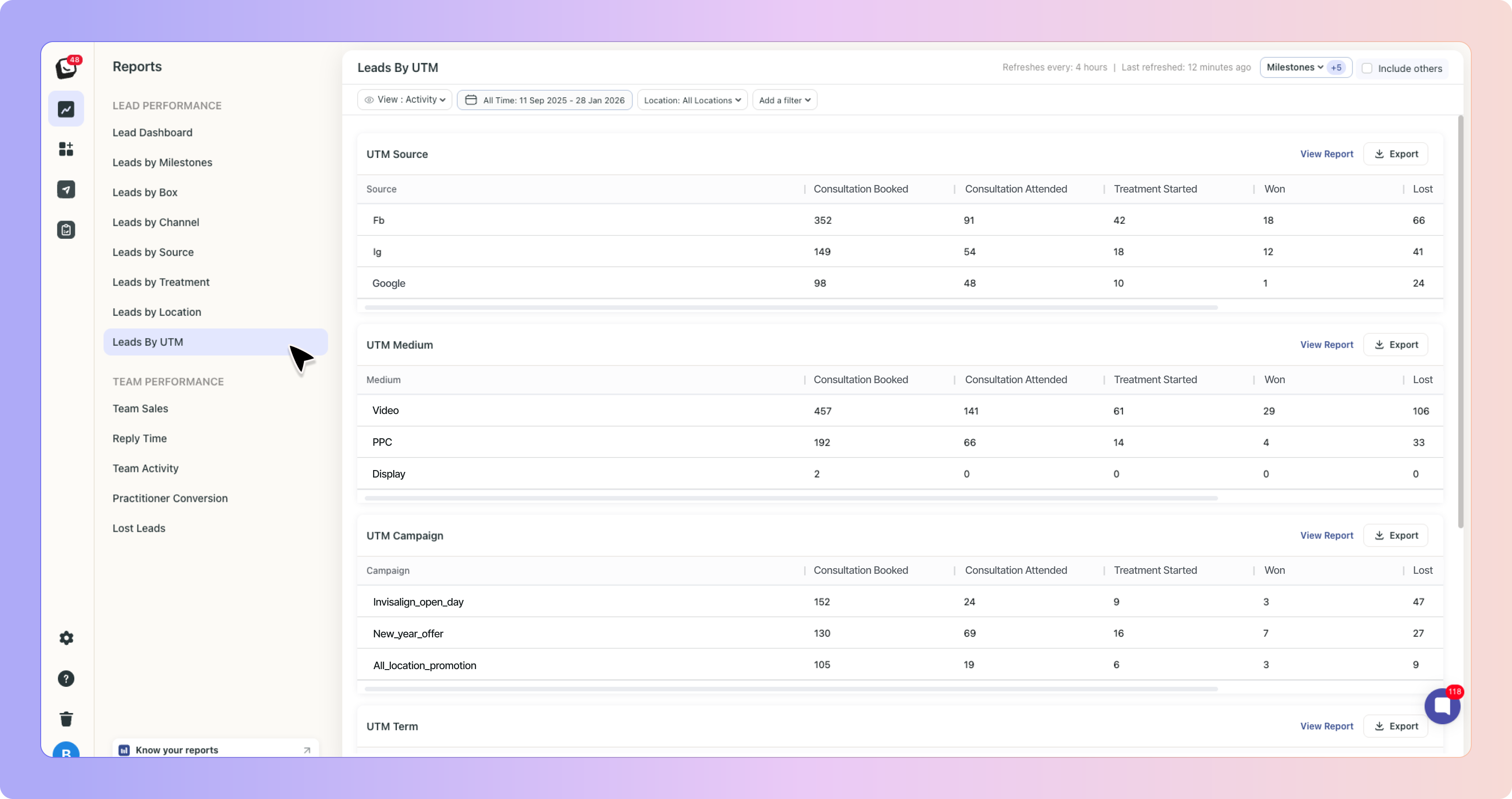
✅ Shows where the link was shared.
✅ This usually refers to the platform or website that sent the traffic.
Common examples:
tiktok
Example:
utm_source = facebook
✅ This means the lead came from a link shared on Facebook.
✅ Shows how the link was categorised.
✅ This describes the type of traffic or channel used.
Common examples:
cpc
paid
social
Example:
utm_medium = cpc
✅ This means the link was part of a paid campaign.
✅ Shows the campaign name defined in the link.
✅ This is commonly used t o group leads from the same marketing campaign.
Example:
utm_campaign = UK_London_Fulham_Branded
✅ This allows you to see all leads generated from that specific campaign in one place.
✅ Often used for keywords or audience targeting.
✅ This field may be empty if it was not included in the link.
Common examples:
invisalign
teeth_whitening
remarketing_audience
Example:
utm_term = invisalign
✅ This helps identify which keyword or audience drove the lead.
✅ Used to differentiate between ads, creatives, or link variations within the same campaign.
✅ This is useful when multiple ads point to the same landing page.
Common examples:
video_ad_1
carousel_variant_b
instagram_reel
Example:
utm_content = instagram_reel
✅ This helps you see which creative variation performed better.
UTM Reporting is essential for accurate attribution and conversion tracking.
When UTM data is present:
Boxly can show where leads came from
Reports reflect correct campaign performance
Conversion events can be sent back to Google and Meta for optimisation
Without UTMs:
Leads are marked as Direct Traffic
Campaign performance cannot be measured correctly
Conversion tracking becomes unreliable
Every lead must come into Boxly with the full submission URL, including:
GCLID (for Google Ads) or FBCLID (for Meta Ads)
All UTM parameters
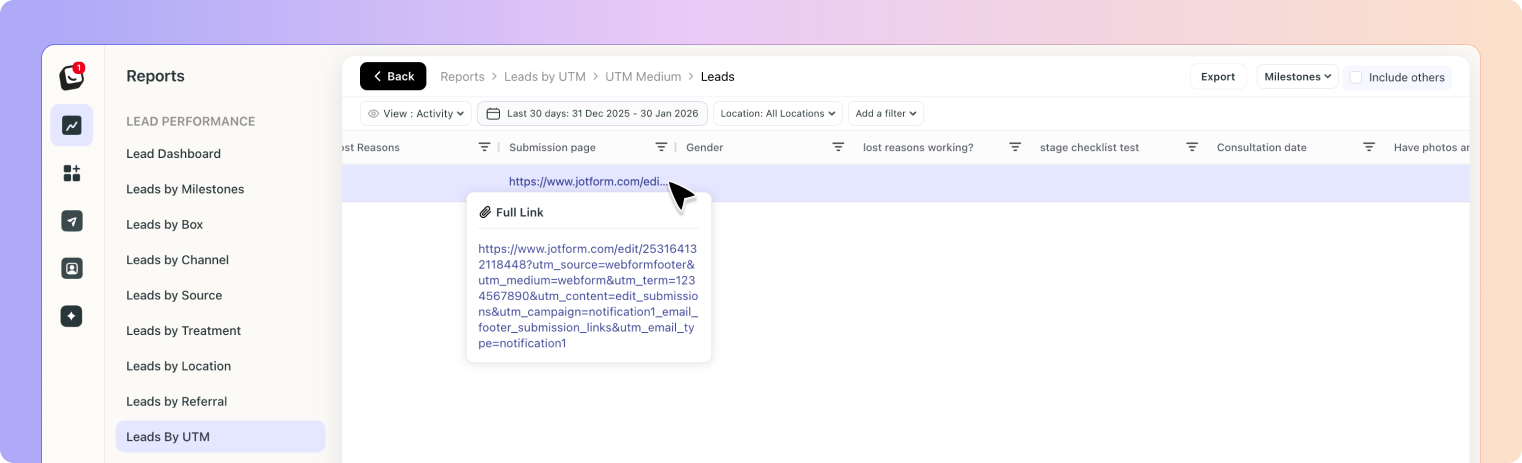
If tracking parameters are missing, Boxly:
Cannot identify the true source of the lead
Cannot show accurate UTM reports
Cannot send conversion events back to Google or Meta
Most tracking issues happen because the GCLID or FBCLID is missing.
✅ Correct Google Ads URL example
✅ Correct Facebook Ads URL example
❌ Incorrect URL examples
https://www.yoursite.com/braces
yoursite.com/whiteningThese URLs contain no tracking information, so Boxly cannot attribute or track conversions.
If your UTM Report is empty or incomplete:
Ask your marketing team or agency to set up UTMs
Make sure UTM-tagged links are used as destination URLs in ads
You can create UTMs using Google’s free Campaign URL Builder:
https://ga-dev-tools.google/campaign-url-builder/