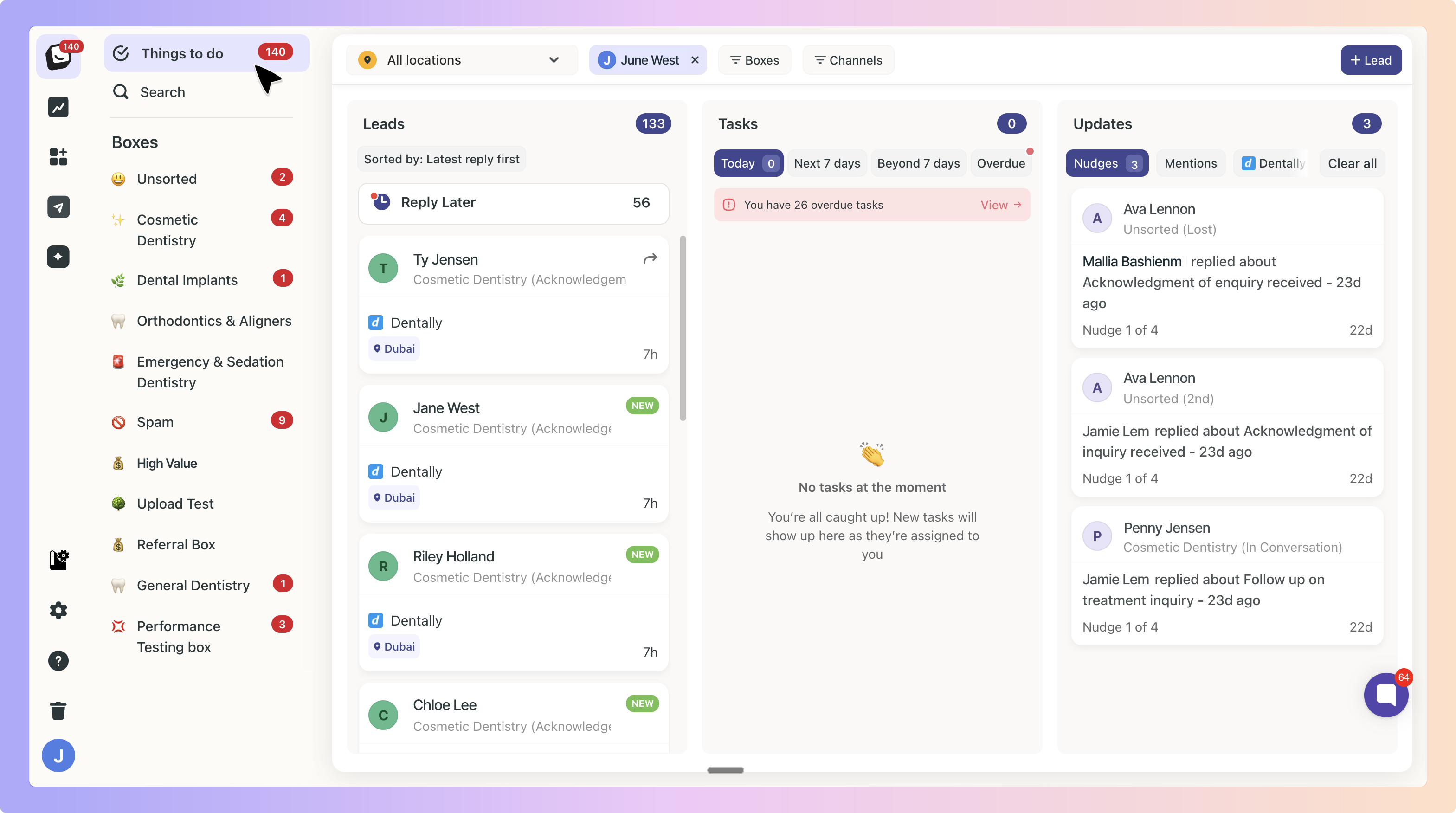
The Things To Do section now includes two new filters and four lead sorting options, giving your team greater control over which conversations are displayed and in what order.
Instead of scrolling through every item in your Things To Do list, you can now narrow down your view by box, by channel, and sort leads exactly the way your workflow requires.
As your team grows and more conversations come in, ‘Things To Do’ can become difficult to scan, especially when you are managing multiple boxes or communication channels at once.

This helps teams:
Focus on specific boxes without distraction
View leads from a particular channel only
Prioritise conversations by the most recent or oldest activity
Reduce time spent searching for the right lead
The Box filter displays all boxes currently created in your account. You can select one or more boxes to view only the leads, tasks, and updates that belong to those boxes inside Things To Do.
To use it:
Open Things To Do
Click on the Filters option
Select the boxes you want to view
Click Apply
✅ The Box filter applies across all three columns in Things To Do: Leads, Tasks, and Updates.
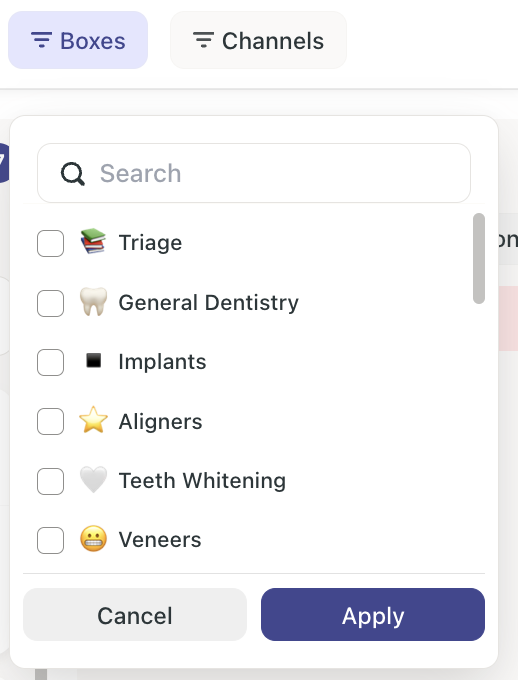
The Channel filter displays all communication channels currently connected to your account. This includes channels such as email, SMS, and WhatsApp.
To use it:
Open Things To Do
Click on the Filters option
Select the channels you want to view
Click Apply
✅ The Channel filter also applies across all three columns: Leads, Tasks, and Updates.

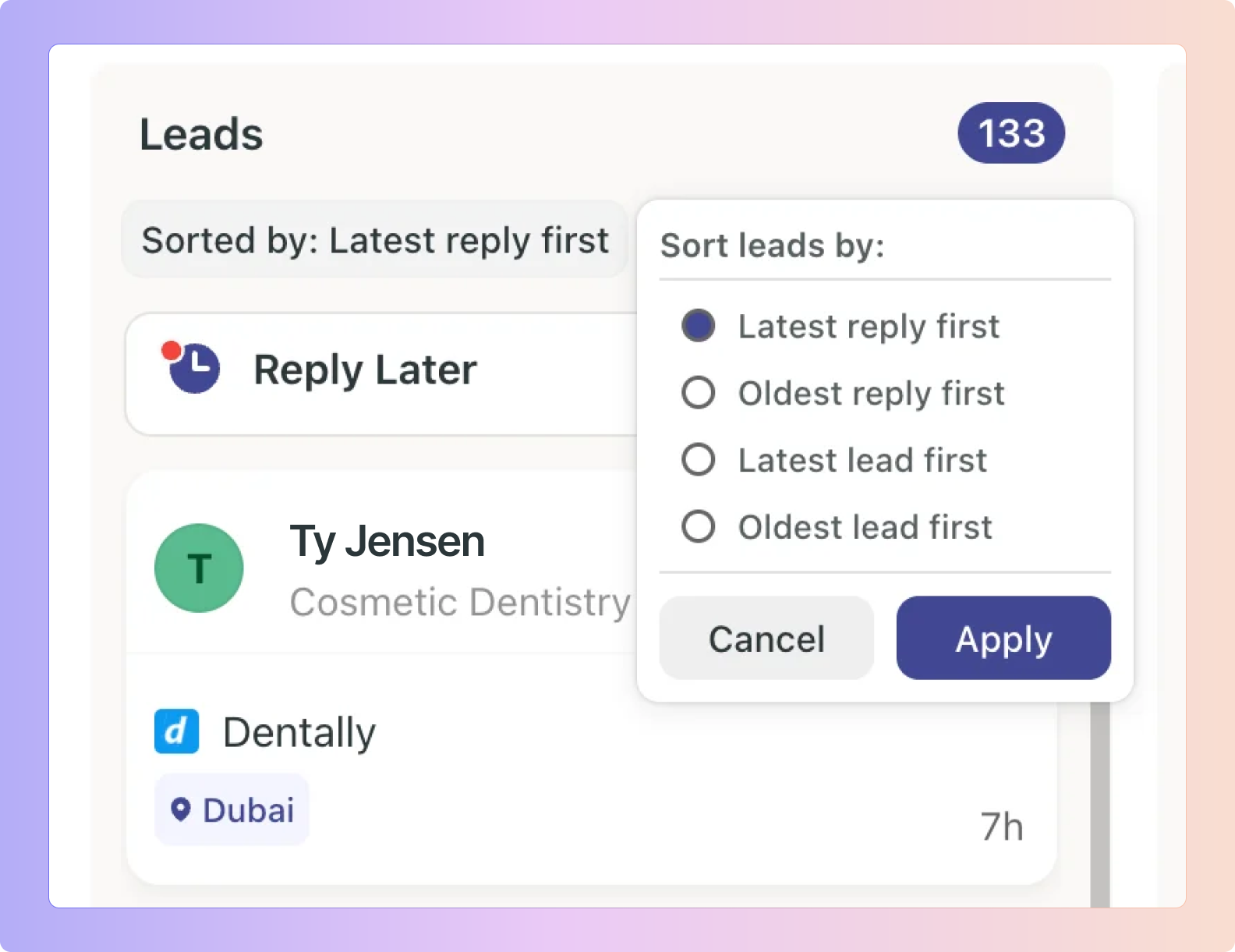
In addition to filters, Things To Do now supports four sorting options. These allow you to control the order in which leads appear in your list.
Shows leads ordered by the most recent reply received from a lead. The lead with the newest incoming message appears at the top.
Use this when you want to respond to the most recent activity first.
Shows leads ordered by the oldest reply received from a lead. The lead that has been waiting the longest for a response appears at the top.
Use this when you want to catch up on conversations that have not been attended to in a while.
Shows leads ordered by when they were created in your system, with the newest lead appearing at the top.
Use this when you want to prioritise leads that have just come in.
Shows leads ordered by when they were created in your system, with the oldest lead appearing at the top.
Use this when you want to work through longer-standing leads that may still be in progress.
✅ To apply sorting, select your preferred option from the dropdown and click Apply.
✅ The Leads column will update immediately.
Filters and sorting can be combined to create a highly focused view of your Things To Do list.
For example:
Select a specific box and a specific channel, then sort by Oldest Reply First to see which leads have been waiting the longest for a follow-up. Tasks and Updates for those same leads will also be filtered accordingly.
Select all boxes and sort by Latest Lead First to get a quick view of the newest enquiries across your entire account in the Leads column.
Filters are available inside the Things To Do section. Look for the Filters option at the top of the list.You will see the box filter option based on the permission.
Yes. You can select multiple boxes and multiple channels simultaneously and then click Apply.
Yes. Both the Box filter and the Channel filter apply across all three columns — Leads, Tasks, and Updates.
No. Lead sorting applies to the Leads column only. The order of items in the Tasks and Updates columns is not affected by the sorting selection.
Yes. Sorting applies to whatever leads are currently shown in the Leads column, including any filtered results.
It refers to the most recent reply received from a lead — not a reply sent by your team. Leads with the newest incoming message appear at the top.
Latest Reply First is based on when the lead last sent a message. Latest Lead First is based on when the lead was first created in your system.
Boxly is here to help you work smarter, not harder, let’s keep streamlining your lead management together!
Contact us at [email protected] if you need any assistance!