Boxly's new interface brings a cleaner, more intuitive workspace with better organisation across channels, reports, and settings. All functionality remains the same , only the layout and navigation have been redesigned for easier access.
Why the Redesign Matters
As your account grows with multiple channels, reports, and settings, finding what you need quickly becomes increasingly difficult.

This helps teams:
Find multiple channels , setting’s options and reports faster.
Reduce time spent searching for options
Keep your workspace organised as you scale

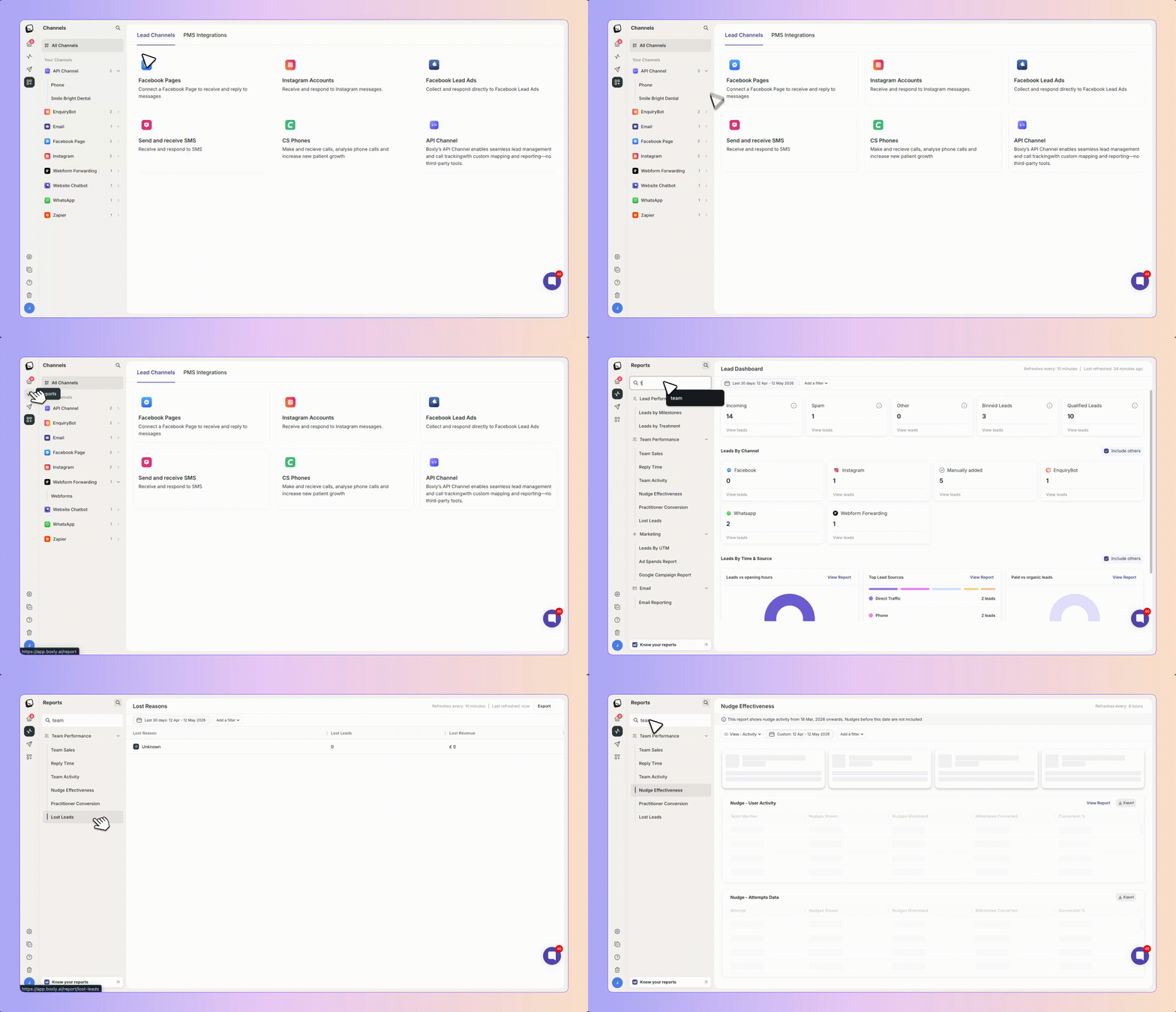
The Channels section has been significantly reorganised to handle multiple connected channels without clutter.
When you open the Channels section, you see a clean main page that shows all your connected channels at a glance. For example:
Facebook — 5 connected accounts
WhatsApp — 2 connected accounts
Expandable Channel Details:
Click on any connected channel to expand it and see which pages, sub-channels are connected to it. When you click into a channel, that section opens and stays visible. You can collapse other sections manually to keep your workspace clean.
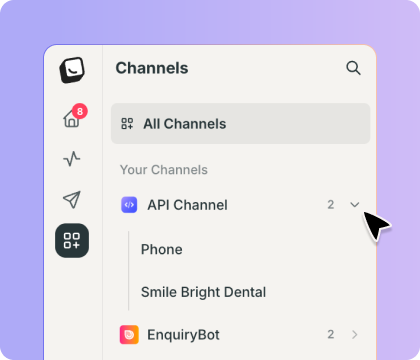
Channel Status Warnings:
If a channel has been disconnected or has a connectivity issue, a warning message will appear at the top. Click the warning to see which specific channel needs attention.
Channel Search:
A new search bar in the Channels section lets you quickly search for any connected channel by name, even if you have multiple sub - connected channels.
Settings Organisation
Settings now have a clean main page that shows all available options organised into collapsible categories.
How It Works:
When you enter Settings, you see the main page with various categories. Whatever section you're working in will stay open. You can manually collapse other sections to keep your view focused on what you're actually using.
For example:
You click into a settings section
That section opens and stays expanded whilst you work
Other sections remain visible but you can collapse them manually
When you're done with a section, you can collapse it and open another one
This keeps your view focused on what you're actually using, without clutter from settings you don't need right now.
Use the search bar at the top of Settings to quickly find any setting by name, regardless of which category it's in.
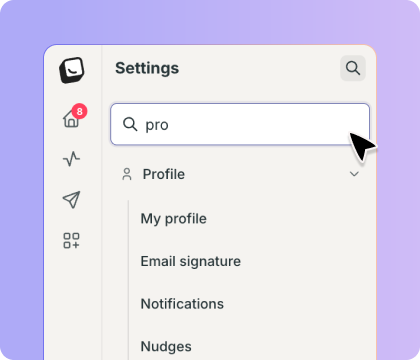
Before: A practice manager opens Settings and sees a long list of all options. They scroll endlessly trying to find one specific setting. In Channels, they struggle to find a specific connected channel amongst many.
After: The practice manager opens Settings and sees a clean main page. They expand the section they need, work on it, and manually collapse other sections to keep things focused. When done, they collapse that section and open another.
In Channels, they see a quick overview of all connected channels. They click on the one they need to see the details, which expands in place. They can collapse other channels to keep their view clean.
Everything stays organised and focused.
Go to my Settings in BoxlyCan I still drag and drop to rearrange my boxes?
Yes. You can drag and drop boxes on the left sidebar to customise the order. This order is saved to your account.
What happens if I have many connected channels?
The new design handles this gracefully. Use the search bar in the Channels section to find the channel you need. Click to expand it and see details. You can collapse other channels to keep your view clean.
How does the collapsible settings work
When you click into a settings section, it opens and stays expanded whilst you work. You can manually collapse other sections when you need to. This keeps your view focused on what you're actually using.
Can I search for reports?
Yes. Use the search bar at the top of the Reports section to search for any report by name. This makes it quick and easy to find the exact report you need.
Can I search across all settings?
Yes. Use the search bar at the top of Settings to search for any setting by name across all categories.
Does this change any functionality?
No. This is a visual and organisational redesign only. All features work exactly as before.
What if I don't like the new layout?
The new layout is the standard interface going forward. However, you can still customise the order of boxes on your left sidebar using drag and drop to match your workflow.