Automation control is a set of options on the lead conversation that show you every automation the lead is currently in, along with everything that has already gone out and everything still scheduled.
Using this feature, you can:
See which automations are running or scheduled on a lead
View the full content of any step that has already been sent
Stop an automation at any point in the sequence
Hand the lead over to a teammate when you stop it
Resume a stopped automation from the step it left off at
Track every stop, hand-off and resume in the lead history

To see the automations running on a lead:
✅ Open the lead you want to check
✅ Look for the automation banner above the reply bar
The banner lists every automation the lead is currently in. If the lead is in more than one automation, all of them are shown, each with its own status and its own button.
If the lead is not in any automation, no banner appears.
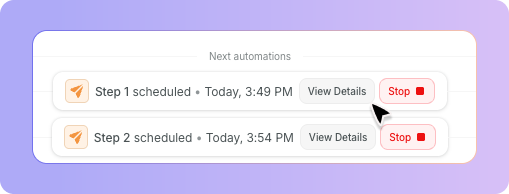
Find the automation you want to stop in the banner and click Stop. A confirmation window opens so that automations are not stopped by accident.
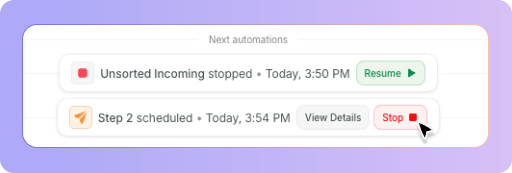
In the confirmation window you have two options:
Stop only – The automation stops and the lead stays as it is.
Stop and assign – The automation stops and the lead is assigned to the teammate you select.
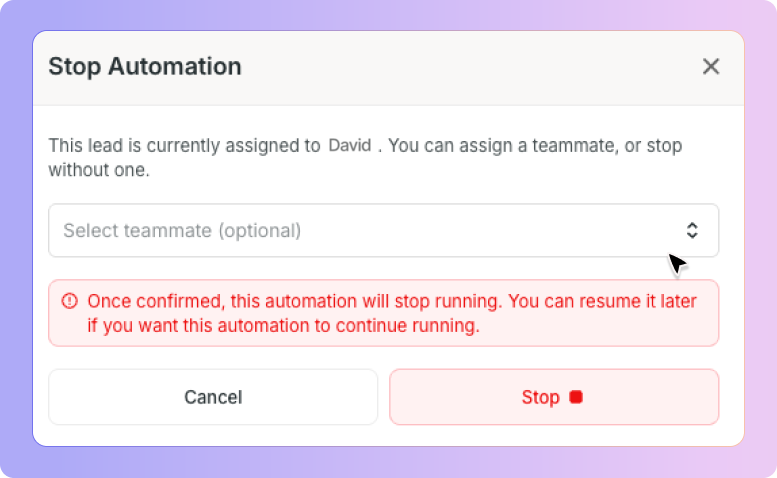
The teammate list only shows users who have access to that lead's box.
✅ Click Confirm to stop the automation
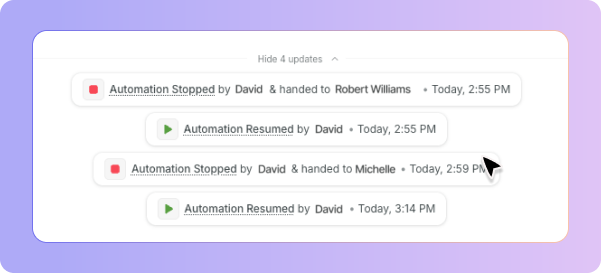
Once stopped, a message appears in the conversation showing who stopped the automation and, if the lead was handed over, who it was assigned to.
An AI Follow-up is any automation that contains an AI send step. If a flow contains even one AI send step, it is treated as an AI Follow-up.
For these automations, selecting a teammate is required. The Confirm button stays disabled until you choose someone. This is because the AI owns the conversation while it is running, and assigning the lead to a person is what releases it and unlocks the reply box.
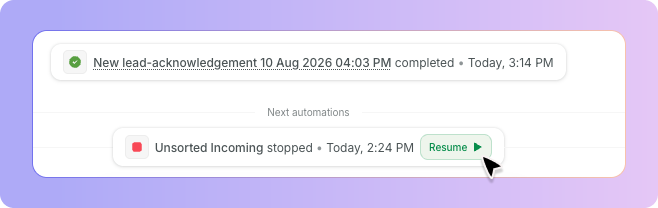
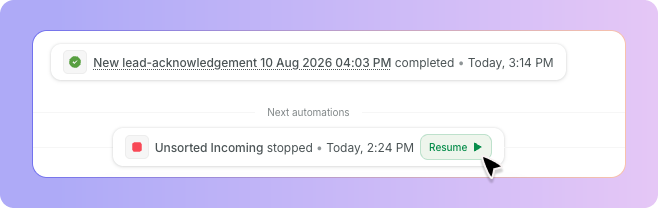
Any automation that has been stopped can be started again from where it left off.
To resume an automation:
✅ Find the stopped automation in the lead conversation
✅ Click Resume
✅ Review the confirmation window, which names the step the sequence will continue from
✅ Click Confirm
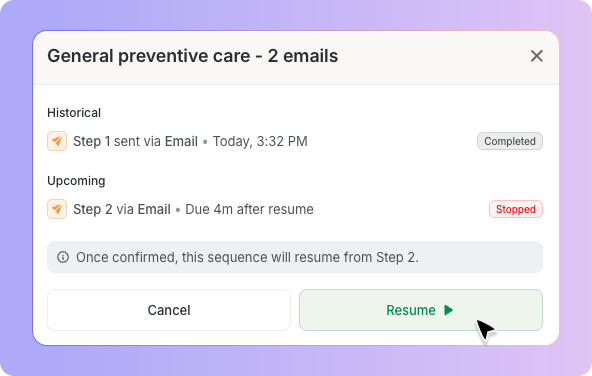
The automation continues from that step. It does not start again from the beginning.
The confirmation window tells you when the next message will go out before you confirm.
Resumed before the step was due – The remaining wait time is carried forward from the moment you resume. If a follow-up was due at 6:00 PM and you stopped it at 3:00 PM with 3 hours left, resuming at 4:00 PM means it goes out at 7:00 PM. The window will read "due 3 hrs after resume".
Resumed after the step was due – The scheduled time has already passed, so the message is sent immediately. If it was due at 6:00 PM and you resume at 7:00 PM, it goes out straight away. The window will read "due immediately after resume".
Click View details on the banner to open the full list of steps for that lead. The window opens on the next scheduled step, and is split into two sections:
Historical – Steps that have already gone out, including steps from every automation this lead has previously been through
Upcoming – Steps that are still scheduled, including the step a stopped automation will resume from
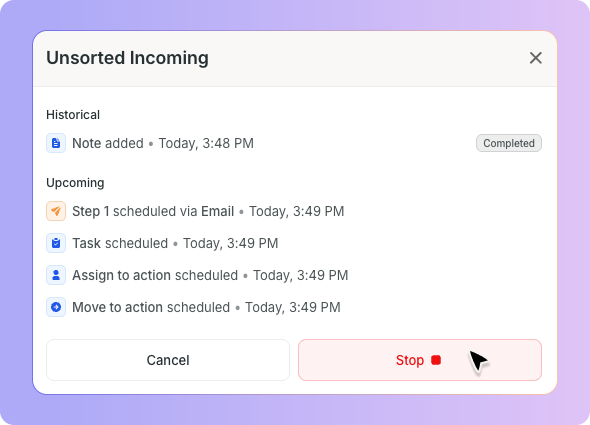
Each step shows:
Step name – The name of the step as it appears in the automation builder
Icon – The same icon used for that step type in the builder
Timestamp – When the step was sent, or when it is scheduled
Actioned by – Who performed the action
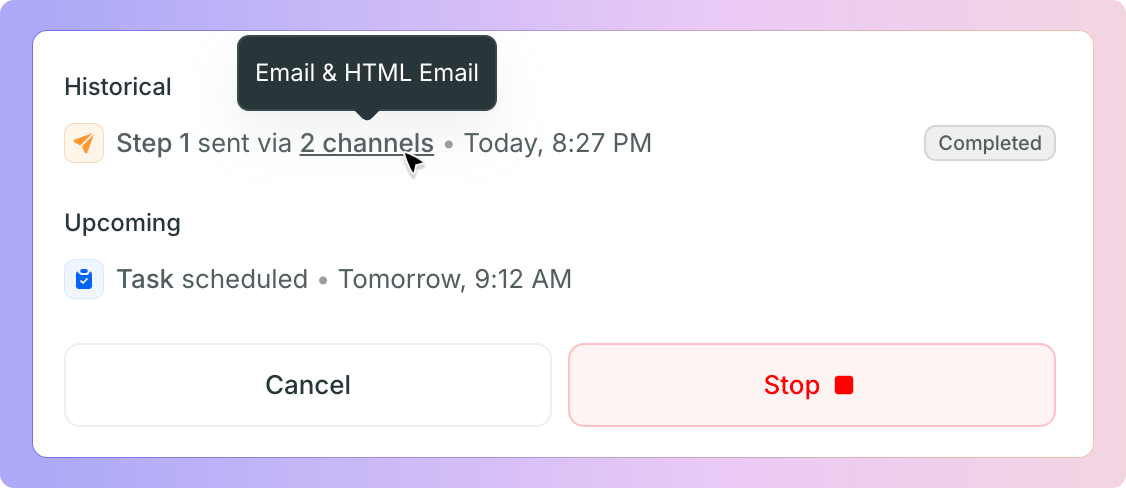
A single step can go out on more than one channel, so the number of channels is shown instead of each channel individually. Hover over the channel count to see the channel names.
Scheduled steps – Show the number of channels the step is set up to use, for example "Follow-up 2 scheduled via 5 channels"
Sent steps – Show the number of channels the step actually went out on, for example "Follow-up 2 sent via 2 channels"
Attempted steps – Shown when none of the configured channels were sent successfully
Three automation events appear directly in the lead conversation:
Automation Stopped – Including who the lead was handed to, if it was handed over
Automation Resumed – Showing who resumed it
AI Automation Completed – Shown when an AI Follow-up finishes its sequence
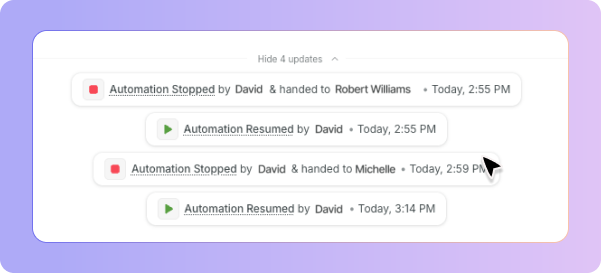
All past events remain visible, whether or not the automation is still active. When several events happen one after another, they collapse into a single line.
✅ Click Show updates to expand them.
Every message sent, task created and per-channel result is recorded in the lead history instead, where entries can be sorted and filtered.
Automation entries in lead history
Automation Stopped – "[Automation/Step Name] was stopped by [User Name]"
Automation Handed Off – "[Automation/Step Name] was stopped by [User A] and assigned to [User B]"
Automation Resumed – "[Automation/Step Name] was resumed by [User Name]"
Stopped by a condition – "[Automation/Step Name] was stopped because [Appointment Booked / Customer Reply Received] — by Boxly"
Stopped and cancelled automations look similar in the conversation, but only a stopped automation can be resumed.
An automation is stopped when a team member stops it manually, or when a stop condition is met. Stop conditions include the lead sending a reply or an appointment being booked. When a stop condition stops an automation, no user name is shown against it, as no user performed the action. These automations can still be resumed.
An automation is cancelled when the lead no longer matches the automation's conditions. Common reasons include:
The lead was moved to a different box
The lead was moved to a different stage
The lead was marked as spam
Cancelled automations cannot be resumed, and no Resume button appears against them. If an automation was stopped and the lead is then moved out of the box or stage, the automation becomes cancelled and the Resume button is removed.
If a lead later returns to the same stage, the automation begins again from the first step rather than continuing from where it stopped.