Follow-Up Nudges help your team remember to follow up with leads who may still be waiting for a response.
Instead of creating automated follow-up tasks in advance, Boxly quietly monitors conversations and reminds you when a lead may require attention.
Follow-Up Nudges are not tasks or deadlines. They are simple reminders that say:
“This lead might need a follow-up.”
Once you take action, the nudge disappears automatically.
Many teams rely on automated follow-up tasks to manage conversations with leads. Over time, this can create unnecessary clutter and make it harder to focus on the conversations that actually need attention.

This helps teams:
Reduce task overload
Avoid unnecessary automated tasks
Keep their workspace clean and organised
Ensure important conversations are not forgotten
Because nudges appear only when necessary, they provide a much cleaner workflow than traditional task-based follow-up systems.
A nudge is scheduled when Boxly detects that a conversation may need attention.
For a nudge to be created, all of the following conditions must be true:
The lead is in a stage where Follow-Up Nudges are enabled
A team member sends a manual reply (email, SMS, or WhatsApp)
The lead is assigned to a user
There is no future manual task scheduled
There is no automation scheduled for that lead
Once these conditions are met, Boxly waits for the lead to respond.

A patient enquires about Invisalign.
You reply to the patient and are waiting for their response.
The lead is assigned to you
Nudges are enabled for the stage
No task has been scheduled
No automation is planned
✅ If the patient does not reply, Boxly will automatically remind you to follow up.
✅ If a task or automation already exists, Boxly assumes the follow-up is already planned and no nudge will appear.
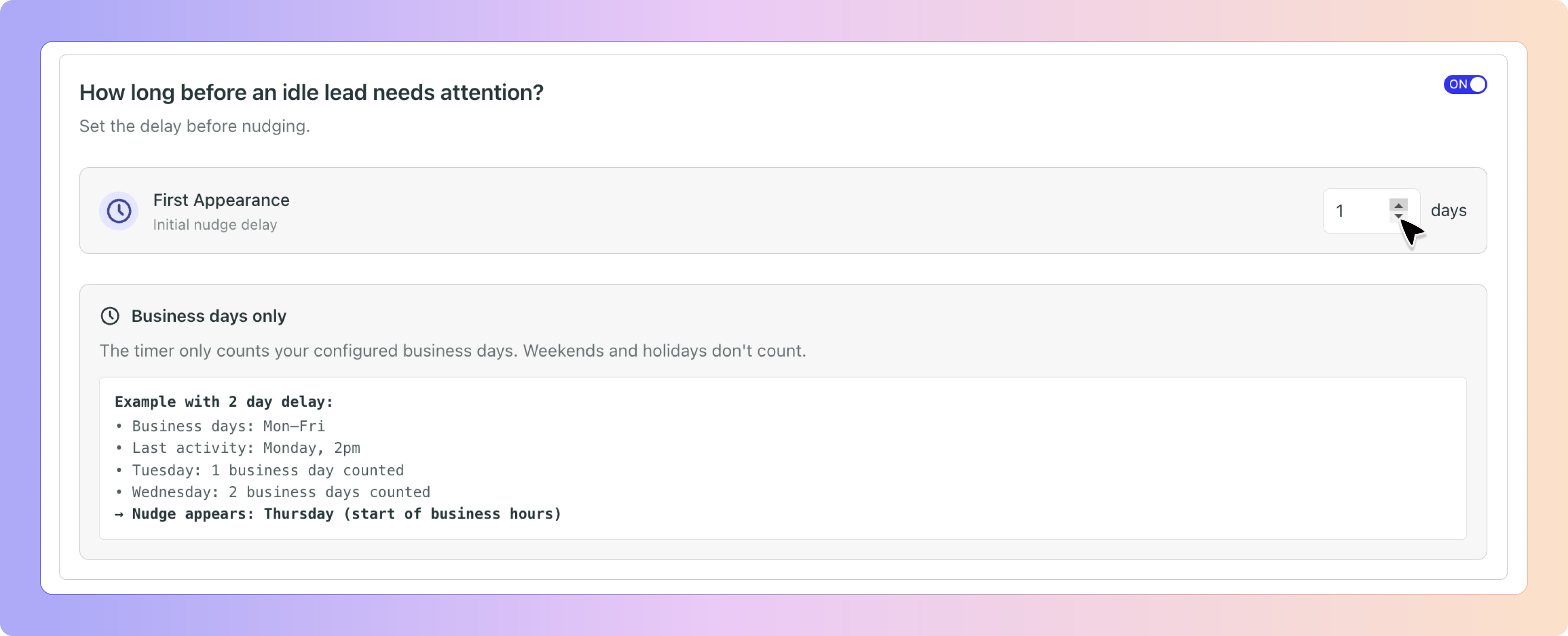
Follow-Up Nudges respect your configured business hours.
Only working hours are counted when calculating when a nudge should appear. Nights, weekends, and holidays are ignored.
If your business hours are 9:00 AM – 5:00 PM and the nudge delay is set to 1 working day (8 business hours):
You reply to a lead at 2:00 PM on Monday.
From 2:00 PM to 5:00 PM on Monday, three business hours are counted
The remaining five hours begin counting at 9:00 AM on Tuesday
Once the required business hours are completed, the nudge will appear at the start of the next working day.
✨ This prevents reminders from appearing outside working hours or in the middle of the working day.
Follow-Up Nudges are based on the last message sent by your team.
The typical flow looks like this:
You send a manual reply to the lead.
Boxly waits for the lead to respond.
If the lead replies, the nudge is cancelled.
If the lead does not reply and no follow-up is planned, a nudge is scheduled.
The nudge timer always looks at the most recent message sent by your team.
✅ If the lead replies:
The scheduled nudge is cancelled.
✅ If you send another manual reply:
The timer restarts from that new message.
✅ If the lead remains inactive and no task or automation exists:
The nudge will eventually appear.
A scheduled nudge will stop appearing when Boxly detects that follow-up is no longer required.
A nudge is cancelled when:
The lead replies to your message
A manual task is created for the lead
An automation is scheduled for the lead
The lead moves to a stage where nudges are disabled
The lead becomes unassigned
Follow-Up Nudges appear in the Things To Do section inside Boxly.
You can find them under:
Things To Do → Updates → Nudges

Nudges are visible to:
The assigned user
Team administrators
Each nudge card provides a quick summary of the conversation, including:
Lead name
The box and stage
A short summary of the conversation
When the last reply was sent
The nudge sequence (for example: Nudge 1 of 3)
How long the nudge has been active
Boxly also automatically generates a short summary of the last message sent by your team. This helps you quickly understand what the conversation was about without opening the lead.
For example, a nudge might show something like:
User replied about “Invisalign consultation” - 3d ago
This makes it easier to quickly scan your nudges and understand which conversations may require attention.
If you are not ready to follow up yet, you can dismiss the nudge.
Dismissing a nudge simply means:
“Remind me again later.”
A nudge is automatically acknowledged when you take action on the lead.
This may include:
Sending a reply to the lead
Creating a task
Scheduling an automation
Moving the lead to another stage
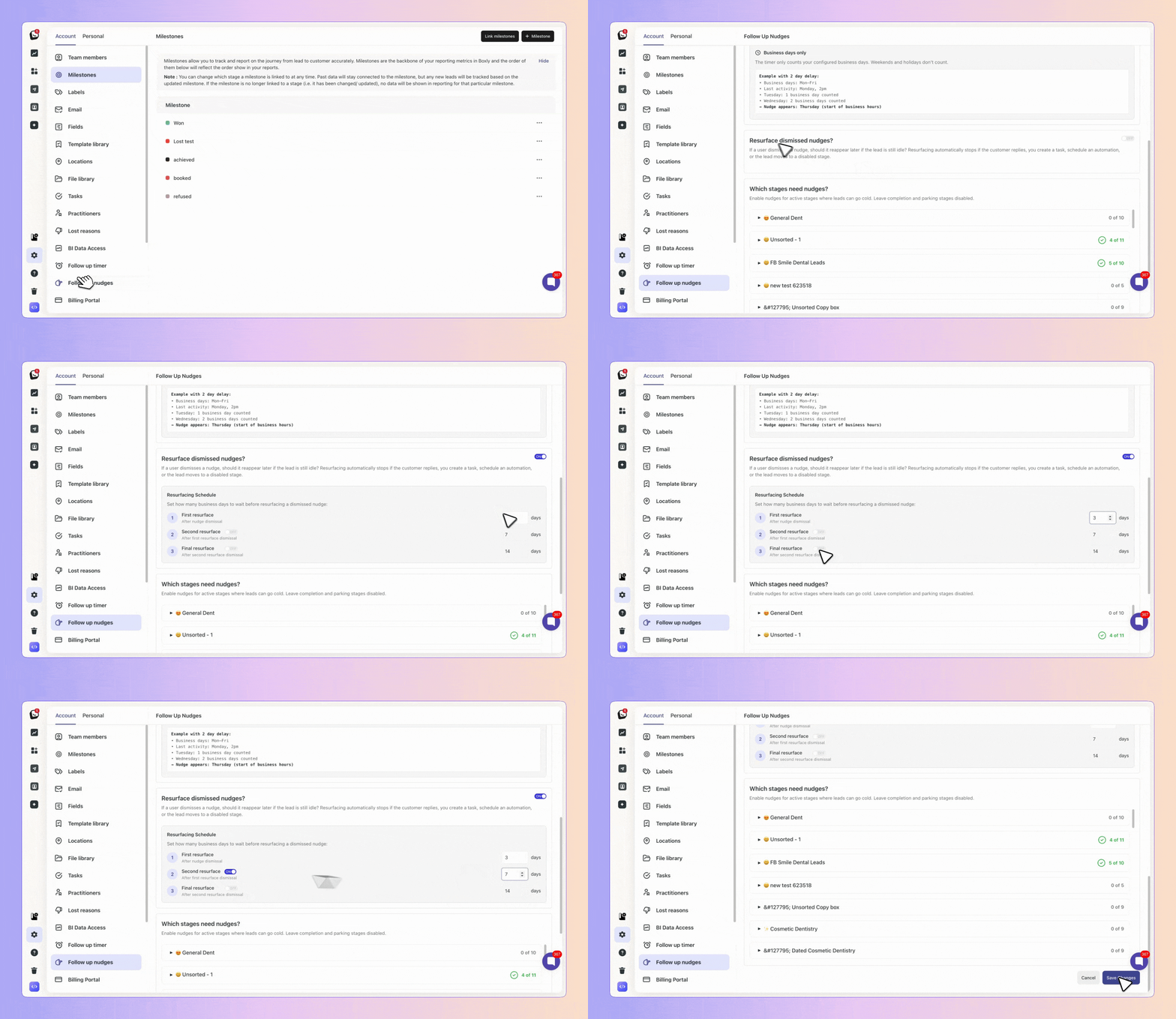
Follow-Up Nudges can reappear multiple times if no action is taken.
For example, a reminder might resurface:
After 3 business days
After 7 business days
After 14 business days
Both the resurfacing intervals and the maximum number of reminders can be adjusted in the settings.

You may sometimes expect a nudge but not see one. This usually means that Boxly has detected that follow-up is already planned or not required.
A nudge will not appear if any of the following are true:
A future task is already scheduled for the lead
An automation is already scheduled (email, SMS, or WhatsApp)
The lead is not assigned to a user
Nudges are not enabled for the current stage - Go to Nudge stage settings
The most recent message was sent by the lead
The lead moved to a stage where nudges are disabled
Only Admins can configure Follow-Up Nudges.
Settings are located in:
Settings → Follow-Up Nudges
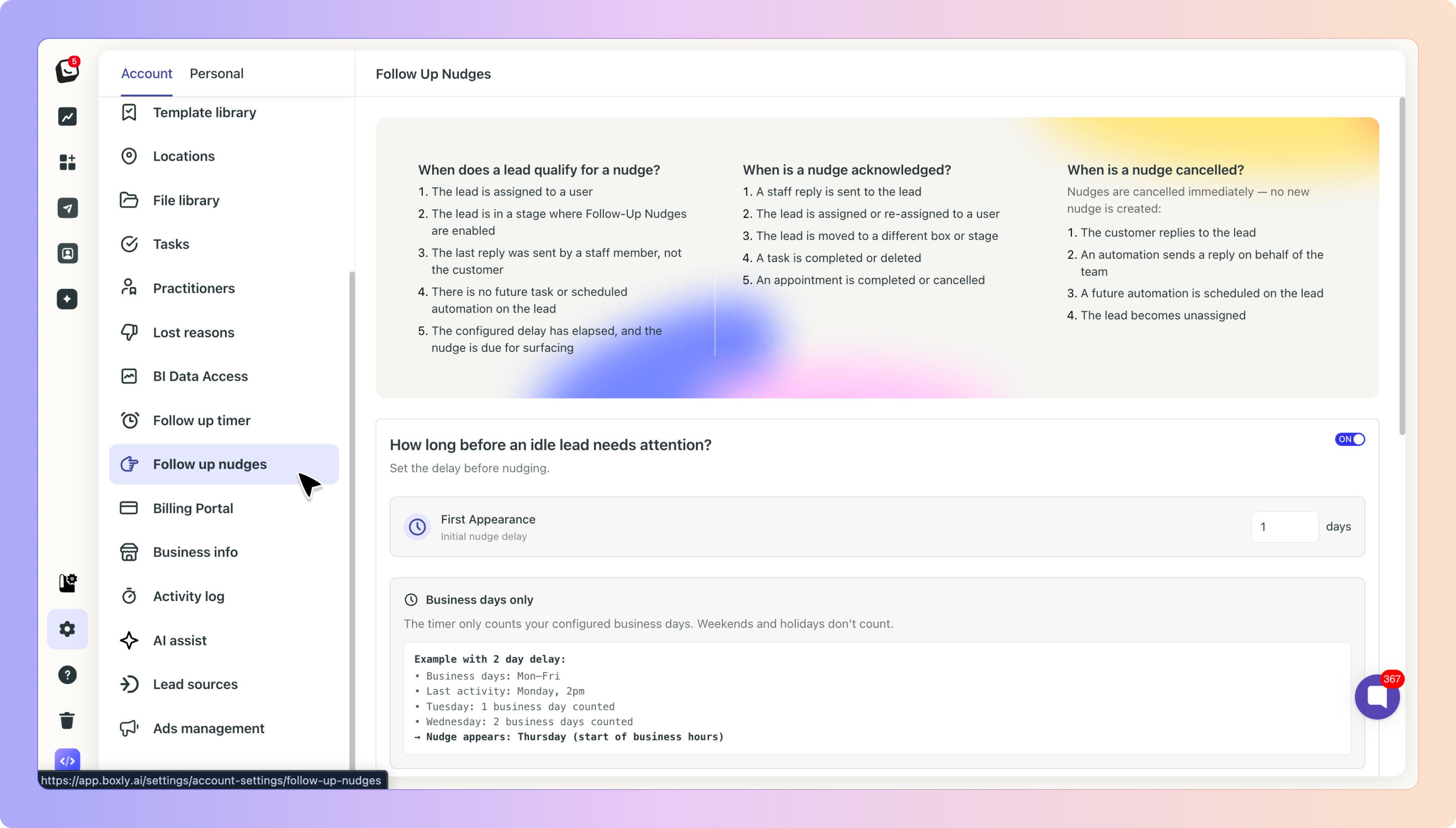
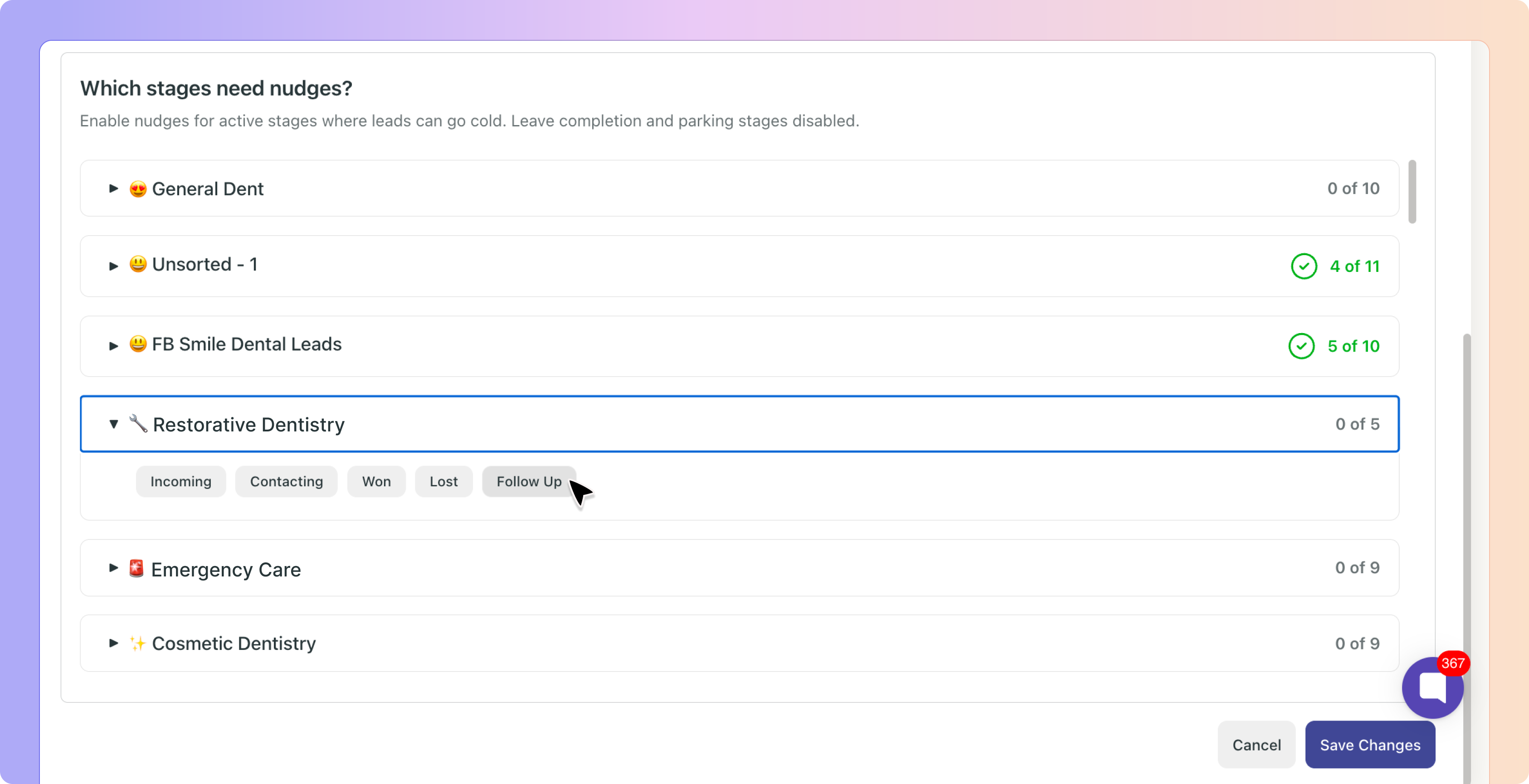
Nudges are configured per Box and per Stage, allowing teams to control exactly where reminders should appear.
Admins can adjust:
The delay before the first nudge appears
The resurfacing intervals
The maximum number of reminders
✅ Go to ‘Resurface dismissed nudges?’ in your Follow up Nudge settings.
✅ Toggle the ‘Resurface dismissed nudges?’ on to access the options:
Follow-Up Nudges work best in stages where your team is actively waiting for a response.
Most teams enable nudges in stages such as:
In Conversation
Contacting
Follow-Up
Waiting on Patient
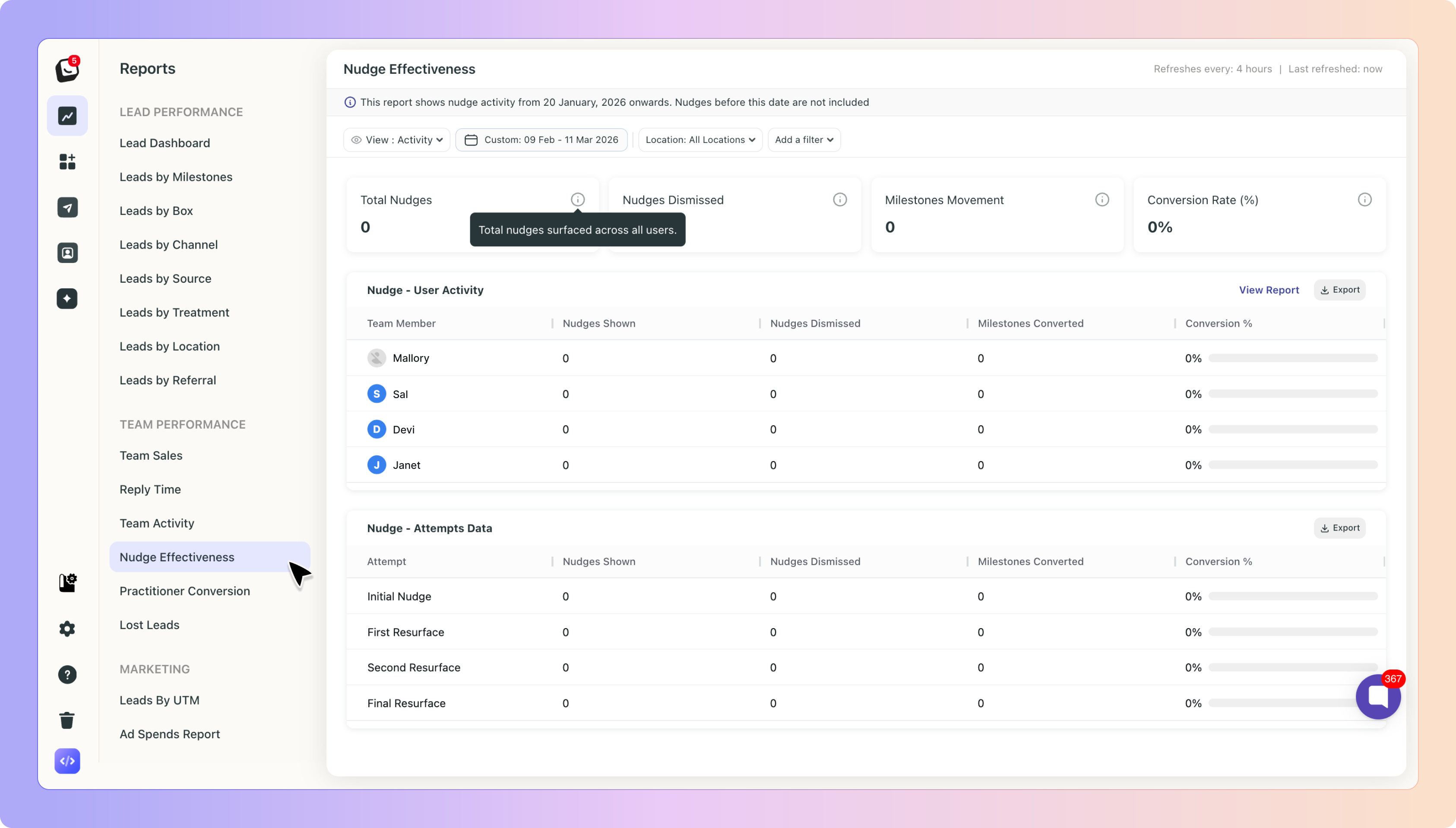
Follow-Up Nudge activity and performance can be tracked through Boxly Reports.
These reports help teams understand how often nudges appear and how effectively follow-ups are handled.
Here's how Follow-Up Nudges play out in a typical day at a dental clinic.
Sarah is a receptionist at Smile Dental. A patient named Emma has enquired about Invisalign treatment. Sarah replies to Emma via email, answers a few phone calls, and moves on with her day. Emma is assigned to Sarah, nudges are enabled for the current stage, and there are no tasks or automations set up.
Two business days pass. Emma hasn't replied.
The next morning, Sarah opens Boxly and sees a nudge in her Things To Do section. It shows Emma's name and a summary: "User replied about Invisalign consultation — 2 days ago." Sarah clicks through, sends Emma a friendly follow-up message, and the nudge disappears automatically.
Without Follow-Up Nudges, Emma's enquiry may have gone cold. With it, Sarah stayed on top of the conversation without needing to create a single task or set a reminder manually.
Who can see a Follow-Up Nudge?
Only the assigned user and admins can see the nudge.
Which stages can Follow-Up Nudges be configured for?
Follow-Up Nudges can be enabled for any stage inside a Box, but only if an admin activates them.
Nudges are stage-specific and do not automatically apply to all stages.
What does “no follow-up planned” mean?
It means Boxly cannot detect:
A future manual task
A scheduled automation (email, WhatsApp, SMS, etc.)
If either exists, Boxly assumes the follow-up is already planned and will not create a nudge.
What triggers a Follow-Up Nudge?
A nudge is triggered when:
A team member sends a manual reply
The lead has not replied
No future follow-up is scheduled
Is the nudge delay configurable?
Yes.
Admins can change the delay before the first nudge appears. By default, Boxly waits 1 business day before scheduling the first nudge.
However, nudges will always appear at the start of the next working day once the required business hours have passed.
What’s the difference between dismissing and acknowledging a nudge?
Acknowledged means you took action on the lead.
Dismissed means you postponed the reminder.
Dismissed nudges may appear again later.
How many times can a nudge resurface?
By default, a nudge can appear up to three times, but admins can adjust both:
The resurfacing intervals
The maximum number of reminders
When does a nudge stop completely?
A nudge stops when:
The lead replies
A task is created
An automation is scheduled
The lead moves to a stage where nudges are disabled
The lead becomes unassigned
Can Follow-Up Nudges replace tasks?
Yes.
Follow-Up Nudges are designed to replace automated follow-up tasks, helping teams keep their workflow cleaner.
However, manual tasks can still be created whenever required.
If you have questions about Follow-Up Nudges or need help configuring them, our support team will be happy to help.
Contact us anytime at [email protected].
Nudges
A nudge is a little reminder from your lead assistant to do something.