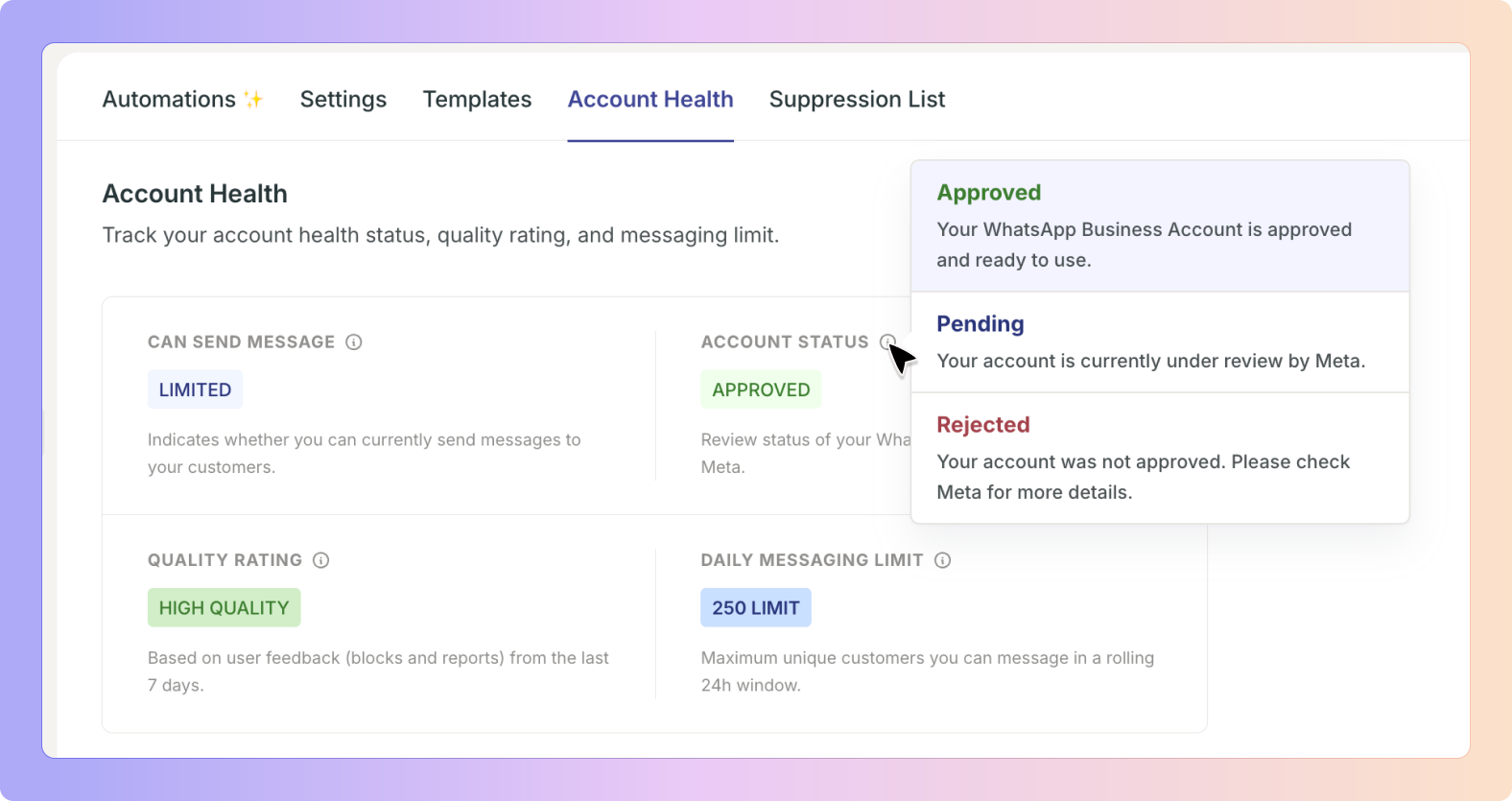
WhatsApp Account Health gives you visibility into the status and performance of your WhatsApp Business Account. It shows you real-time information about your account's messaging capability, quality rating, and daily limits , so you can stay compliant and avoid disruptions to your messaging.
By monitoring your account health, you can quickly identify issues and take corrective action before they affect your ability to reach customers.
WhatsApp reviews all business accounts and assigns quality ratings based on how customers interact with your messages. Accounts with poor quality ratings may face restrictions on daily messaging limits or even temporary blocks.
✅ Account Health helps your team:
Understand your current account status at a glance
Identify quality issues before they become blocks
Monitor your daily messaging limits
Access resources to improve account performanceAvoid suppression list violations
By staying informed about your account health, you can take proactive steps to maintain good standing and prevent disruptions.
You can view your WhatsApp account health by going to:
Channels → WhatsApp → Settings → WhatsApp Account Health
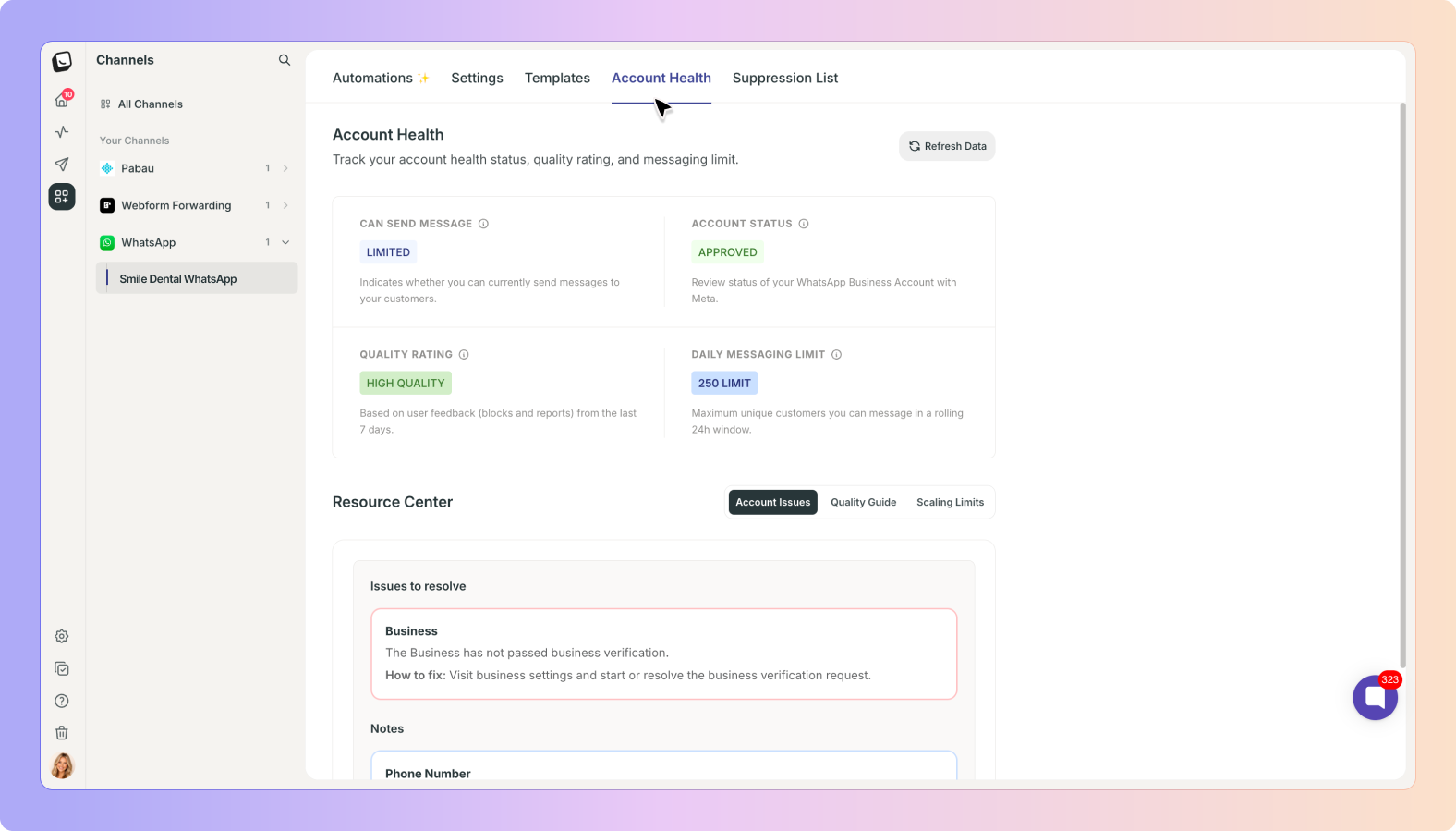
The dashboard displays four key pieces of information about your account:
Send Status shows whether your account can currently send messages.
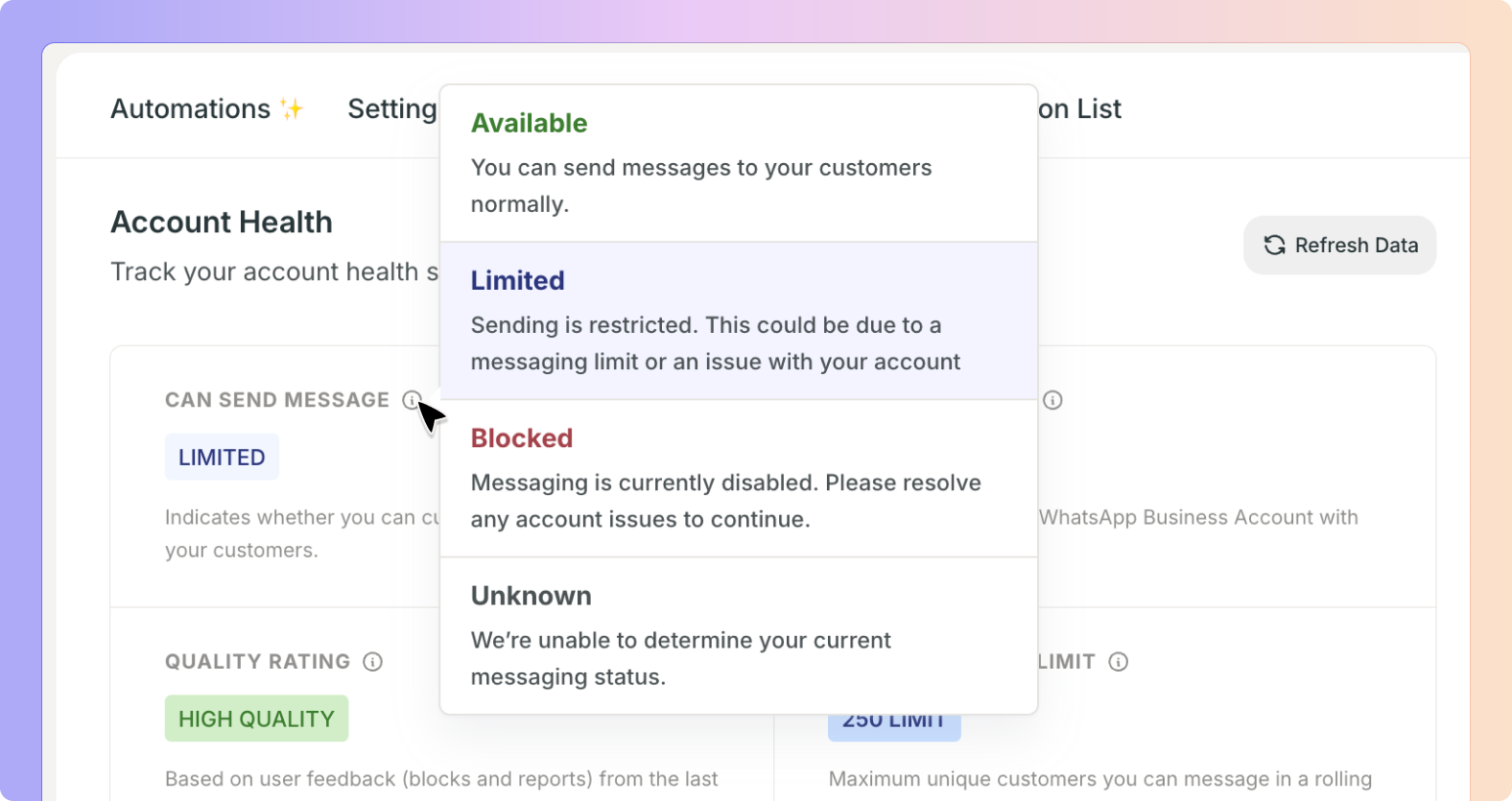
Your account may show one of these statuses:
Available — Your account is in good standing and can send messages normally.
Limited — Your account has restrictions. You can send messages, but your daily limit may be reduced.
Blocked — Your account is temporarily blocked from sending messages. This usually means quality issues need to be resolved.
Unknown — Boxly has not yet received confirmation from WhatsApp about your account status. This may take 24–48 hours to update.

Quality Rating is a score that WhatsApp assigns to your account based on how recipients interact with your messages.
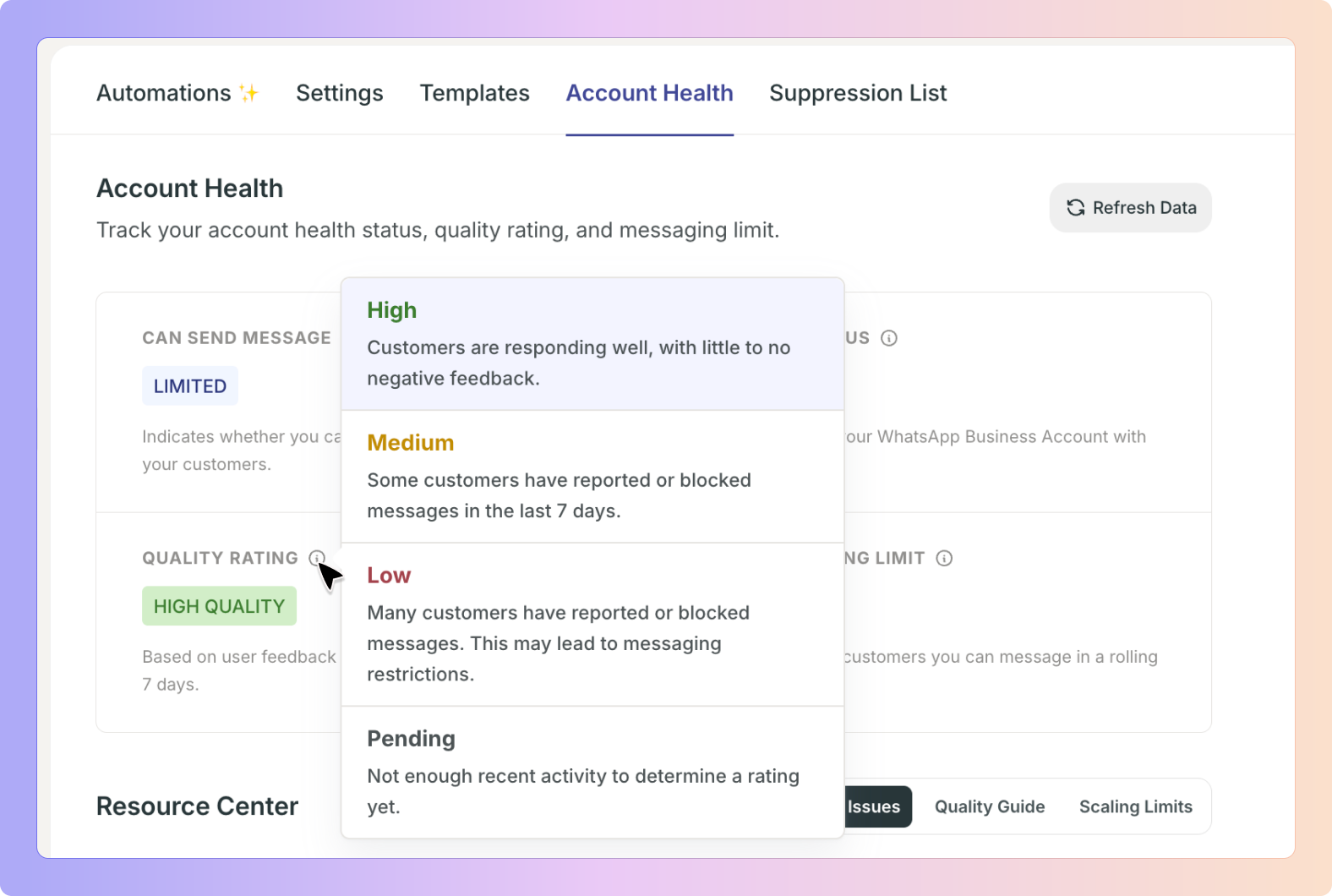
WhatsApp looks at factors such as:
How often customers mark your messages as spam
How many customers block your number
How often customers report you
Overall engagement with your messages
Your rating will appear as one of these:
Green — Your account has a good quality rating. Continue with your current practices.
Yellow — Your account has a fair quality rating. Review your messaging practices to improve.
Red — Your account has a poor quality rating. Take immediate action to avoid blocks or limits.
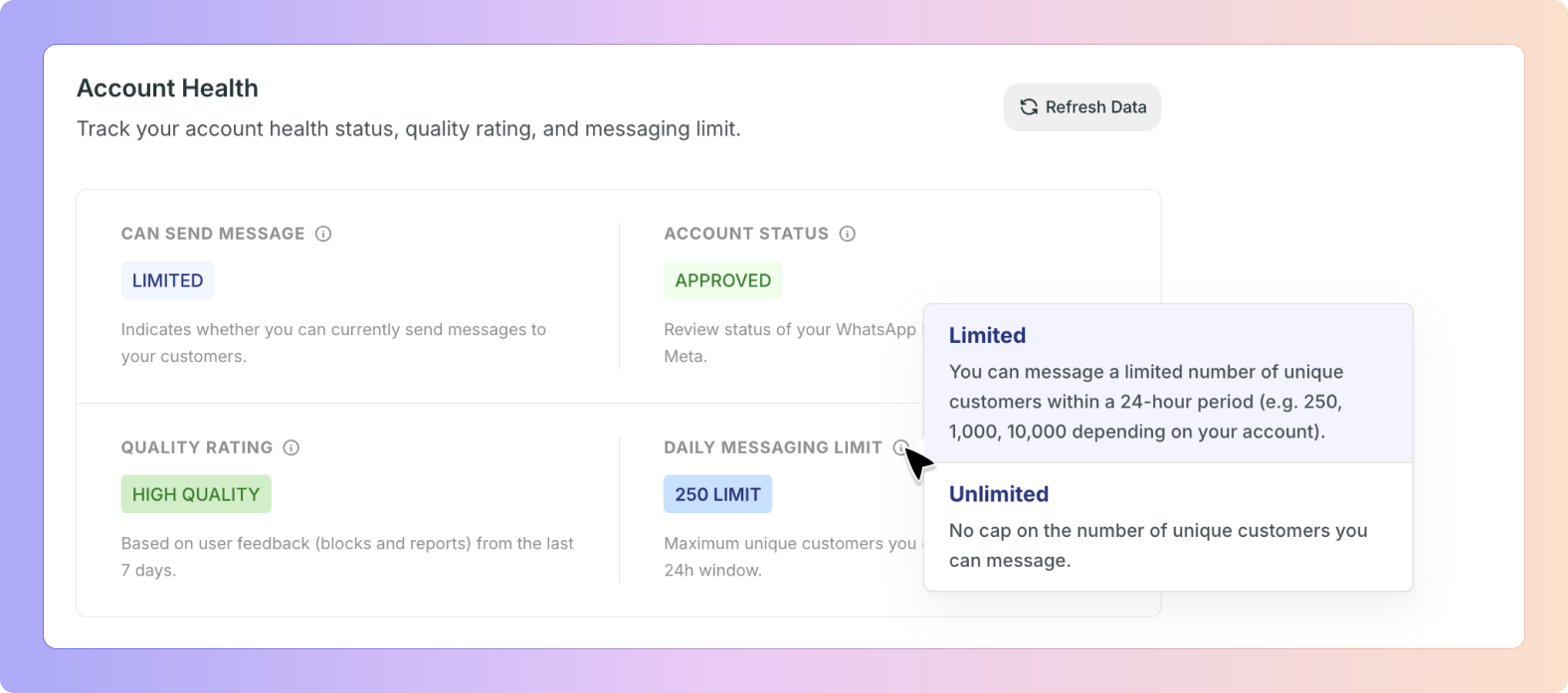
Daily Messaging Limit shows how many messages you can send in a 24-hour period.
The minimum limit is 250 messages per day. Depending on your account history and quality rating, your limit may be:
250 — Your account is new or has a poor quality rating.
Higher than 250 — Your account has been approved for a higher daily limit based on performance.
Unlimited — Your account has been in good standing for an extended period and has no daily cap.
Account Status gives you an overview of your account's overall health and compliance.
This section shows whether your account has any current issues such as:
Policy violations
Restricted sending capability
Quality rating concerns
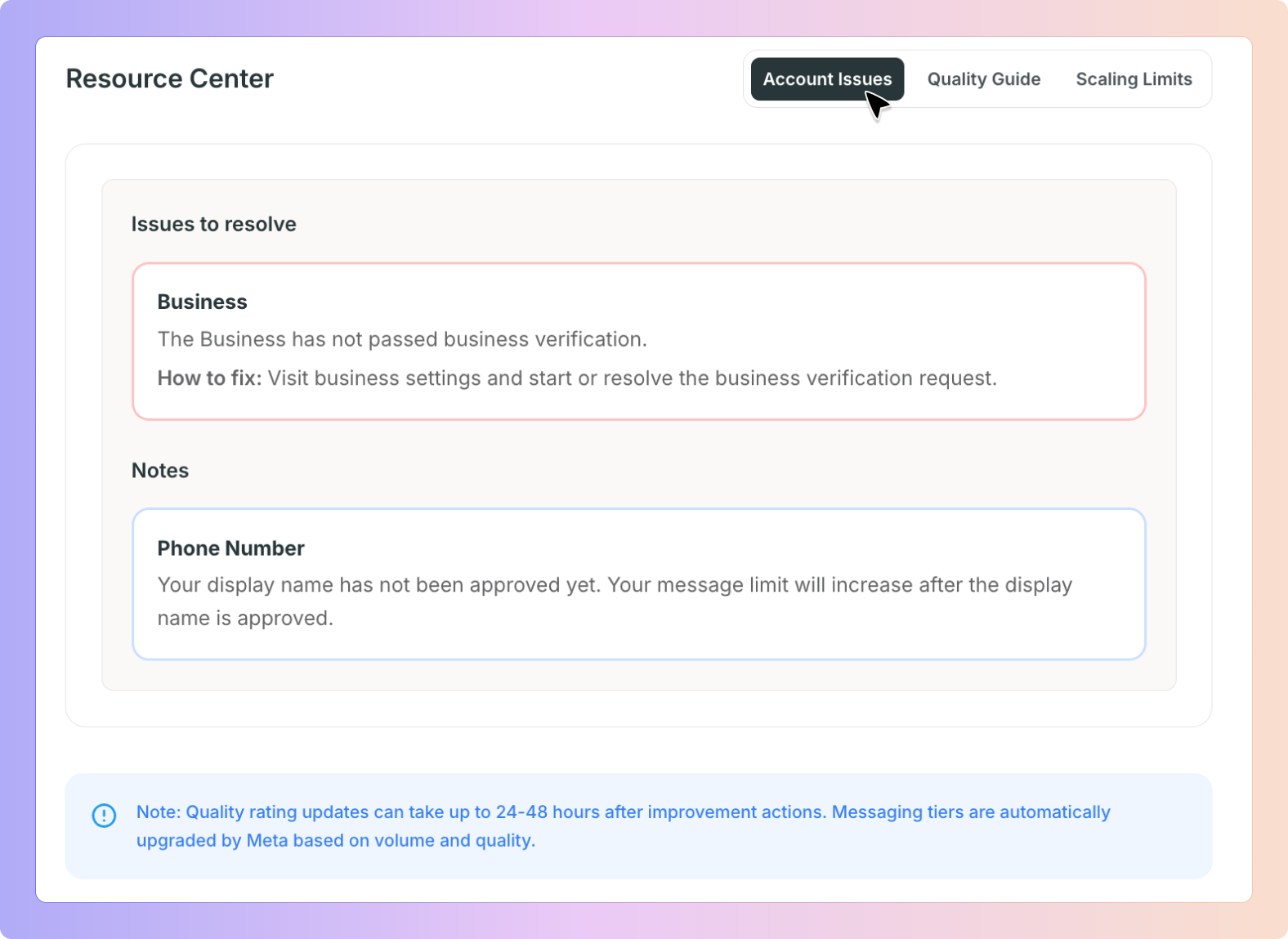
If your account shows quality issues or blocks, the Resource Centre provides guidance on how to resolve them.
The Resource Centre includes:
Quality Guide — Best practices for maintaining a good quality rating
Block Rate Information — Why messages may be blocked and how to reduce block rates
Template Optimisation — How to write effective templates that improve deliverability
Meta Compliance Guide — WhatsApp's official requirements and expectations for business accounts
Scale Limits — Information about growth limits and how to request increases

When replying to a lead from inside the lead conversation, you can now edit the WhatsApp template before sending to that specific lead.
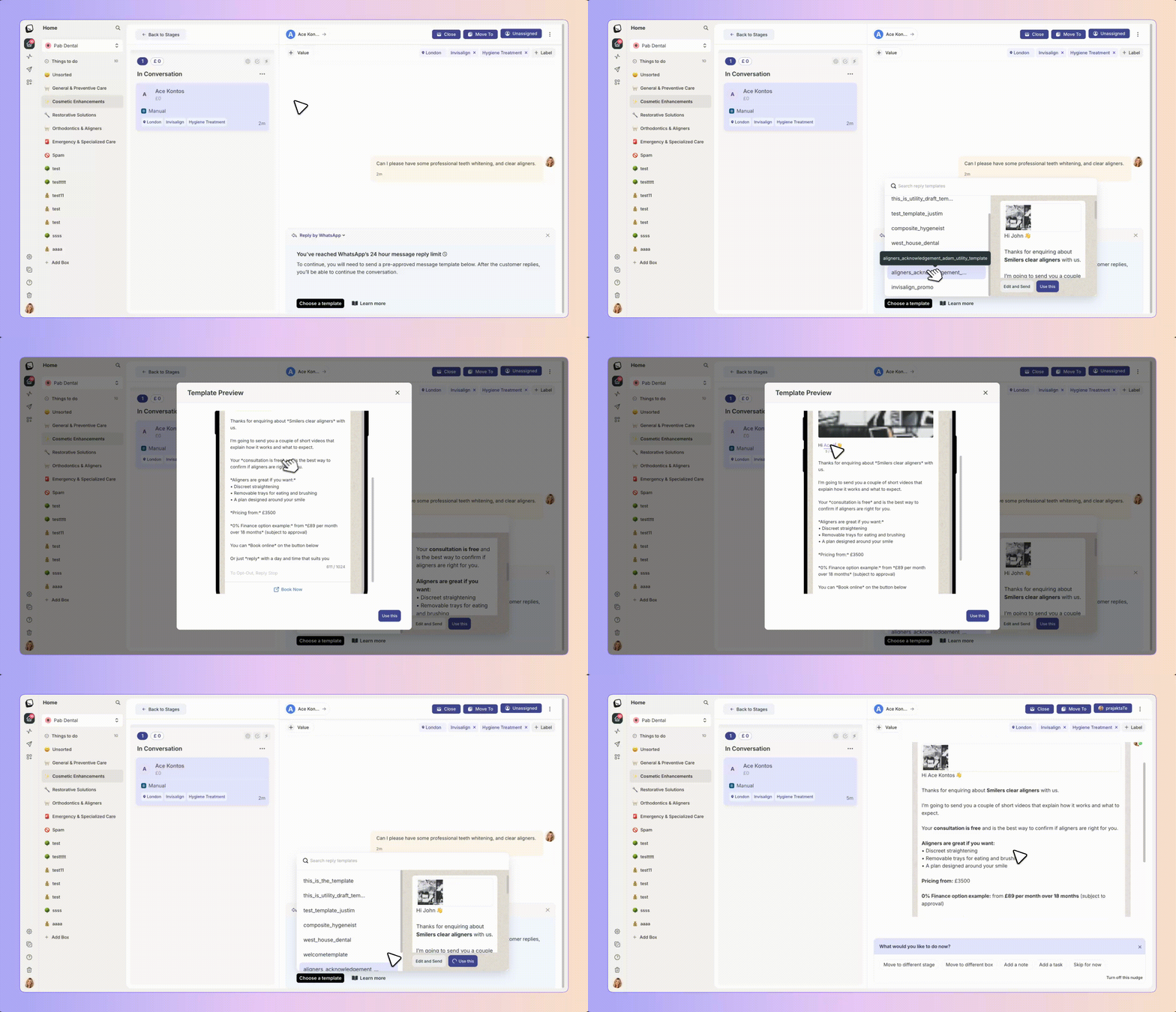
Instead of sending a standard template as-is, you can customise the message content in real-time for that individual lead. This means:
Open the lead's conversation
Select a WhatsApp template to send
Edit the template text directly in the compose window by clicking on “Edit and Send”
Make changes specific to that lead (appointment details, specific questions, etc.)
Send the edited message to just that lead
The edited message is sent only to that lead and does not change your saved template — your original template remains unchanged for future use.
When to use this:
A template is close to what you need, but requires personalisation
You want to add context or additional information from the conversation
You need to adjust the message tone or content for a specific situation
Quick customisations without creating a new template every time
Customers can opt out of receiving your messages by marking them as spam or by using WhatsApp's official opt-out mechanism.
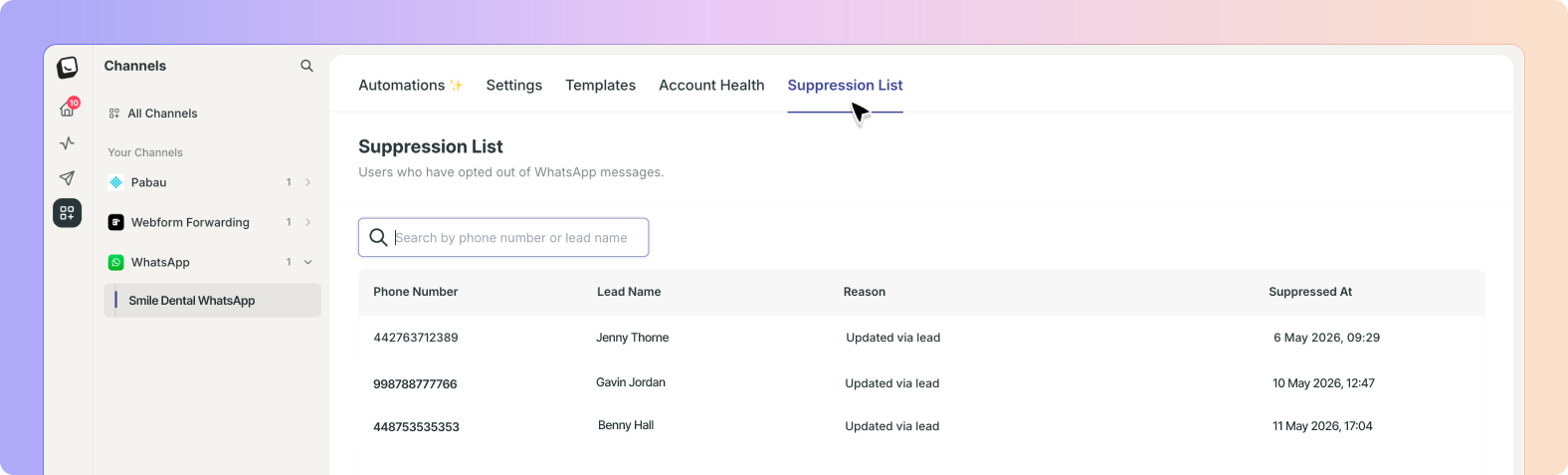
When a customer opts out, their phone number is added to your Suppression List. You can view and manage this list by going to:
Settings → Suppression List
Each suppressed contact displays:
Phone Number — The customer's WhatsApp number
Reason — Why they were suppressed (e.g., marked as spam, opted out, or blocked)
Suppression Type — Where the suppression came from (e.g., WhatsApp, customer feedback, or manual removal)
Sending messages to suppressed contacts can have serious consequences:
WhatsApp may temporarily block your account
Your quality rating may drop
Your daily messaging limit may be reduced
✅Always check the Suppression List before reaching out to a contact. If a customer re-engages with your business, you can request to have them removed from the list.
If your account shows quality problems or blocks, follow these steps:
Review the Resource Centre — Understand what the issue is and why it occurred
Audit Your Recent Messages — Check your templates and message content for policy violations
Reduce Block Rates — If customers are blocking you, pause messaging and review your approach
Request a Manual Review — If you believe the issue is resolved, WhatsApp may review your account
Monitor Progress — Check your account health daily as you make improvements
Here's how Account Health appears in a typical workflow at a dental practice.
Dr. Chen's clinic uses WhatsApp to send appointment reminders and follow-ups. One morning, the practice manager opens Boxly Settings and checks Account Health. The dashboard shows a Yellow quality rating and a Limited send status with a daily limit of 500 messages (reduced from unlimited).
The practice manager reviews the Resource Centre and learns that some appointment reminder templates are too promotional and may be triggering spam reports. She updates the templates to focus on information rather than selling, removes any images that aren't necessary, and removes some aggressive call-to-action language.
Over the next few days, the practice manager monitors the account health. After 48 hours, the quality rating improves to Green, and the send status returns to Approved with unlimited daily messaging.
Without Account Health visibility, the practice might not have noticed the quality issue until the account was completely blocked.
What's the difference between Send Status and Quality Rating?
Send Status shows whether your account can send messages right now. Quality Rating shows how well your account is performing based on customer interactions. You can have a good quality rating but a Limited or Blocked send status if there are other compliance issues.
Can I remove someone from the Suppression List?
Not directly. If a customer has genuinely opted out through WhatsApp, they must re-engage with your business first. You can then request WhatsApp to review their status. Never send unsolicited messages to suppressed contacts.
How often does Account Health update?
Most metrics update daily. Quality Rating can take 24–48 hours to reflect changes. Send Status updates when WhatsApp reviews your account, which may happen at any time.
What should I do if my account is Blocked?
First, review the Resource Centre to understand the issue. Most blocks are temporary and are lifted within 24–48 hours once you stop the behaviour causing the issue. If the block persists, you may need to request a manual review from WhatsApp through Boxly support.
How can I increase my daily messaging limit?
Daily limits are automatically adjusted based on your account age and quality rating. By maintaining a good quality rating over time, WhatsApp will gradually increase your limit. There is no manual request process.
Why is my account showing "Unknown" status?
This usually means WhatsApp hasn't yet provided confirmation of your account status to Boxly. This is common for newly created accounts and can take 24–48 hours to resolve. Check back later.
What counts as a policy violation?
Common violations include:
Sending spam or unsolicited messages
Using misleading link shorteners or hidden URLs
Sending messages from an unapproved template
Sending sensitive information (passwords, financial data)
Phishing or social engineering
Review Meta's compliance guide in the Resource Centre for the complete list.
Can I request a higher daily limit?
Daily limits are set by WhatsApp based on account performance. You cannot manually request an increase. However, maintaining a strong quality rating over time will lead to automatic increases.
Connect WhatsApp Business
Connect your WhatsApp Business account to Boxly to send and receive WhatsApp Messages
Boxly is here to help you work smarter, not harder! Let’s keep streamlining your lead management together!
Contact us at [email protected] if you need any assistance!