Snapshot Reports help you track key business metrics across your practice with full control over what data you see and when you receive it.
Instead of navigating through multiple views to find insights, Boxly delivers a customised report directly to your inbox that shows exactly what matters to your team.
Snapshot Reports are not fixed dashboards. They are tailored reports that say:
"Here's what happened in your practice this period."
You configure what to measure, and Boxly sends it at the frequency you choose.
Many practices struggle to track performance without spending time manually compiling data. Each team has different priorities and metrics that matter most to their business.
✅ Snapshot Reports are designed to solve this problem. Instead of checking multiple reports, Boxly delivers one customised report with only the metrics that matter to you.
This helps teams:
- Track key milestones across your practice
- Save time with automated report delivery
- Keep everyone aligned on performance metrics
- Make data-driven decisions faster
Because you control what goes into the report, every metric serves a real purpose.
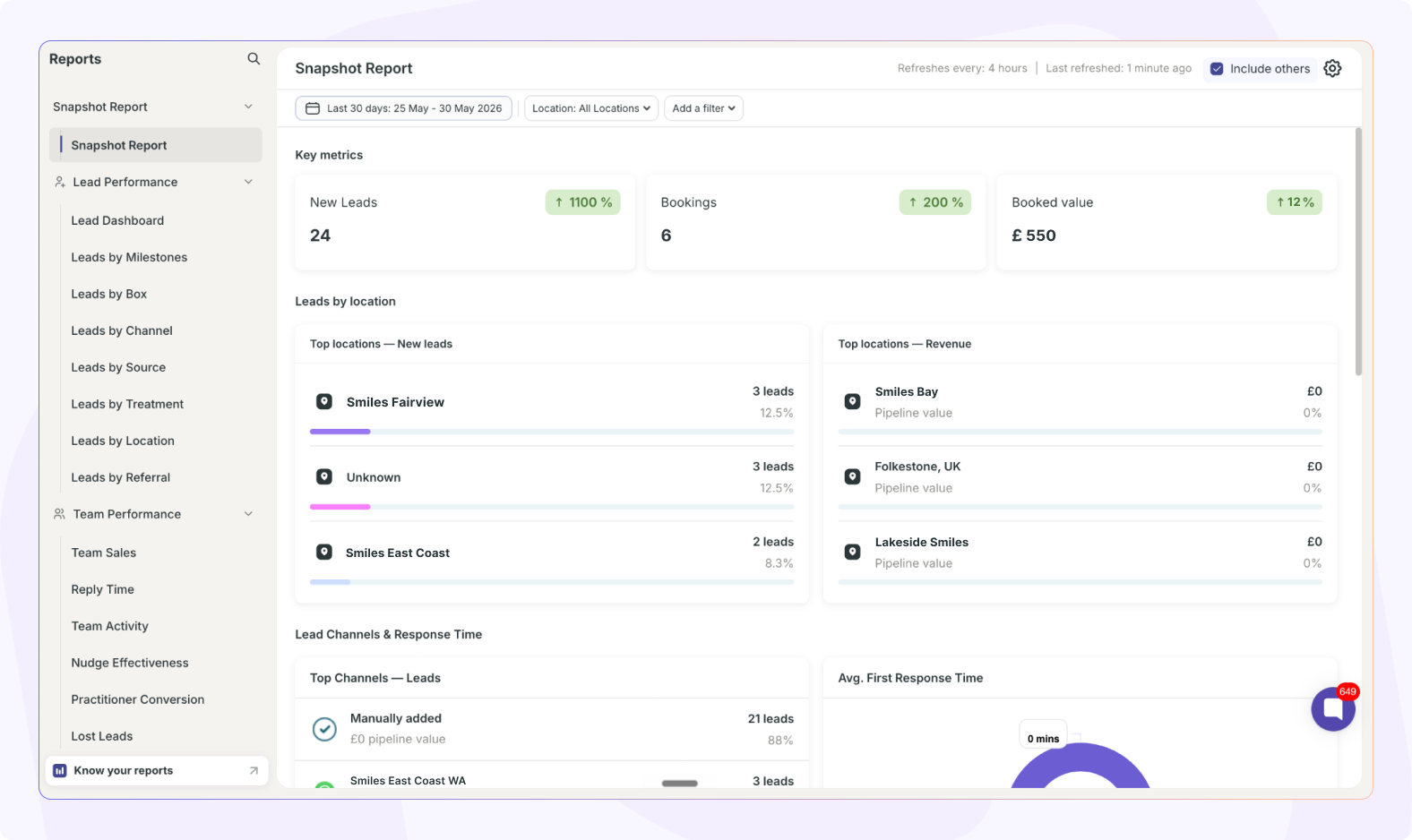
A Snapshot Report displays the following metrics based on the milestones you've selected:
Number of leads active in the period
Number of leads or actions completed
Booking value for your selected milestones
Appointment value across channels
Performance broken down by location
The booking value metric is determined entirely by the booking milestones you selected in Report Configuration. Each metric is calculated for your chosen date range.

Only Admins can configure Snapshot Reports.
Settings are located in: Reports → Snapshot Report → Settings
From here, you can set up two main areas: Report Configuration and Email Configuration.
In Report Configuration, you define which booking milestones to track in your report:
✅ Select Booking Milestones
Choose which milestone stages represent a confirmed booking (e.g., Consultation Booked, Consultation Attended, Treatment Booked/ Won, Treatment Completed, Lost, etc.)
These selections directly determine which booking conversions appear in your reports
The milestones you select here will be shown in the booking value metrics in your report
Your Snapshot Report can include the Conversion Cards you’ve set up in your Leads by Milestone Report. This lets you see how leads move from one milestone to the next, such as Consultation Booked → Treatment Plan Sent, in your Snapshot Report and your report emails.
✅ Go to Reports → Snapshot Report and click the settings icon ⚙ at the top right
✅ In the Report Configuration tab, toggle on Milestone Conversion Cards
✅ Click Save Changes
Your Conversion Cards will appear in your Snapshot Report and in your next report email.
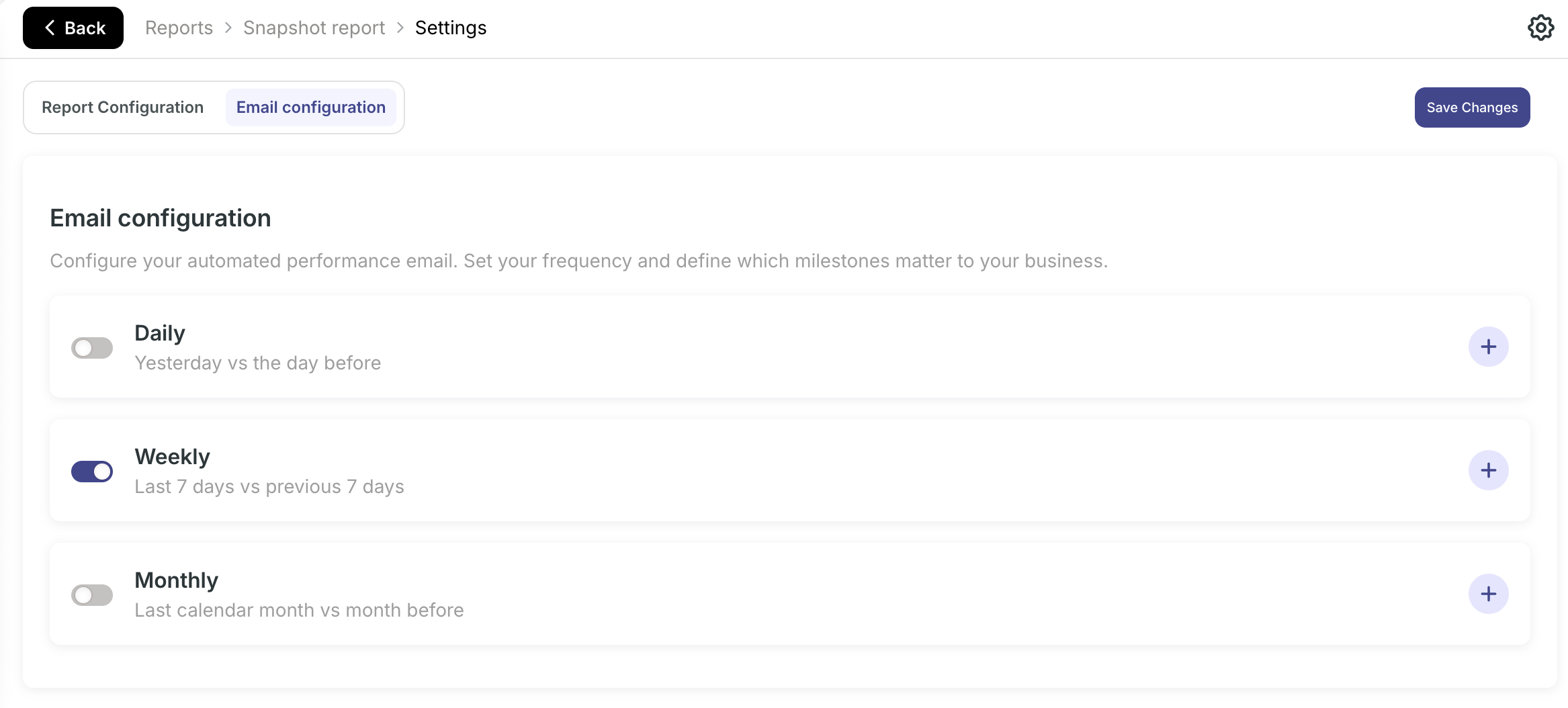
In Email Configuration, you decide who receives the report in their inbox and how often:
✅ Set Report Frequency
Choose how often the report is delivered: daily, weekly, monthly
Reports are sent automatically on your schedule
All recipients receive the report at the same frequency
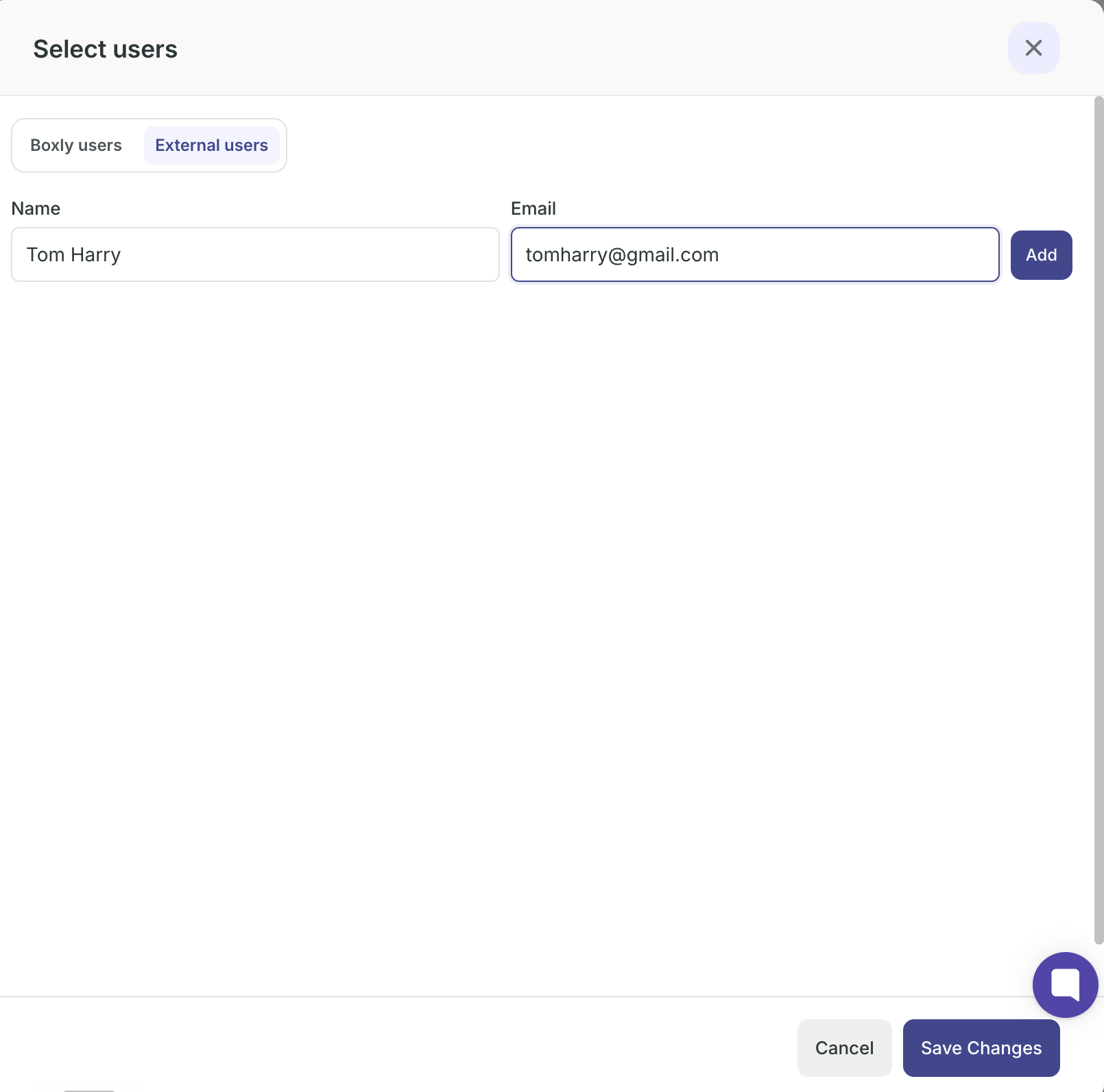
Add External Users
Add specific people who are not Boxly users but should receive the report
Here's how Snapshot Reports play out in a typical week at a dental clinic.
James is a practice manager at Bright Smile Dental. He sets up a Snapshot Report to track booking conversions by selecting specific booking milestones (e.g., Consultation Booked or Treatment Completed, etc.). He then configures the report to be sent weekly every Monday morning to his team.
Every Monday, each team member receives the report in their inbox. It shows them the number of consultation appointments for the selected milestones, the total booking value, appointment value, and performance across the practice. The receptionist uses this to see booking trends. The manager uses it to monitor conversion performance. The dentist uses it to understand scheduling patterns.
Without Snapshot Reports, James would need to manually compile booking data from multiple views and send it to the team each week. With it, everyone gets the same up-to-date booking metrics automatically.
Only Admins can create and edit Snapshot Reports.
Team members receive the reports but cannot modify the configuration. Admins can update report settings at any time, and the next scheduled report will reflect the changes.
✅ Admins have full control. This ensures reports are consistent and aligned with practice objectives.
What data does a Snapshot Report contain?
Snapshot Reports show: number of active leads, tasks completed, booking value (based on your selected milestones), appointment value, and performance across your organisation. The exact metrics depend on the booking milestones you've configured.
Can I change a report configuration after it's been sent?
Yes. Only Admins can edit report settings at any time. The next scheduled report will use the updated configuration.
Who receives the report via email?
Only the recipients you add to the Email Configuration receive the report. Team members who are not added will not see it.
What are booking milestones?
Booking milestones are the stages you select to represent a confirmed booking (e.g., Consultation Booked, Consultation Attended, Treatment Booked, etc.). These determine which conversions are counted in your booking value metric.
How often can I receive reports?
You can set reports to send daily, weekly, or monthly.
If you have questions about Snapshot Reports or need help configuring them, our support team will be happy to help.