If your patients or customers book consultations or calls through Calendly, you can now connect Calendly straight to Boxly. Every booking comes into Boxly automatically, so your team can see who has booked, when and where they came from, without switching between systems.
✅ Every booking in one place – bookings arrive in Boxly alongside all your other leads.
✅ No duplicate leads – if the person is already a lead, the booking is added to their existing conversation.
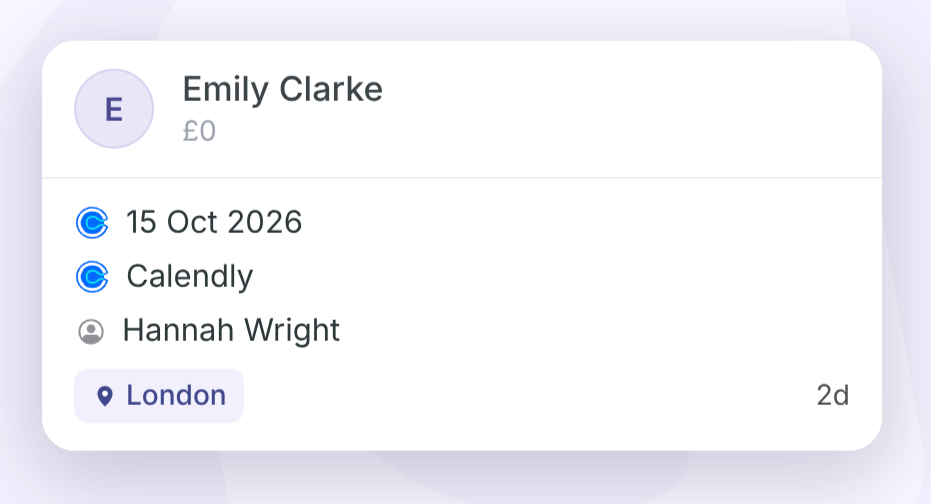
✅ See the appointment at a glance – the next Calendly appointment date shows on the lead card.
✅ Know where bookings come from – lead sources and UTM tracking are captured automatically.
✅ Automate what happens next – send new bookings to the right Box and stage with automations.
Before you start

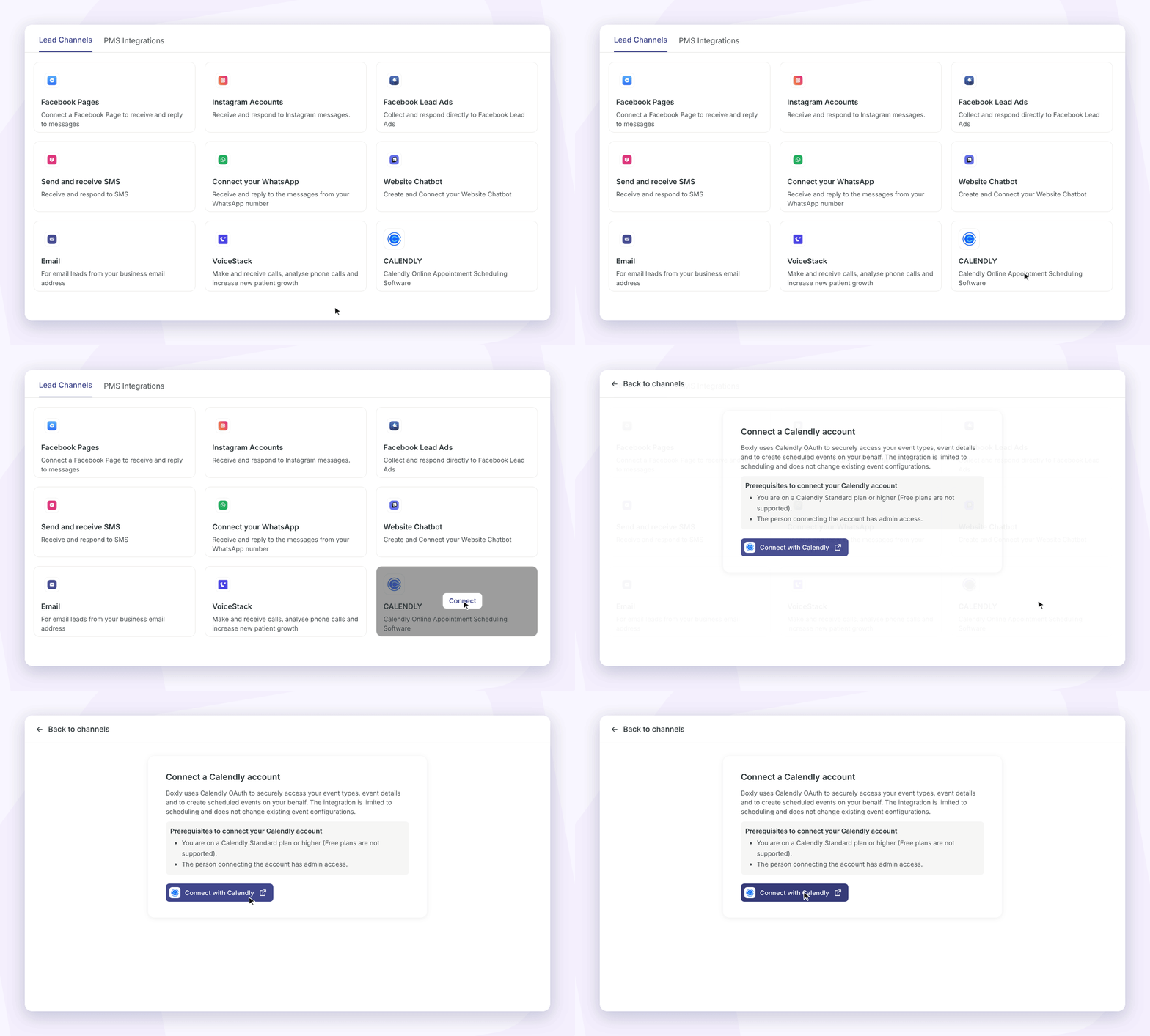
Go to Channels in Boxly.
Find Calendly under the lead channels list and click Connect with Calendly.
You'll be taken to Calendly. Log in and click to authorise the connection with Boxly.
Once connected, you'll be brought back to Boxly and Calendly will appear in your connected channels.
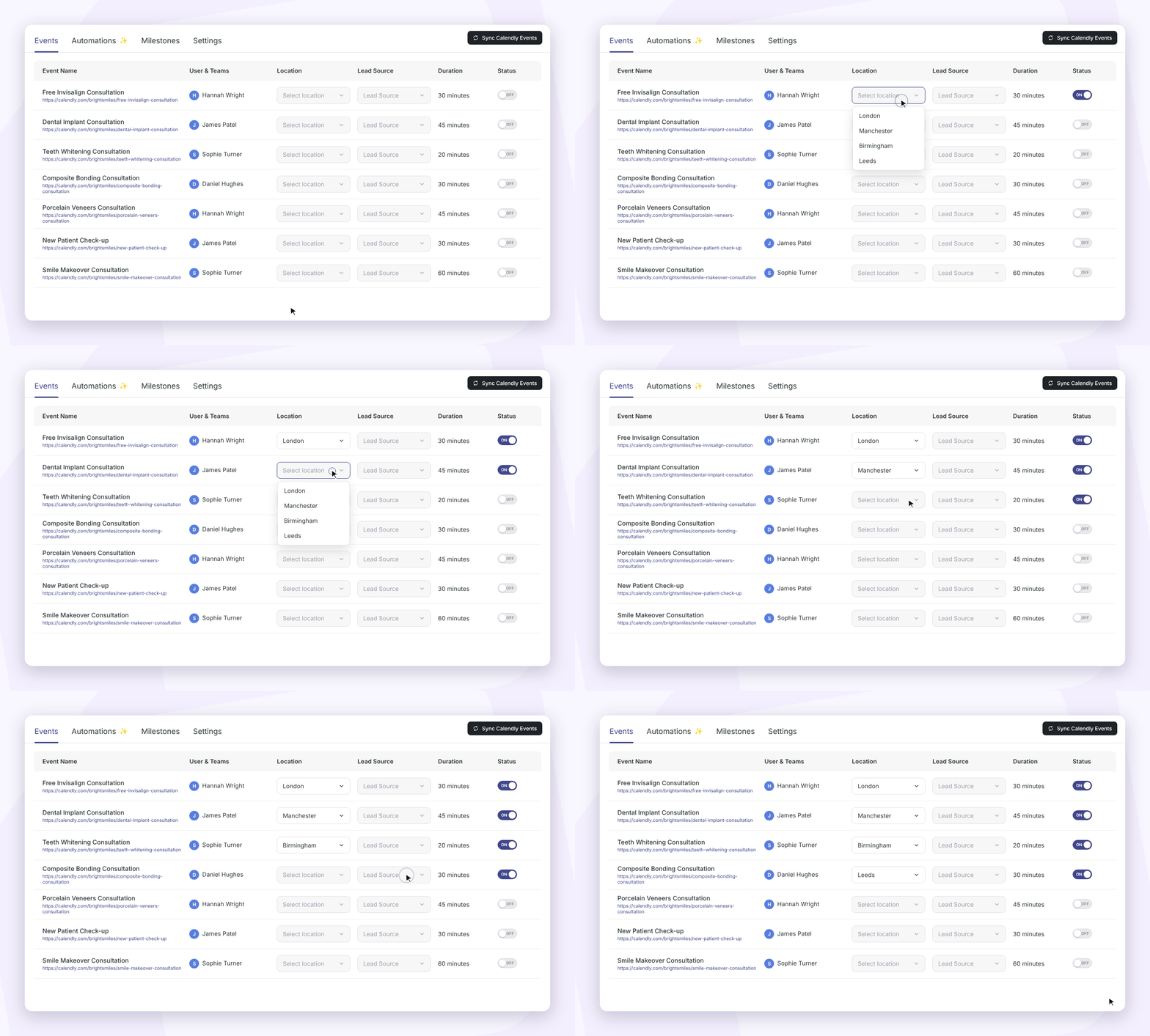
Once connected, Boxly shows all your active Calendly events in the Events tab of your Calendly channel. If you don’t see your events, click Sync Calendly Events.
✅ Toggle on each event you want to receive leads from
✅ Toggle off any event you don’t want coming into Boxly, such as internal meetings
✅ Choose a Location for each event.
If the person is new to Boxly
A new lead is created automatically. The details they enter on your Calendly booking form, such as their name, email and phone number, are added to the lead's contact details.
If the person is already a lead in Boxly
Boxly checks for an existing lead with the same email address or phone number. If it finds one, the booking is added to that lead's conversation instead of creating a duplicate.
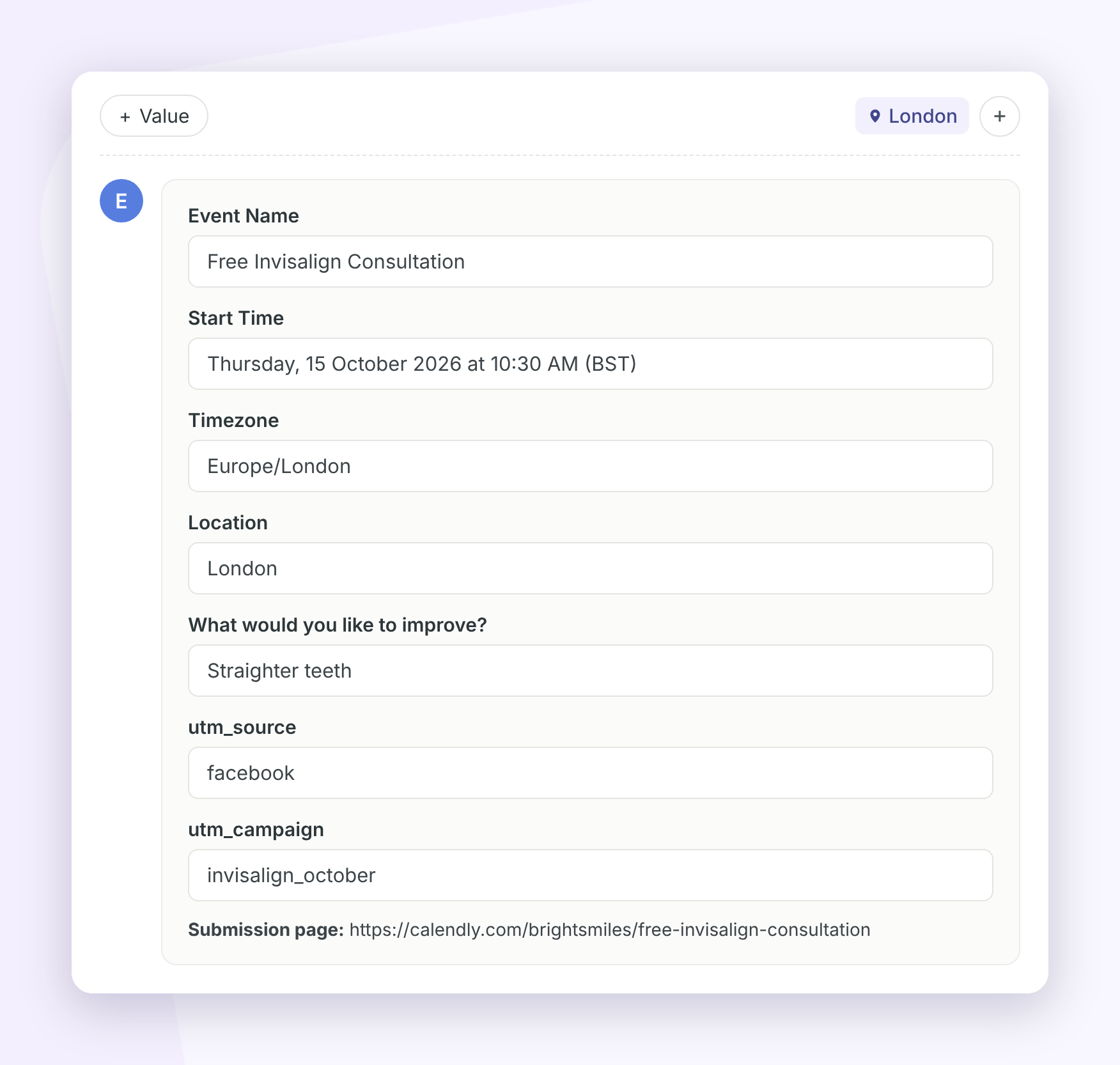
In the lead's conversation you'll see:
The event name
The appointment date and time, shown in your business's timezone
The location of the appointment
The answers to your booking questions
Any UTM parameters from the booking link
On the lead card, you'll see the lead's next Calendly appointment date, so you don't need to open the lead to check when they've booked.
Move existing leads to the right stage automatically
If someone who is already a lead books through Calendly, Boxly can move them to the right stage for you.
✅ Go to your Calendly channel → Milestones
✅ Next to each event, choose a milestone, for example Consultation Booked
Now, when an existing lead books that event, Boxly moves them to the matching stage in their Box.
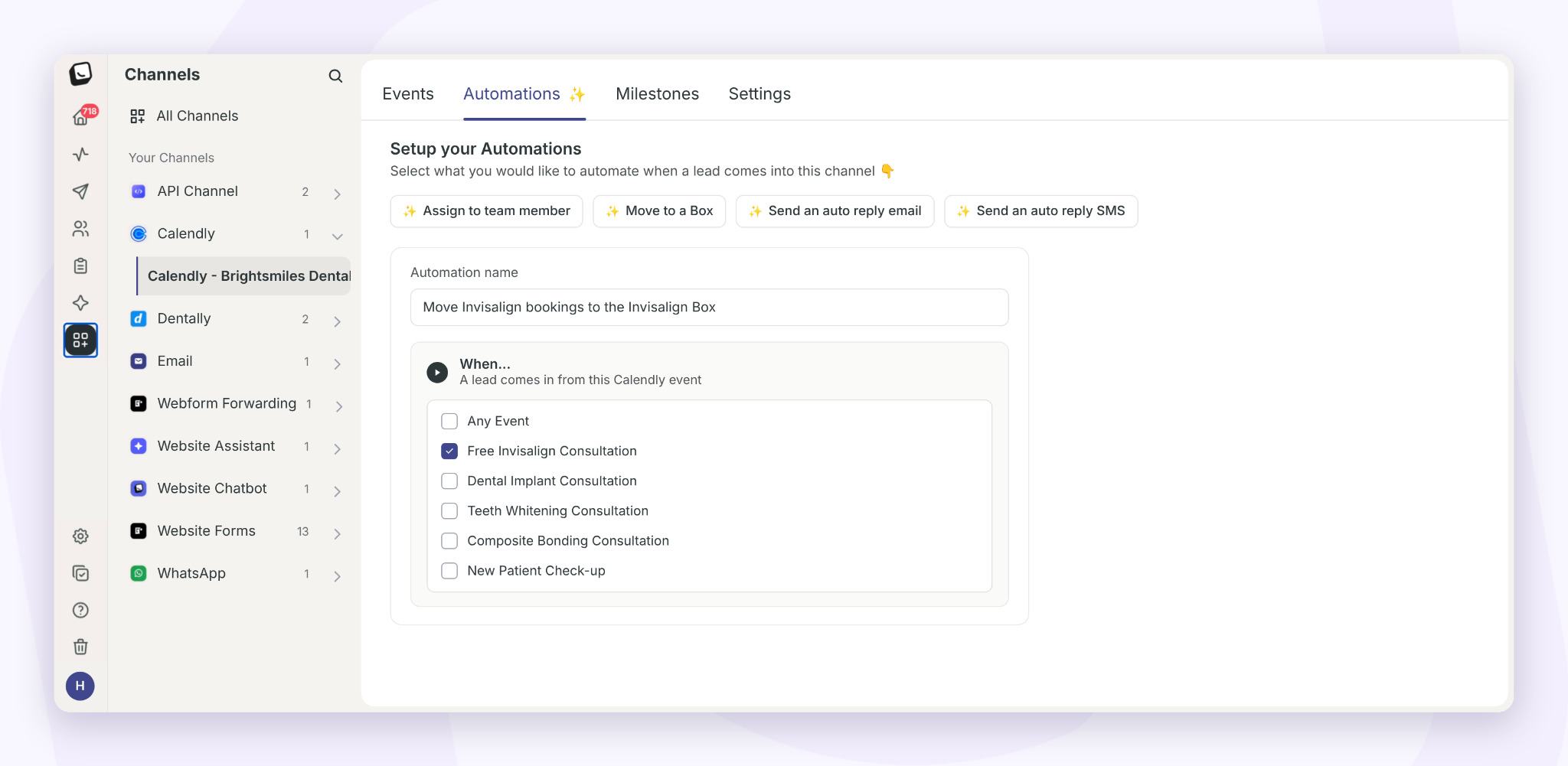
You can use automations to decide what happens to new leads that come in through Calendly.
✅ Channel automations – go to your Calendly channel → Automations and choose Any event or specific events. For example, send every "Free Invisalign Consultation" booking to your Invisalign Box, in the Consultation Booked stage.
✅ Box automations and workflows – Calendly is available as a channel, so you can target Calendly leads in your follow-up sequences just like any other channel.
New to automations? Read Channel Automations and Box automations.
Track where your bookings come from
Every booking comes into Boxly with Calendly as its lead source, so you don’t need to set anything up.
If someone books from an ad or email campaign, Boxly can show you exactly where they came from. Just add tracking codes (called UTM parameters) to the end of your Calendly link before you use it in the ad or email. Your marketing agency can do this for you.
Read more about Lead Sources.
Lead Sources
Track where your leads are coming from

Will Calendly create duplicate leads?
No. If a lead with the same email address or phone number already exists, the booking is added to their existing conversation.
Why is a phone number missing from my Calendly lead?
Boxly can only add the details your booking form collects. Add a phone number question to your Calendly event if you'd like it on the lead.
Why is the appointment time different from Calendly?
Boxly shows appointment times in your business's timezone. Check your timezone is set correctly in your Boxly account settings.
Can I stop some events coming into Boxly?
Yes. Go to your Calendly channel → Events and toggle off any event you don't want.
Related articles
Channel Automations
Send emails, SMS, message and move leads automatically when they come in
Box automations
Automate receptive, time consuming processes
Card Design
Design the perfect lead card
Create or Update a Lead in Boxly Using Zapier
Use Zapier to automatically update an existing lead or create a new one
Boxly is here to help you work smarter, not harder, let's keep streamlining your lead management together!
Contact us at [email protected] if you need any further help.