The Setup Wizard gives you a single place to get your Boxly account up and running quickly. Instead of navigating through different sections of Settings, everything you need for a complete setup, your boxes, email, templates, labels, business info and channels, is laid out in one guided view.
You can access the Setup Wizard at any time by clicking the Setup Wizard icon in the left sidebar of your Boxly account (or go directly to app.boxly.ai/setup-wizard).

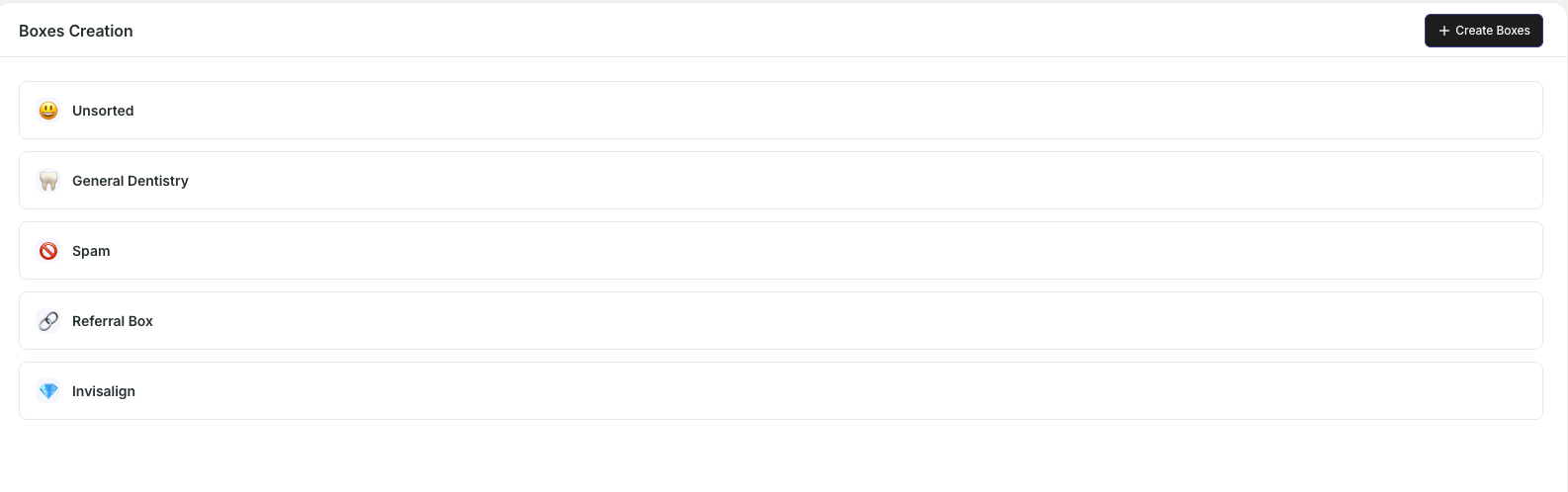
See every Box already set up on your account, like Invisalign, Implants, General Dentistry and Teeth Whitening, etc. Use the + Create Boxes button, top right, to add a new one.
What are Boxes? | Adding a new Box
This section has two tabs:
Domain Verification — Verify ownership of the domain your emails send from. This improves deliverability, builds trust with your patients and lowers the chance of your emails being flagged as spam.
Verify Your Domain
Sender Emails — Add the "from" address your replies actually send from, for example, a shared Reception team inbox and set a default for leads that don't have a mapped location.
The Benefits of Custom Sender Emails
View and manage your saved reply templates across three tabs:
Quick Replies — All your saved reply templates in one searchable list, things like a new patient welcome message, appointment confirmations, or a reply for insurance and payment plan questions, filterable by location and template type.
HTML Emails — Branded email templates for broadcasts and automated sequences.
WhatsApp — Your Meta-approved WhatsApp templates and their current status. If a template you've just had approved isn't showing yet, use Sync Templates (top right) to pull the latest list.
Reply Templates | Create WhatsApp Message Templates | Send HTML Email templates
Manage your labels across two tabs:
Treatments — Every treatment label on your account, with its average treatment value alongside it. This value feeds directly into your Milestone and revenue reporting, so it's worth keeping up to date.
Other — Categorisation labels with no monetary value — for example, NHS, Urgent, or Re-enquiry.
Click + Add Label to create a new one, or use the search bar to find an existing label quickly.
Configure your practice's core settings across three tabs:
Business Info — Set your brand's primary colour (used as the background on shared pages) and your default currency, both are used across your Boxes and reports.
Opening Hours — Set your real opening hours here. This is what your SLA timers and follow-up nudges run against, so if response-time reporting ever looks off, this is the first place to check.
Custom Variables — Store reusable details, your practice name, booking link and phone number, so they can be dropped straight into any automation or reply template.
Connect the sources that bring leads into Boxly. Click on any channel card to begin its connection flow.
Lead Channels — Connect Facebook Pages, Instagram Accounts, Website Forms, Facebook Lead Ads, VoiceStack and Calendly.
PMS Integrations — Connect your practice management system. Boxly currently supports Dentally, CareStack, Exact, SFD and Aerona.
What are Channels? | Connect Facebook Pages | Connect Instagram Accounts
Can I come back to the Setup Wizard after I've finished setting up?
Yes, the Setup Wizard is always accessible from the left sidebar. It's not a one-time process, you can return at any point to update your settings.
Do I have to complete the sections in order?
No. You can jump between sections in any order. Each section saves independently.
What's the difference between Treatment labels and Other labels?
Treatment labels have a monetary value attached (e.g. Implants = £4,500) and feed into revenue reporting. Other labels are for categorisation only (e.g. NHS, Hot Lead) and carry no value.
I can't add a Sender Email, why?
You need to verify your email domain first. Head to the Domain Verification tab in the Email section and complete verification before returning to Sender Emails.
Can I connect more than one Facebook or Instagram account?
Yes. You can connect multiple accounts and pages. See how here.
Stuck? We're Here to Help!
If you have any questions or need a hand getting set up, reach out to us at [email protected], we're happy to help.